Introducing the multiplayer timeline
Work on the same edit, at the same time, from anywhere in the world.
Project organization
A home for all your content.
Footage, sound, and documents all live in a shared cloud library. Organize them into bins your whole team can use.
Log it all. Auto-magically.
Mark your favorite moments with names, tags, and ratings, while visuals, characters, and audio are automatically indexed for search. It's easy to find the performance you loved.

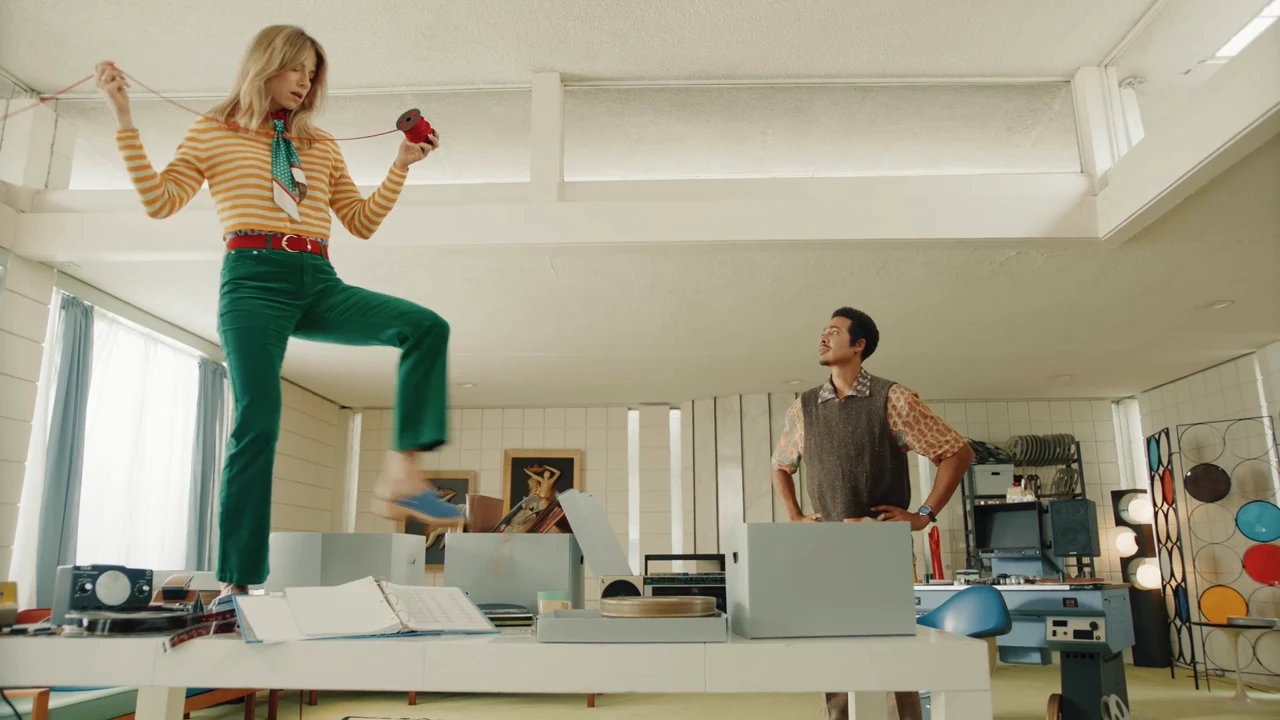
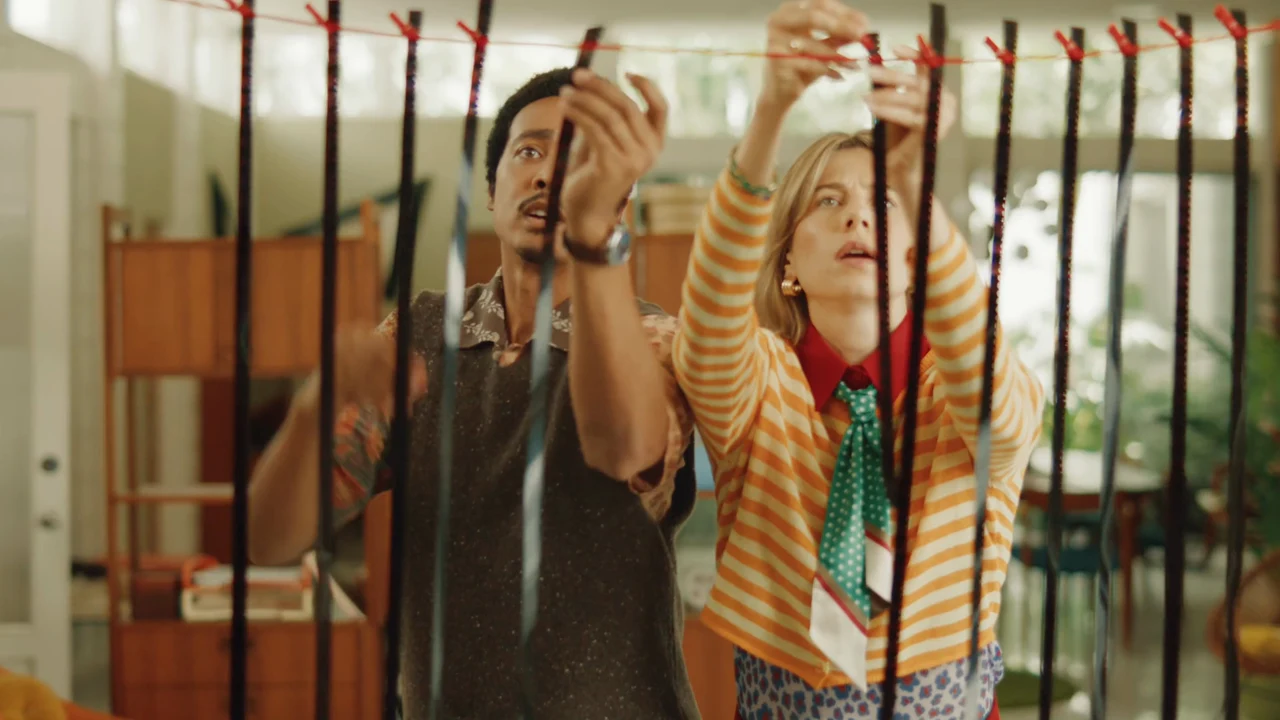
Build on each other’s work.
Turn your team’s discoveries into a first cut. Shared collections gather everyone’s tagged and rated selects, ready to bring into the timeline.
Find the performance. Shape the scene.
Hold a reaction a little longer. Come into a line a little later. Slip, slide, and roll to find the rhythm of the scene.
Sequence's timeline, selected clip handles, and advanced trim tool. Advanced trim
Adjust the source frames within a shot, reposition it between neighboring clips, or move the cut point between two shots.
Sequence's multicam angle controls and stacked camera timelines. Multicam editing
Switch between camera angles during playback, with independent choices for picture and sound.
The Comment tool marks a range on a timeline clip, types ‘Hold this shot a little longer,’ and posts the note beside its amber timeline marker. Timeline commenting
Use the Comment tool to leave a note on a frame or a range. Attach it to a clip to keep the conversation with the edit.
Editing primitives that are precise and powerful
Track mode showing a clip's individual audio components and their destination tracks. Track Mode
Arrange audio stems with ease. Target individual channels or streams as audio components in Track mode.
The Position tool moves the selected clip from ten seconds to four, carving into the earlier shot while the later shot stays at twelve seconds. Snapping is off. Position tool
Place a clip at a specific point with the Position tool. Turn snapping off when you want to move freely between nearby edges.
Say it with motion graphics
Sequence supports custom effects, motion graphics, and titles with intuitive keyframing controls. Not sure how to animate? Just ask Snippy to help.
A Website Spot title over two editors threading film, selected with resize handles and a center anchor, beside Sequence’s title text, font, size, and alignment controls. Graphics
Create basic titles or go in depth with a full on motion graphics editor to make on brand videos.
Sequence's property list, keyframe graph, and tangent controls. Keyframe animation
Shape position, scale, and opacity over time, then refine the movement between keyframes.
Sequence’s expression editor for Y Position, showing Math.sin(time * 3) * 100, its graph, and the evaluated value at one second. Expression Engine
Use expressions to write code for representing complex animations. Apply them to your custom effects for powerful visuals.
Editor
See you in the timeline.
Bring your team into the timeline and shape your next cut together.
Hold this shot a little longer.