Review is where cuts stall. Notes scattered across email and text, a client who can't play your ProRes, a reviewer you'd have to add to the whole project just to hear what they think of one scene. Every extra step is a day lost.
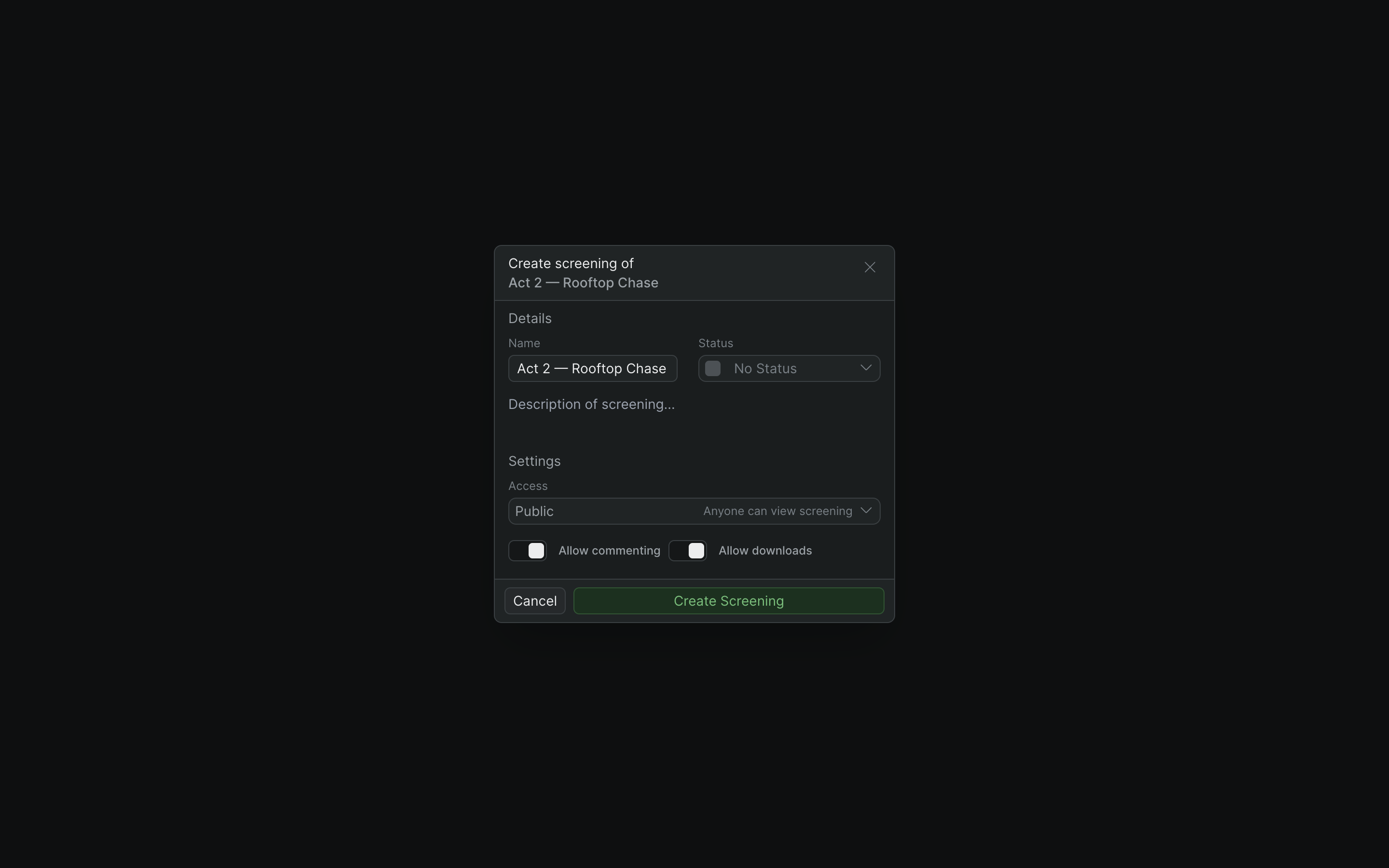
A screening collapses that. Right-click a timeline, choose Create Screening, and Sequence publishes the cut to its own page with a share link. Reviewers open the link, watch in a clean player, and comment — without opening, or editing, the project behind it. Those notes are the payoff: they're pinned to the frame and post live, so feedback lands right where you're cutting.
Notes that come back to your timeline#
This is the part other review tools break. A comment on a screening is pinned to a timecode — a single frame or a span — and posts live for everyone on the project. The same note shows up in three places: on the screening page the reviewer used, in the in-project Review app, and on the source item the cut was made from. You don't transcribe feedback off a separate platform — it's already on the shot in Sequence.
Publish in a right-click
- Create a screening from a timeline or library item
- Sequence renders the cut in the background — keep editing
- Name it, add a description, set a status
- Track review stage: Needs Review, Rough Cut, Color Lock, Approved
- Full walkthrough in the docs
Reviewers just watch
- A clean player — no editorial UI, no app to install
- Plays in the browser on a suite display or a phone
- Anyone with a Public link can watch, no account needed
- Keyboard playback and shortcut help built in
- No access to your project, timeline, or library
Time-coded feedback
- Comments pinned to a frame or a range on the filmstrip
- Post live — the whole project sees them as they land
- Five quick emoji reactions for a fast pulse
- Reply to and resolve notes like any project comment
- Signing in is required to comment, even on a Public link
Review inside the project
- The Review app lists every screening on one screen
- Library, screenings, player, and comments side by side
- Filter and sort a long list by status or date
- Editors can download a cut when the screening allows it
- The inside view of the same feedback reviewers leave
Deliberately simple, honestly scoped#
A screening is Public or Private — nothing more to configure. Public means anyone with the link can watch; Private limits it to members of your project. There is no password, no link expiry, and no watermarking. When a cut needs to stay in-house, make it Private and it opens only for project members; screenings are private-by-default in the sense that access is a deliberate choice you make, scoped to project membership. We'd rather tell you exactly what the access model is than dress it up as more than it is.
Note
Private screenings are a paid feature. If your plan doesn't include them, you can still publish the cut as Public and share the link only with the people you want reviewing it.
Who it's for#
- Editors sending a cut for notes without adding reviewers to the project.
- Directors and producers reviewing on whatever screen is in front of them.
- Post supervisors tracking where each cut stands by status, from Rough Cut to Approved.
- Agencies and clients who want to watch and comment, not learn an editing app.