A screening is a shareable cut of your timeline that you send out for review. Sequence publishes the cut to its own screening page with a share link, so reviewers can watch and comment in real time without opening — or editing — the project itself.
A screening is not the same as an in-project comment. In the project, comments live on library items and timeline clips as you edit (see Commenting). A screening is a fixed, published version you hand to reviewers: they get a clean player and a comment panel, and their notes stay on the screening page rather than in your working timeline.
Screening properties#
Each screening has a Name, a Status, an optional description, and a share link. Reviewers open the link to watch the cut and leave comments; they never see the project, the timeline, or the library behind it.
You track a project's screenings in the Screenings module, a newest-first list where each row shows a screening's Name and a colored square marking its Status.
Create a screening#
You need edit access to the project to create a screening.
- In Sequence, open the project and select the timeline or library item you want to review.
- Right-click the item and choose Create Screening — or, in the Screenings module, click Create Screening.
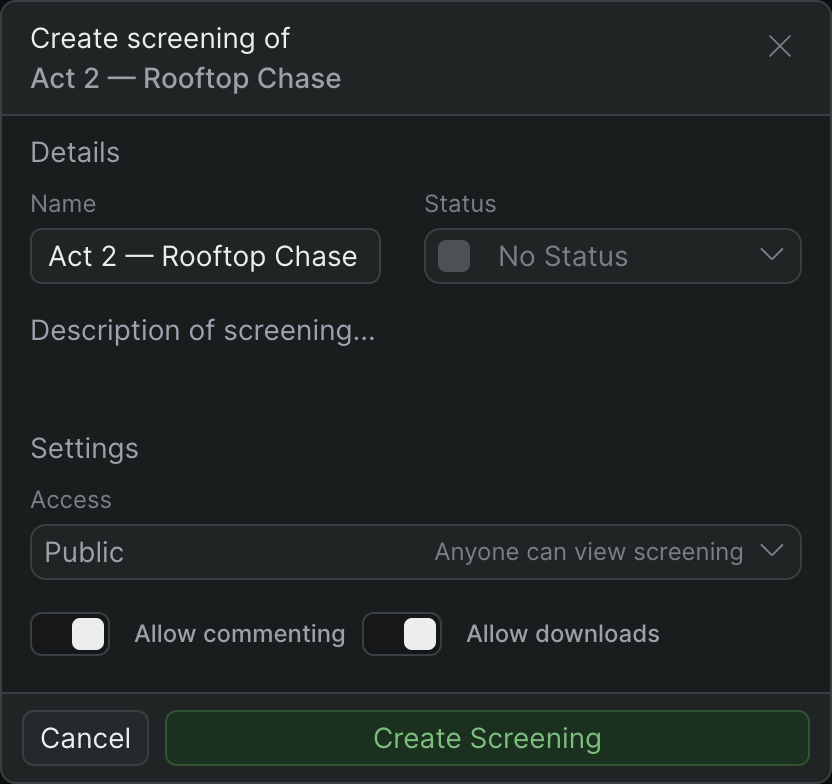
- In the Create screening of… dialog, under Details, confirm the Name. Sequence prefills it from the source, and you can edit it.
- Set the Status from the status dropdown. New screenings start at No Status; the available statuses are a fixed set — No Status, Needs Review, Rough Cut, Color Lock, and Approved.
- Optionally type a summary in the Description of screening… field.
- Under Settings, choose an Access level (see below).
- Leave Allow commenting on so reviewers can leave notes, and set Allow downloads on or off.
- Click Create Screening.
Sequence processes the cut in the background — you'll see a Screening creation in progress message while it renders. When it's ready, use the accompanying action to copy the share link, then send it to your reviewers.
Choose who can watch#
The Access setting controls who can open the share link:
- Public — Anyone can view screening. Anyone with the link can watch anonymously without a Sequence account, but to leave comments a viewer must log in to a Sequence account.
- Private — Project members can view screening. Only people who are members of the project can open it.
Warning
A Public link works for anyone who has it. Share it only with people you want reviewing the cut. The link exposes the screening — the published cut and its comments — and nothing else: reviewers cannot reach the project, the timeline, or your library through it.
Review in real time#
On the screening page, reviewers watch the cut in the player and add notes in the Comments panel; a Details panel shows information about the screening, including when it was Created. Comments appear live, so you and your collaborators see reviewer feedback as it comes in.
Reviewers can play and scrub with the keyboard: Space or K plays and pauses, the Left and Right arrows step a frame at a time, and Shift-Left / Shift-Right jump five seconds. Press C to jump to the comment box, and press ? to open the on-screen shortcut help.
Track status#
Give each screening a Status to track where it stands — for example Needs Review or Approved. Each screening in the module shows a colored square for its Status, so you can see at a glance which cuts are still out for review and which are done. To change a screening's name, description, or status later, right-click it and choose Edit screening.