Comments let you and your collaborators leave frame-accurate notes on the work in a project — on a library item or on a clip in the timeline. A contextual comment is a comment attached to a specific clip in the timeline, so the note tracks with that clip as the edit changes. Everyone with access to the project sees comments as they're posted.
Turn on the comment tool#
- In Sequence, open the project you want to review.
- Click the Comment tool in the toolbar (or press C).
The pointer enters comment mode, and a comment indicator follows the skimmer to show where a new comment will land. To leave comment mode, switch to another tool — press V for the Select tool, or pick another tool in the toolbar.
Comment on a library item#
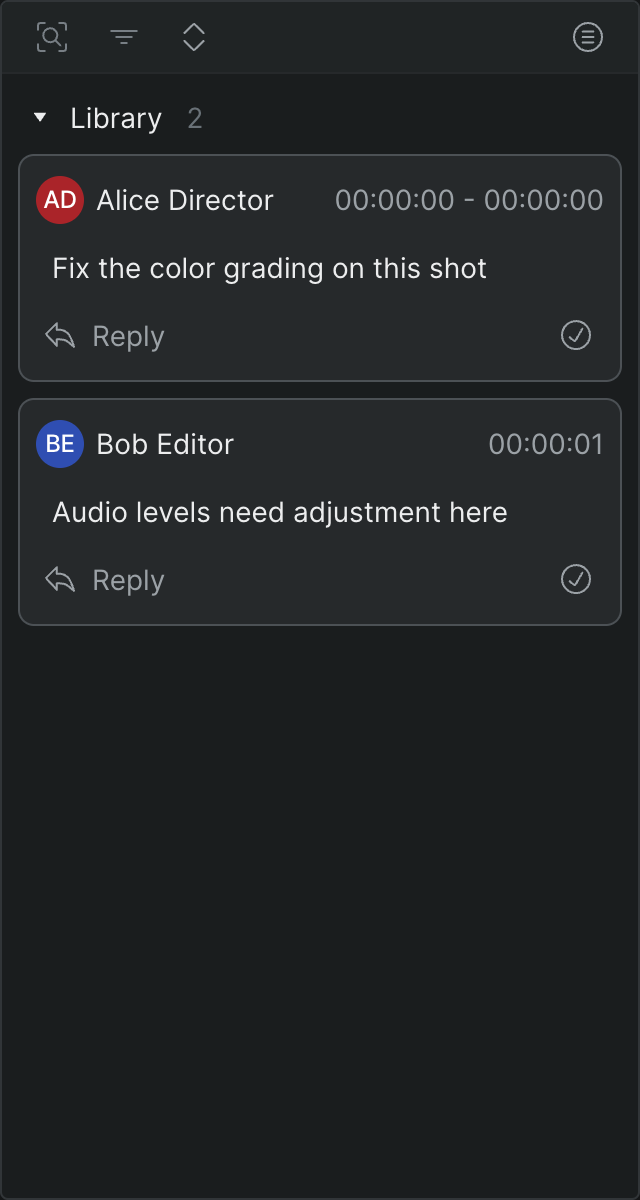
Comments on a library item apply to that source item at an absolute timecode, and they stay with the source item. Once you add the item to a timeline it becomes a new timeline clip, so library comments don't carry across.
- In Sequence, select the library item you want to comment on so it appears in the preview.
- With the comment tool on, hover over the item's filmstrip in the preview. A comment indicator appears above the skimmer to show where the note will land.
- Do one of the following:
- Click once to leave a single-frame comment at the current timecode.
- Click and drag to leave a range comment across a span of timecodes.
- Type your note in the New comment at… field. To notify a specific collaborator, type @ and choose their name.
- Click Comment to post it (or press Cmd-Enter — Windows: Ctrl-Enter), or Discard to cancel.
Your comment appears as a bubble on the filmstrip and as a tile in the comment panel, where your collaborators can see and reply to it.
Comment on the timeline#
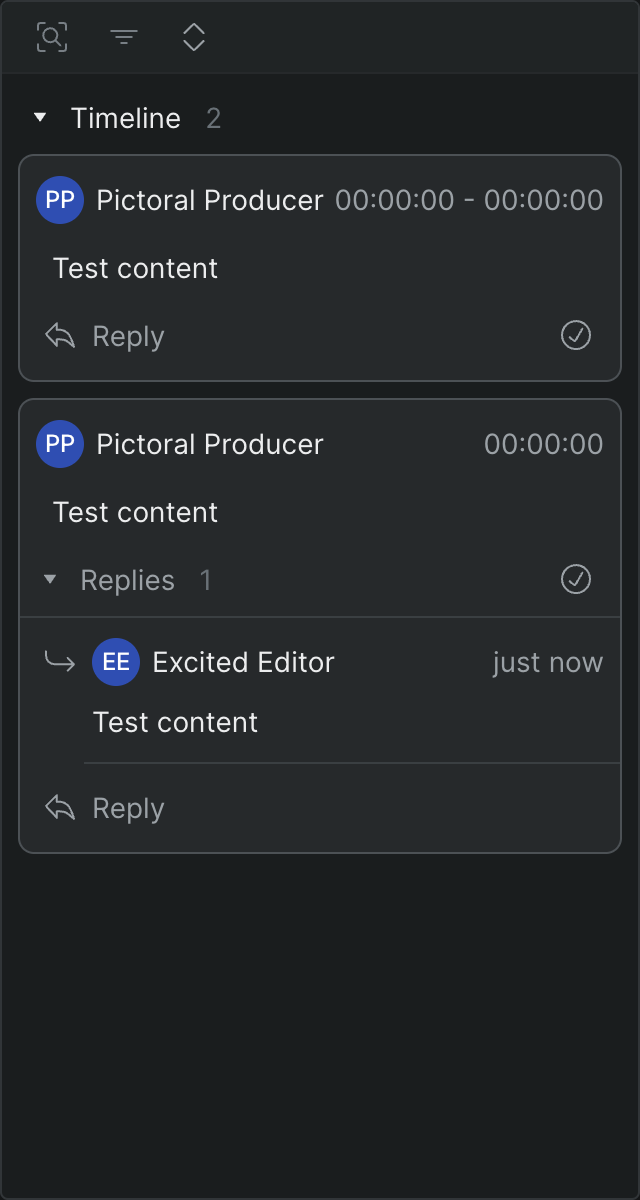
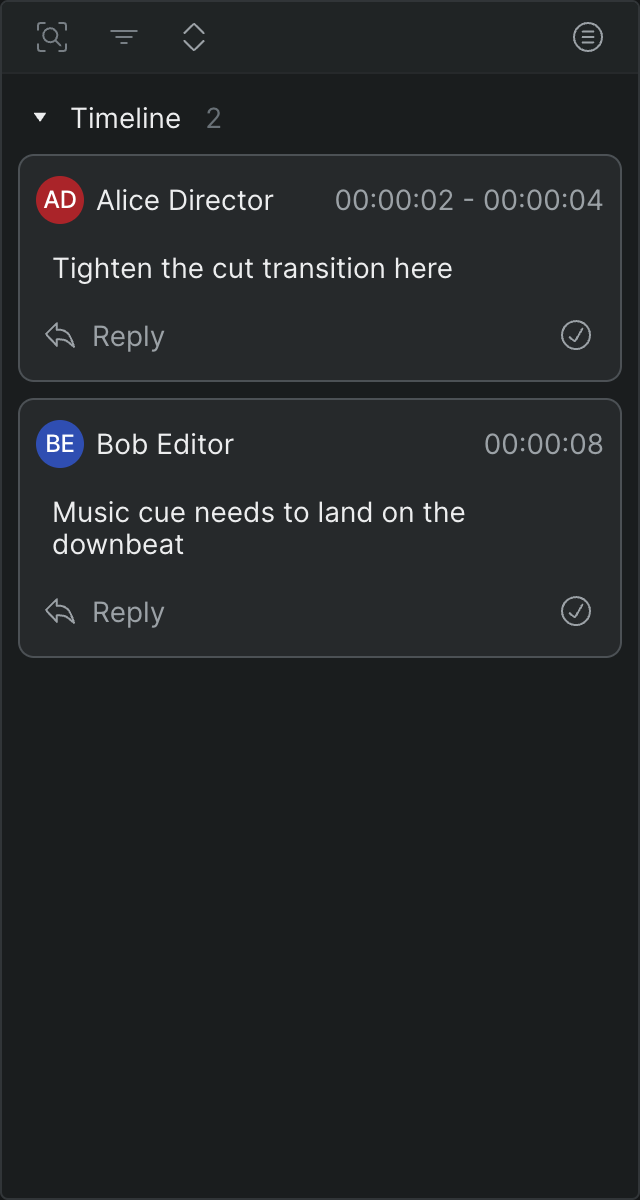
In the timeline you can point a comment at a timecode, or attach a contextual comment to a specific clip so it tracks along with your edit.
- With the timeline open and the comment tool on, hover over the timeline.
- Do any of the following:
- Click empty space to comment on the timeline at the current timecode, or drag to cover a range of timecodes.
- Hover over a clip and click to attach a contextual comment to that clip, or drag to cover a range on it.
- Type your note in the New comment at… field, and type @ to mention a collaborator if you want to notify them.
- Click Comment to post it (or press Cmd-Enter — Windows: Ctrl-Enter).
A contextual comment behaves like an attached clip that shows comment information instead of media, so you can move, trim, and delete it like any other clip as the edit evolves.
Comment with a keyboard shortcut#
You can start a comment without switching to the Comment tool. Each shortcut opens a new comment draft in the comment panel and puts your cursor in it, so you can type your note and press Cmd-Enter (Windows: Ctrl-Enter) to post it.
- Comment at the playhead: With a timeline open, press Shift-Option-C (Windows: Shift-Alt-C) to start a timeline comment at the current position — the skimmer if you're hovering the timeline, otherwise the playhead.
- Comment on the clip at the playhead: Press Shift-Option-M (Windows: Shift-Alt-M) to attach a contextual comment to the clip under the playhead, so it tracks with that clip. If no clip sits under the playhead, the comment lands on the timeline instead.
- Comment on a select: With a select selected in the library, press Shift-C to start a comment covering that select's marked range.
Find and revisit comments#
You can jump to any comment from the work or from the panel:
- Click a comment bubble on the filmstrip or in the timeline to jump to that note.
- Click a comment tile in the comment panel to select it and move the playhead to it.
Use the controls at the top of the comment panel to narrow a long list:
- Click Search comments and type to filter the list by text.
- Click Filter comments and choose Unresolved, Resolved, or All. The panel shows unresolved comments by default.
- Click Sort comments to change the order of the list.
Reply to and resolve a comment#
- To start a thread, click Reply at the bottom of a comment tile, type your response, and post it.
- To resolve a comment, click the checkmark button on the comment tile. To reopen it later, click the checkmark again.
Resolving a comment removes it from the default Unresolved view. To bring resolved comments back, set Filter comments to Resolved or All.
Edit a comment#
You can change the text of a comment you posted. Editing is available only on your own comments.
- In the comment panel, find the comment you posted.
- On the comment tile, click the edit button (the pencil icon) next to the checkmark button.
- Edit the text in the field that replaces the comment. Type @ to mention a collaborator.
- Press Cmd-Enter (Windows: Ctrl-Enter) to save your changes, or press Escape to cancel without saving.
The updated comment replaces the original for everyone on the project.
Sequence emails collaborators about comment activity, so you don't have to keep the comment panel open to stay current. See Notifications to choose which comments notify you on a per-project basis.