Every screening carries a set of settings that control who can watch it, whether reviewers can comment and download, and where it stands in your review process. You set these when you create a screening, in the Create screening of… dialog, and you can change them later: right-click the screening in the Screenings module and choose Edit screening. See Create and share a screening for the full walkthrough.
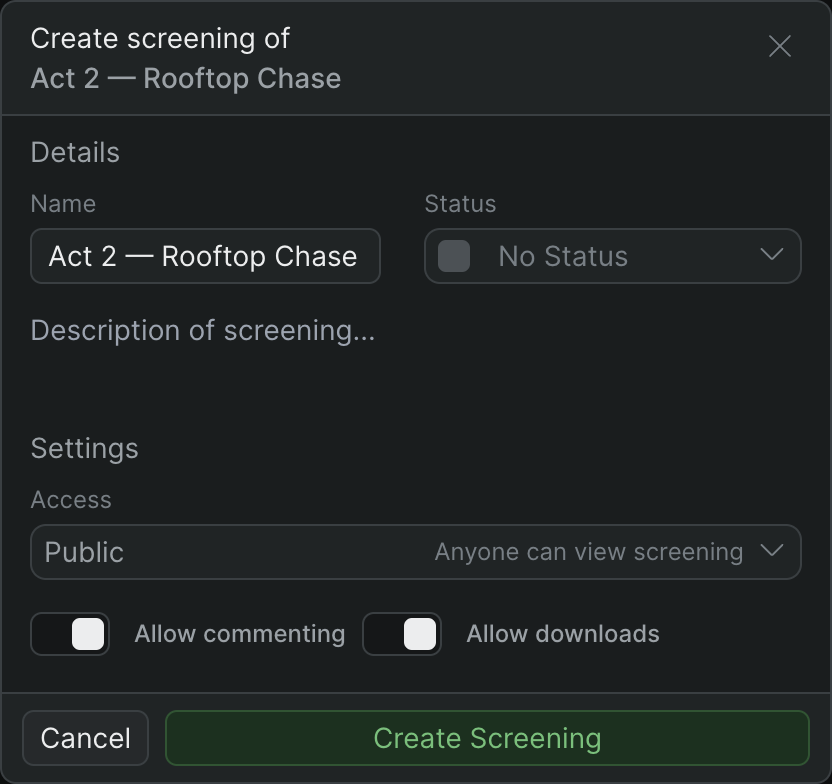
The dialog is split into two sections — Details and Settings. The controls below are listed in the order they appear.
Details#
Name: The screening's title, shown in the Screenings module list and at the top of the screening page. Sequence prefills it from the source library item or timeline; type over it to rename.
Status: A label that tracks where the cut stands in review. In the Screenings module, screenings are listed newest first, and each row carries a colored status square so you can see at a glance where each cut stands. The set of statuses is fixed — you can't add or rename them:
- No Status: The starting value for a new screening. This is the default.
- Needs Review
- Rough Cut
- Color Lock
- Approved
Description: An optional summary shown on the screening's Details panel. Leave it blank if you don't need one.
Settings#
Access: Controls who can open the share link.
- Public: Anyone with the link can watch the screening — they don't need a Sequence account. This is the default.
- Private: Only members of the project can open the screening; everyone else is blocked. Private screenings are a paid feature. If your workspace's plan doesn't include them, the create button changes to Upgrade to Continue and links to your plan options — you can still create the screening as Public.
A Public link works for anyone who has it
Share a Public link only with people you want reviewing the cut. The link exposes the published cut and its comments and nothing else — reviewers cannot reach the project, the timeline, or your library through it.
Allow commenting: Lets reviewers leave notes on the screening. This is on by default. On a Public screening, anyone with the link can watch anonymously, but leaving a comment requires signing in: the comment panel shows a Login prompt ("If you're a collaborator, login to add and review comments") until the viewer logs in. Turn this off to publish a watch-only cut with no comment panel.
Allow downloads: Lets editors of the project download the screening's source file from the screening page, using the Download Screening button (or the Shift-D shortcut). This is on by default. Downloads are limited to project editors — reviewers and anonymous public viewers never get a download control, even when this setting is on. Turn it off to keep editors from downloading the file from the screening page.
What screenings don't have#
Sequence screenings are deliberately simple. There is no password protection, no link expiry, and no watermarking — a screening is either Public (anyone with the link) or Private (project members only). If you need to restrict a cut, use Private access and share it only with project members. To take a comment thread off a screening and into the project, work in the Review app instead.