The Review app is one of a Sequence project's four apps — the mode for gathering feedback. It gives your team a single screen to browse the project library, run through the project's screenings, watch each cut, and read the comments as they come in, all without leaving the project.
The Review app is not the public screening page. When you share a screening, reviewers open a standalone page with just the player and a comment box (see Create and share a screening). The Review app is the inside view: it lists every screening in the project at once and sits alongside the library the cuts were made from, so you can move between them as you work.
Open the Review app#
The Review app opens from the app picker, the segmented control in the center of the top bar. Click Review to switch the project into review mode. The picker also holds Overview, Upload, and Edit; switching apps changes only your view, never which project you're in.
Layout#
By default the Review app shows four panels, left to right:
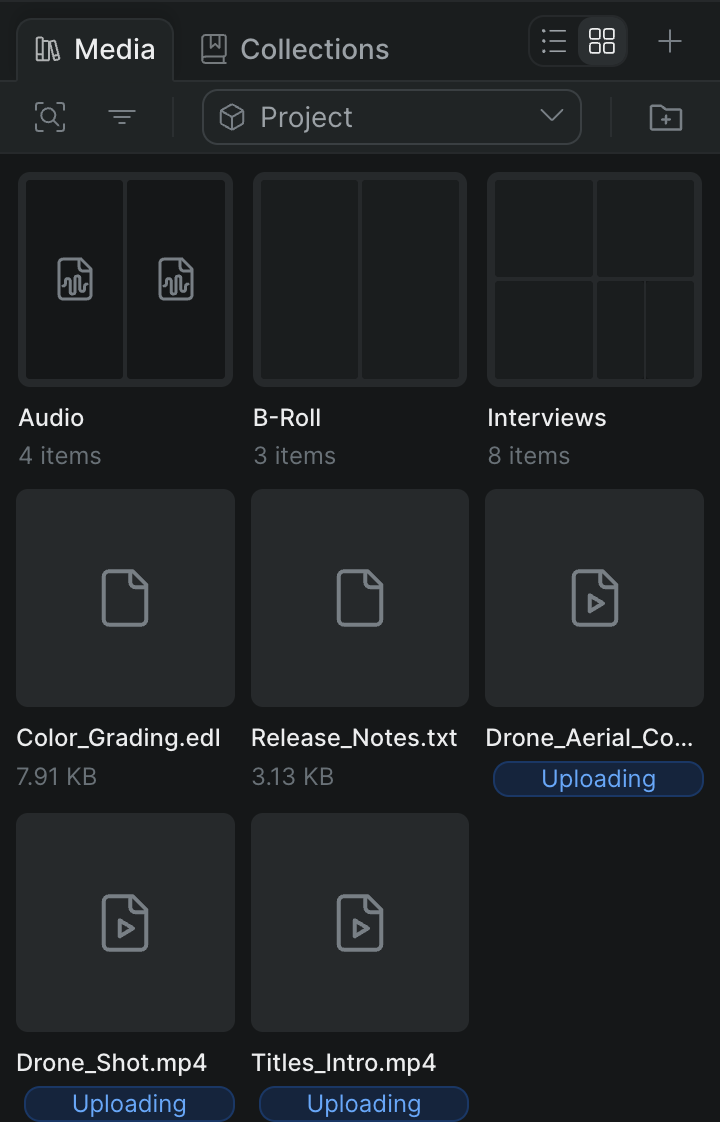
- Library — a browser onto the project's media, with Media and Collections tabs. This is the same library you cut from, kept on hand for reference while you review.
- Screenings — the list of every screening in the project, with a count at the top. Select one to load it into the player. Search, filter, and sort controls sit in the bar above the list (see below).
- Preview — the player. It shows the screening you selected in the list, and, when the screening allows comments, a box to add one. Select a library item instead and the Preview shows that asset. Until you pick something, it reads No screening selected.
- Comments — the notes on the selected screening, under a Comments tab and an Info tab. Comments appear live, so you see reviewer feedback as it arrives. If a screening has commenting turned off, this panel reads Comments disabled.
One project, two comment streams
The comments in the Review app belong to a published screening — the notes reviewers leave against a fixed cut. They're separate from the in-project comments you leave on library items and timeline clips while editing. See Commenting.
Find a screening in the list#
The bar above the Screenings list has three controls for working through a long list:
- Search screenings — click the search icon and type to match a screening's name or description. Click the close icon or press Escape to leave search.
- Filter screenings — click the filter icon to narrow the list by Status or by processing Progress (Uploading, Processing, or Ready). The icon stays highlighted while a filter is active.
- Sort screenings — click the sort icon to order the list by Date created or Name, and to flip the direction (newest or oldest first; A to Z or Z to A).
Show and hide panels#
You don't need every panel open at once. In the top bar, a Panel visibility group holds two toggles:
- Library — show or hide the library browser on the left.
- Comments — show or hide the comments panel on the right.
The Screenings list and the Preview player always stay open. You can also drag the divider between any two panels to resize them.
Sequence saves your Review layout with the project and restores it the next time you open the app, separately from the arrangement you use in the Edit app — so setting up Review the way you like it is a one-time job.
Download a cut#
When the selected screening allows downloads, a download button appears in the top bar, to the right of the panel toggles. Click it to download that screening's file. If the screening has downloads turned off, the button doesn't appear. Whether a screening can be downloaded is set on the screening itself — see Screening settings.