Dailies pile up faster than anyone can label them. Footage lands on a drive, gets a folder that made sense to one person, and a week later nobody can find the take the director asked about. The organizing an assistant does on their machine doesn't help the editor across town.
In Sequence, every project has one media library, and it's shared. Upload footage and Sequence processes each file into a playable clip and drops it in the library's Inbox — no separate transcode step to babysit. From there the folders, tags, and ratings your team applies are visible to everyone in the project, so the organizing gets done once and helps everyone.
Get footage in#
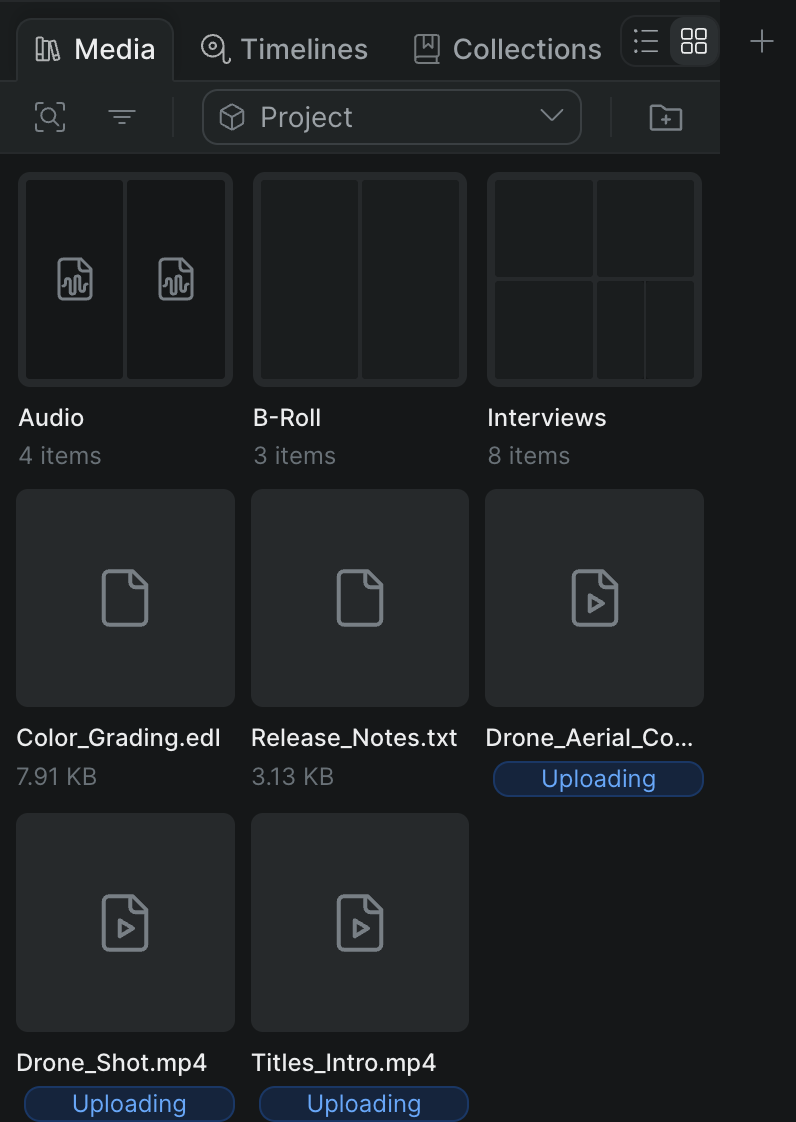
You add media three ways: drag files onto the window, browse with the upload button, or import from a URL — supported links include YouTube, Vimeo, Zoom, and Google Drive, and the Import Media flow can pull straight from Google Drive. Every transfer runs as a background job you can track from the top bar, so you keep working while footage arrives and processes.
Organize it so the team can find it#
Folders and views
Group media into folders by scene, source, or shoot day, nest them, and switch the library between list and grid. Search and filter by type when the library gets long. Folders are shared, so collaborators see the same structure.
Tags, ratings, and selects
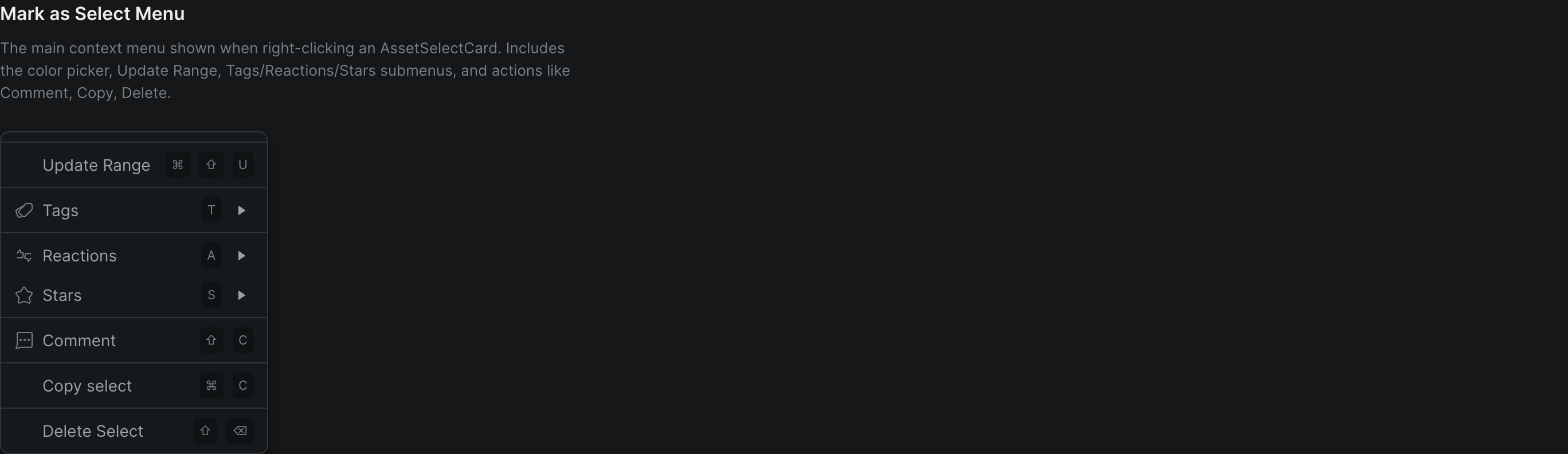
Mark a range as a select, then name it, add a label color, apply searchable project tags, rate it with stars, and react — all from one right-click menu, all visible to the whole project.
Collections that build themselves
Collections gather your marked media automatically — by tag, rating, label color, reaction, and even detected characters — so the more your team marks, the faster everyone finds the keepers. You never build them by hand.
Metadata in the inspector
Select any library item and the inspector's Info tab shows its metadata, description, and the people in it — the reference details an assistant editor needs during conform prep.
Manage the library over a project's life#
Every item carries a right-click menu to rename it, download the original file, delete it, create a screening, or open it in Shuttle. Deleting is permanent and always asks you to confirm, so nothing disappears by accident. Because the library is per project and private to the people you've added, the footage stays with the project and the team working on it — no shared drive to police.
Who it's for#
- Assistant editors doing ingest and organization the whole team then inherits
- DITs offloading dailies into a library the editor can search immediately
- Post supervisors who need one findable media home per project
- Distributed teams where the person organizing footage isn't in the same room as the person cutting it