You build a project's media library by uploading files from your computer or importing them from a URL. Both run as background jobs — server-side tasks that Sequence carries to completion while you keep editing — so you don't have to wait on a single screen. As each file arrives, Sequence processes it into a playable clip and drops it into your library's Inbox.
You can add media three ways: drag files onto the Sequence window, browse for them with the upload button, or paste a link to media hosted elsewhere. Use whichever fits what you're doing.
Drag files in from your computer#
- In Sequence, open the project you want to add media to.
- Drag one or more files from your computer onto the Sequence window. A Drop files here to upload overlay appears across the workspace.
- Release the files anywhere on the overlay.
Sequence starts uploading the files right away and adds them to the background jobs queue. You can drop files while you're editing — you don't need to open a separate upload panel first.
Add files with the upload button#
- In Sequence, open the project's library.
- Click the + button at the top of the library. If a menu appears, choose Upload Media.
- In your operating system's file browser, select the files you want to add and confirm.
Sequence begins the upload and the files join the jobs queue.
Tip
From the project dashboard, you can also click Upload Media to open a dedicated upload page with a drop area and browse button, or click Import Media to open an importer that can pull files in from Google Drive.
Import media from a URL#
If your media lives on a supported platform, you can bring it in by link instead of downloading it first.
- In Sequence, open the project's library.
- Click the + button and choose Import from URL.
- In the Import from URL… dialog, paste the link into the Paste a URL to a video… field. Sequence checks that the link is from a supported platform.
- Click Import.
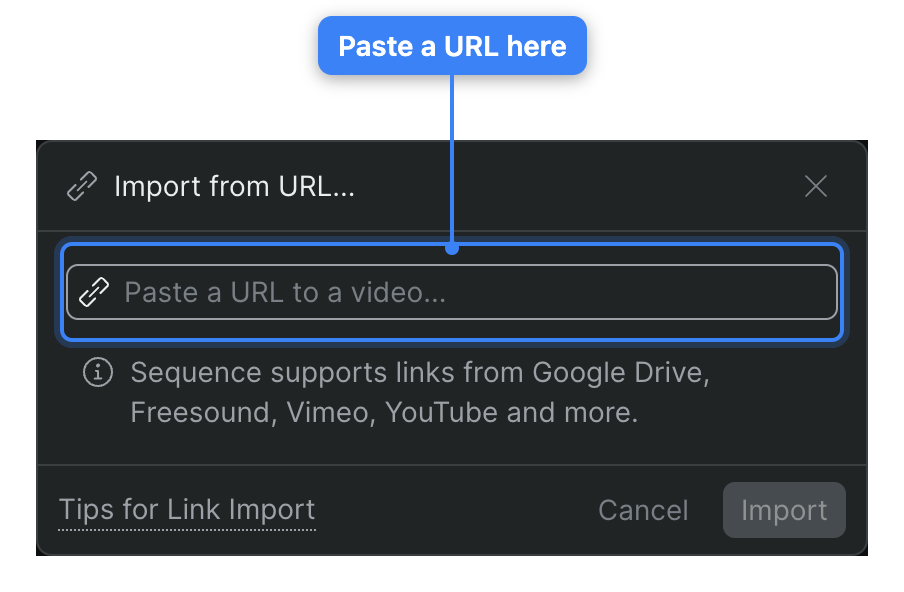
Sequence starts the import as a background job — you'll see a Link import started in background confirmation — and the imported file lands in your library when it's ready.
Note
Link import supports YouTube, Vimeo, Google Drive, Zoom, Freesound, Reddit, Facebook, Instagram, TikTok, Twitch, and X (Twitter). Make sure the link is complete and publicly accessible. If Import from URL isn't in your + menu, the feature isn't enabled for your workspace.
Track progress and find your files#
Uploads and imports surface in the jobs queue in the top bar, so you can watch them from anywhere in the project. While work is running, the jobs chip shows a spinner and the number of active jobs; click it to open the queue and see each file's progress. For the full breakdown of the queue and its groups, see Background jobs and the progress queue.
Newly added files appear in the Inbox in the library. Each one shows a processing indicator while Sequence prepares it for playback; once processing finishes and the file-type icon appears, the clip is ready to add to a timeline. From the Inbox you can leave files where they are, sort them into folders, or drag them straight onto a timeline — see Organizing Files.
Keep the tab open until uploads finish
The transfer runs from your browser, so keep the Sequence tab open until each upload completes. If you try to leave the page while an upload is still in progress, Sequence warns you before you go. Files that other collaborators upload appear in your queue under Remote Uploads.