Long-running work in Sequence runs as a background job on the server, so you can keep editing while it finishes. Uploads, exports, and media processing all run this way — you start them, then Sequence carries them through in the background and tells you when each one is ready.
Because the work happens on the server, you don't have to keep a panel open or wait on a single screen. A clip or an export is ready the moment its job finishes, whether or not you were watching.
Running Jobs#
The jobs chip sits in the top bar. When jobs are running, it shows a small progress spinner and the number of active jobs; when everything is finished, it shows only its icon with no count. Click the chip to open the progress queue, and click it again to close.
Progress Queue#
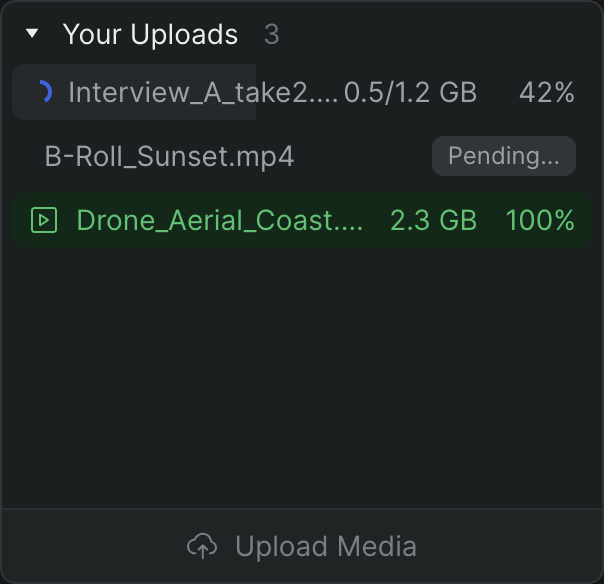
The progress queue lists every active job, grouped by the kind of work. Groups appear only when they have jobs in them, in a fixed order: Your Uploads, Link Imports, Screenings, Remote Uploads, Exports, Media Processing, Reindexing Assets, and Other Jobs. Each group heading shows how many jobs it holds and can be collapsed or expanded.
Every job in a group shows its name and a progress indicator that fills as the work advances:
- A running job shows a progress ring and its percentage, and — for uploads — how much of the file has transferred.
- A finished job turns green and shows 100%.
- A job that hasn't started yet is marked Pending....
- A job that couldn't finish is marked Error and turns red.
When the queue has no active jobs, it shows Job queue is all clear. A button at the bottom of the queue, Upload Media, lets you start a new upload without leaving the panel.
Tip
You can cancel a job you started: hover over its row in the queue and click Cancel. Jobs started by other collaborators show their avatar and can't be cancelled from your queue.
When a job fails#
A failed job stays in the queue marked Error so you can see what didn't finish. Uploads and exports are safe to try again — start the same upload or export once more, and Sequence runs it as a new job. If a job keeps failing, check the source file or your export settings before retrying.
What runs in the background#
- Uploads — your files transfer and are processed into playable clips. See Uploading files.
- Media processing — after a file lands, Sequence prepares optimized versions for smooth playback. This appears under Media Processing.
- Transcription — spoken audio is turned into text in the background. See Transcription.
- Exports — Sequence renders your timeline into a finished file. See Exporting timelines.
Note
Jobs are shared with the project, so uploads and exports your collaborators start appear in the queue too — under Remote Uploads and Exports — with the collaborator's avatar next to them.