The library holds every clip, image, audio file, and document in your project. You keep it navigable with two controls: the view toggle, which switches the panel between a list and a grid, and folders, which group related media together. Both work the same way for everyone in the project — the folders you create are visible to your collaborators.
The controls sit in the control bar that runs along the top of the library panel.
Switch between list and grid view#
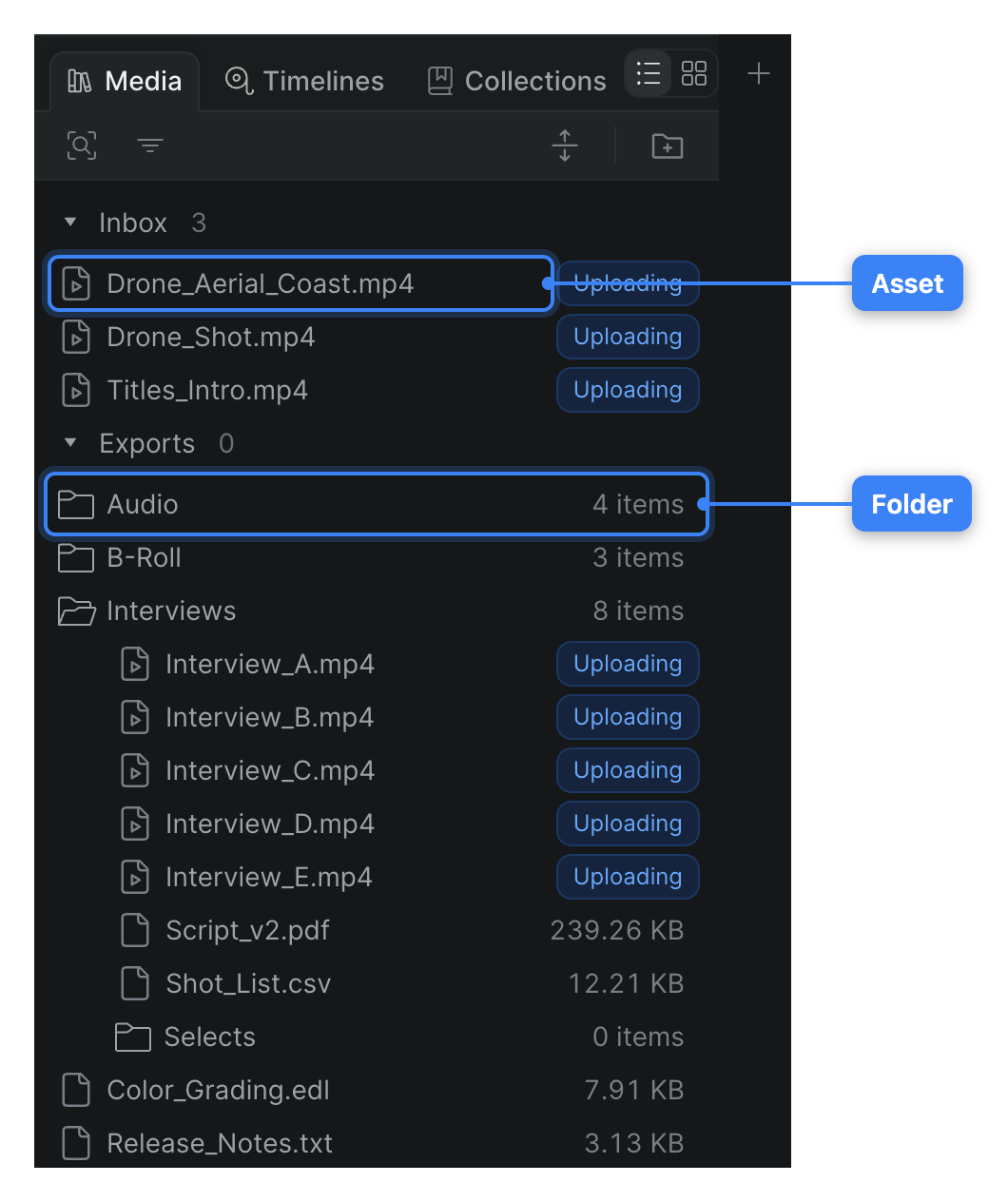
The library opens in list view. Use the view toggle to change how media is laid out.
- In Sequence, open the project and find the view toggle in the library control bar.
- Do either of the following:
- Click List view to show media as a vertical list of rows. Folders expand and collapse in place, so you can see nested items alongside their parents.
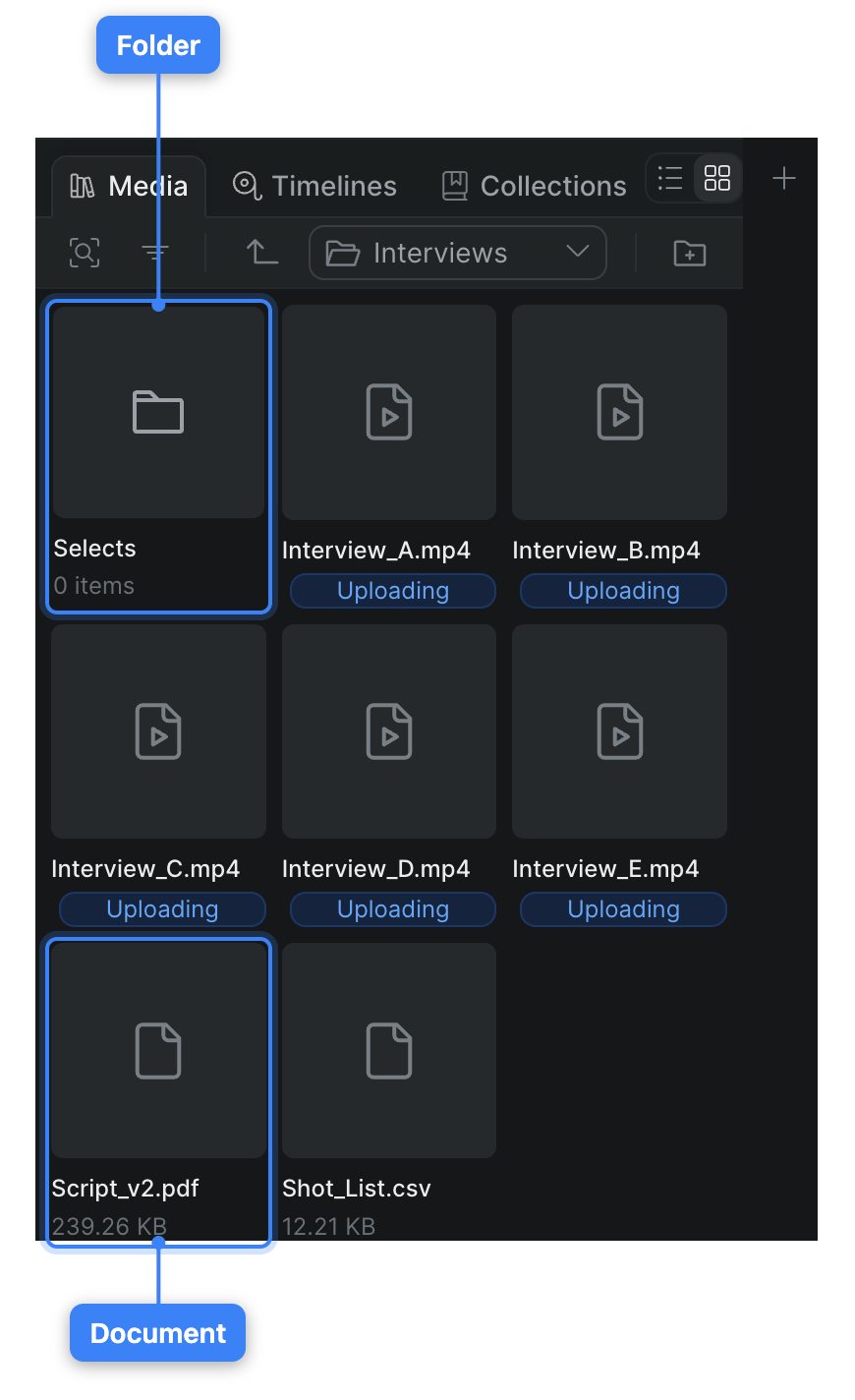
- Click Grid view to show media as a grid of thumbnail cards. You browse one folder at a time and step in and out of folders as you go.
The library redraws in the view you chose, and Sequence remembers the choice for the project.

Create a folder#
Folders let you group media into categories — for example by scene, source, or day of shooting.
- In the library control bar, click Create new folder (the folder-plus button).
- Type a name for the folder, then press Return (Windows: Enter).
Sequence adds the new folder to the library. Folders and files are sorted alphabetically, so the new folder settles into place by name.
Tip
You can also create a folder from the command palette: press Cmd-K (Windows: Ctrl-K), search for Create new folder, and run it. See Use the command palette.
Move media into folders#
You rearrange the library by dragging items onto folders. This works in both list and grid view.
- In the library, select the clip, file, or folder you want to move.
- Drag it onto a folder and release to drop it inside.
To nest a folder, drag one folder onto another. To pull an item back out, drag it onto its parent folder again — in grid view, drag it onto Go up one level at the top of the panel. Sequence moves the item and keeps everything sorted alphabetically.
Browse folders in each view#
How you move through folders depends on the view:
- List view — Click a folder to expand or collapse it in place. To open or close every folder at once, click Expand All Folders or Collapse All Folders in the control bar.
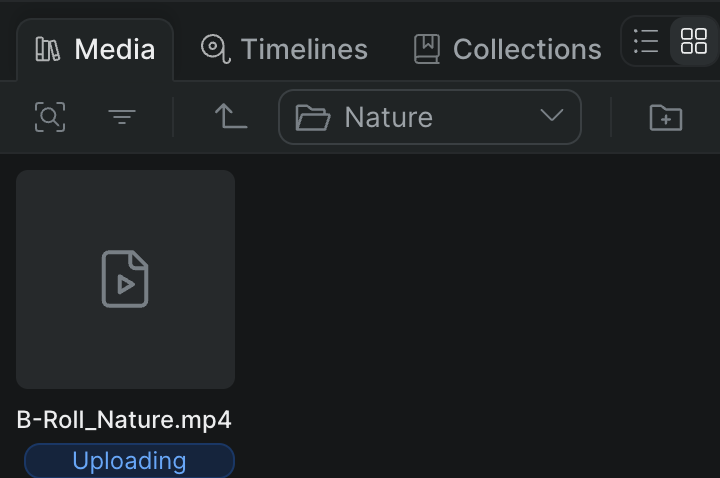
- Grid view — Double-click a folder to open it. A folder path at the top of the control bar shows where you are; click a level in it to jump back, or click Go up one level to step out one folder.
Find and filter media#
When the library gets long, narrow it instead of scrolling:
- Click Find in Project (the magnifying-glass button) — or press Cmd-F (Windows: Ctrl-F) — and type to search the project's media by name. Press Escape to leave search.
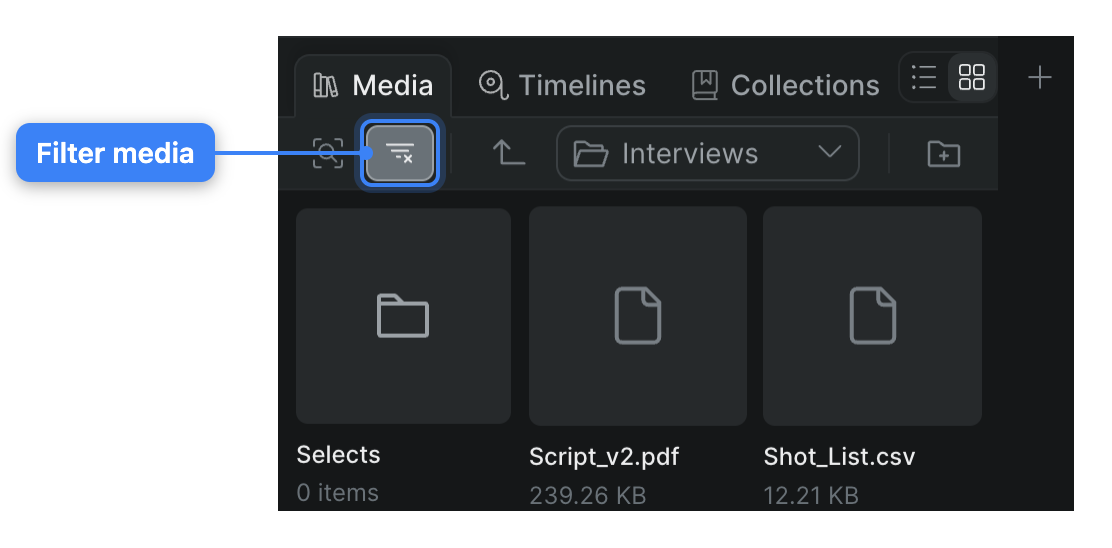
- Click Filter and choose Videos, Audio, Images, or Documents to show only that type. Choose All Assets to clear the filter.
Note
Folders organize media by where it lives. To mark and find media by what's in it instead — with searchable tags, label colors, and ratings — see Tag and label media.