The command palette is a searchable list of actions you open with a keyboard shortcut. Type to filter the available commands, move through the list, and press Enter to run the one you want — without leaving the keyboard or hunting through panels.
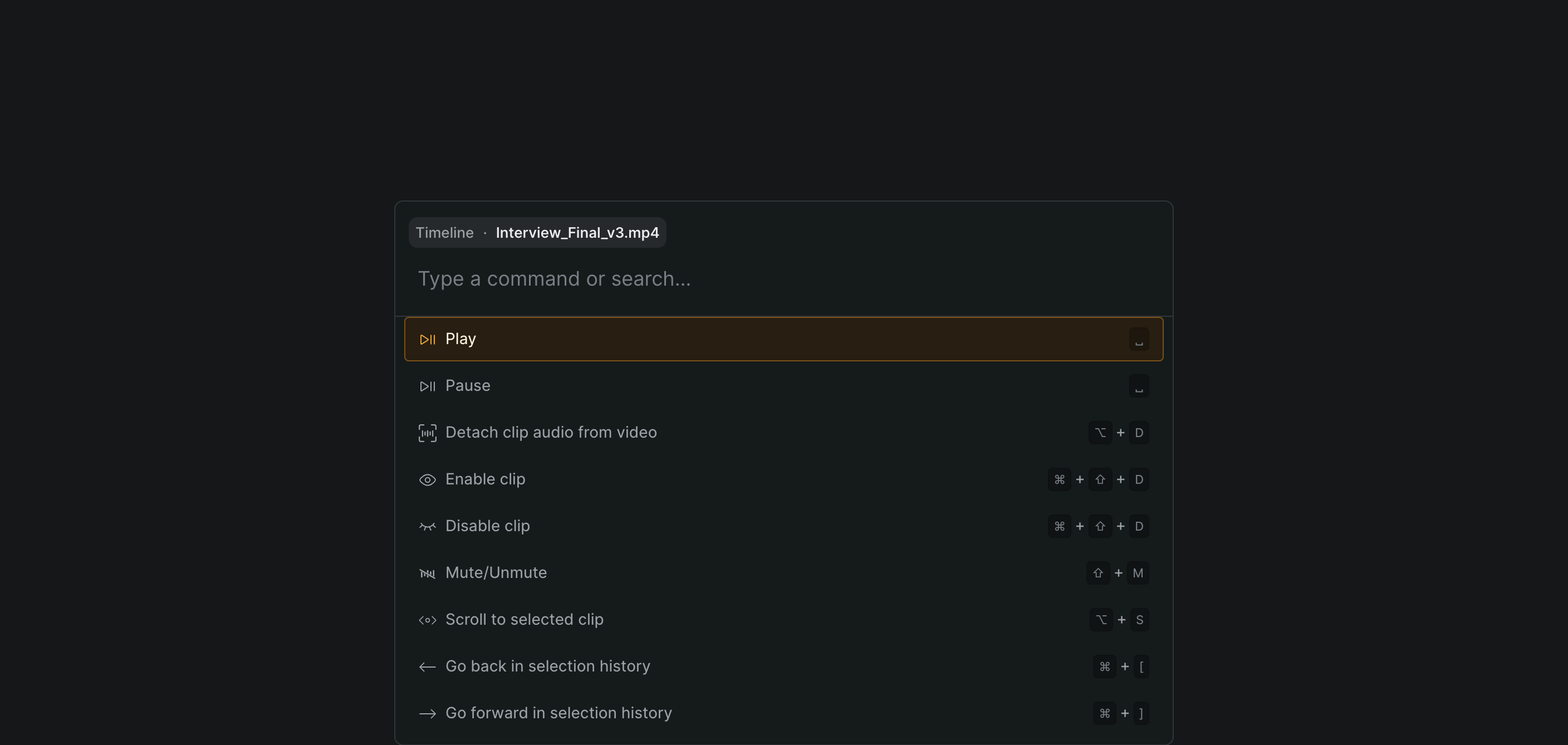
Open the command palette#
- In Sequence, open the project you're editing so you're in the editor.
- Press Cmd-K (Windows: Ctrl-K).
The palette opens near the top of the screen with the text field focused, ready for you to type. A pill above the field shows the active context — for example Timeline — so you know which set of actions the palette is offering.
Note
The command palette opens while you're editing a project. Pressing the shortcut elsewhere in Sequence won't open it.
Filter and run a command#
- With the palette open, start typing in the Type a command or search… field. The list narrows to commands whose names match what you type.
- Press Arrow Down or Arrow Up to move the selection through the list.
- Press Enter to run the selected command. You can also click any row to run it.
Sequence runs the command and closes the palette. To close the palette without running anything, press Escape.
Each command row shows the command's own keyboard shortcut on the right. When a command uses a multi-key sequence, the palette shows each key with then between them.
Tip
The command palette is the fastest way to discover shortcuts: search for an action, and its shortcut appears right beside it. To browse the full list instead, see Keyboard shortcuts.
Jump to an asset or folder#
When the active context supports it, the palette also searches your project's contents. As you type, matching results appear under a Quick results for "…" heading, each showing whether it's an Asset or a Folder followed by its name.
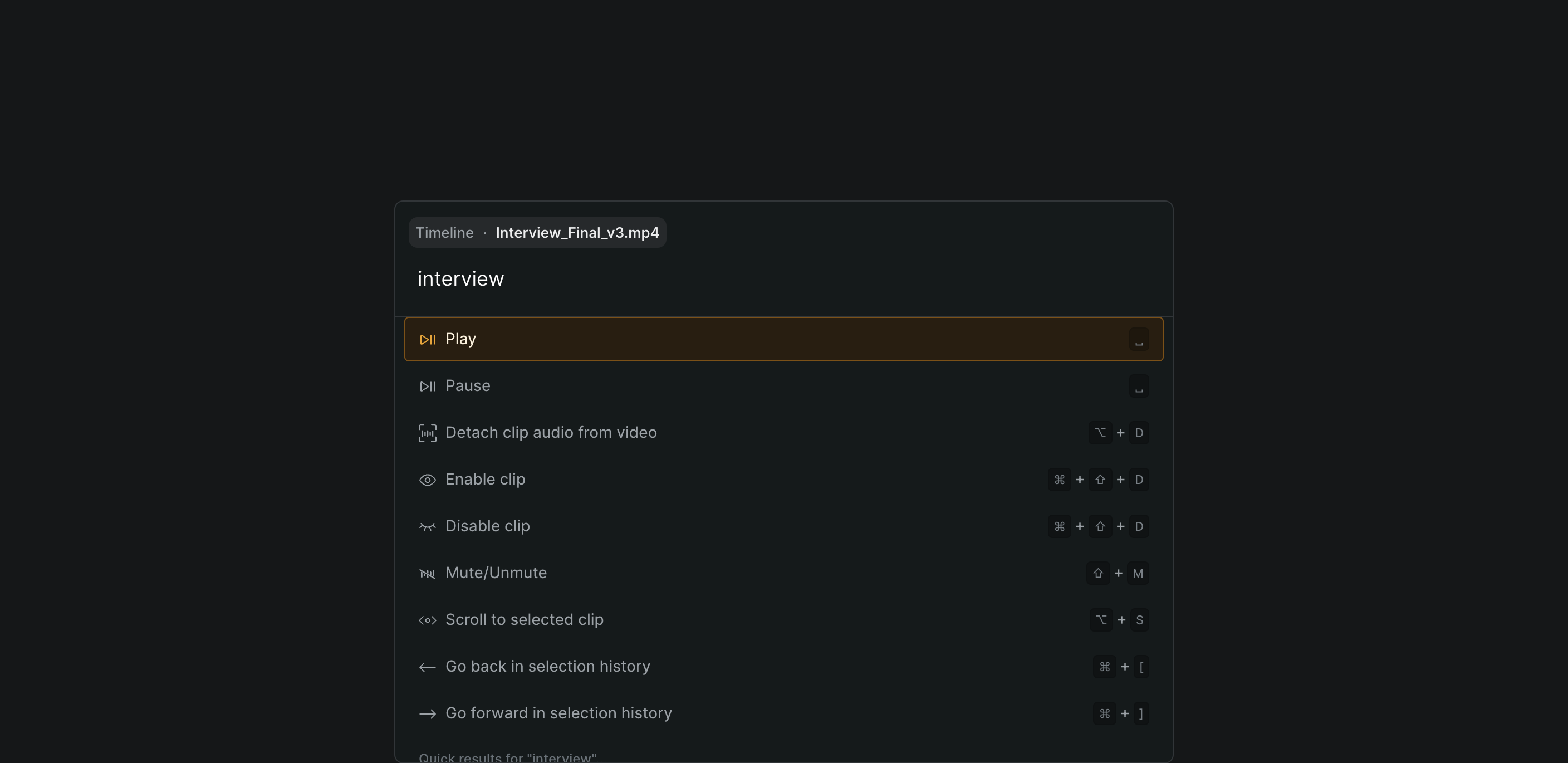
- Type part of an asset or folder name.
- Select a result and press Enter, or click it.
Sequence jumps straight to that item: selecting an asset takes you to it, and selecting a folder opens it in the library.