Color & Effects
Grade color with the Color tab and LUTs, key out backgrounds, and build custom effects.
Color grading
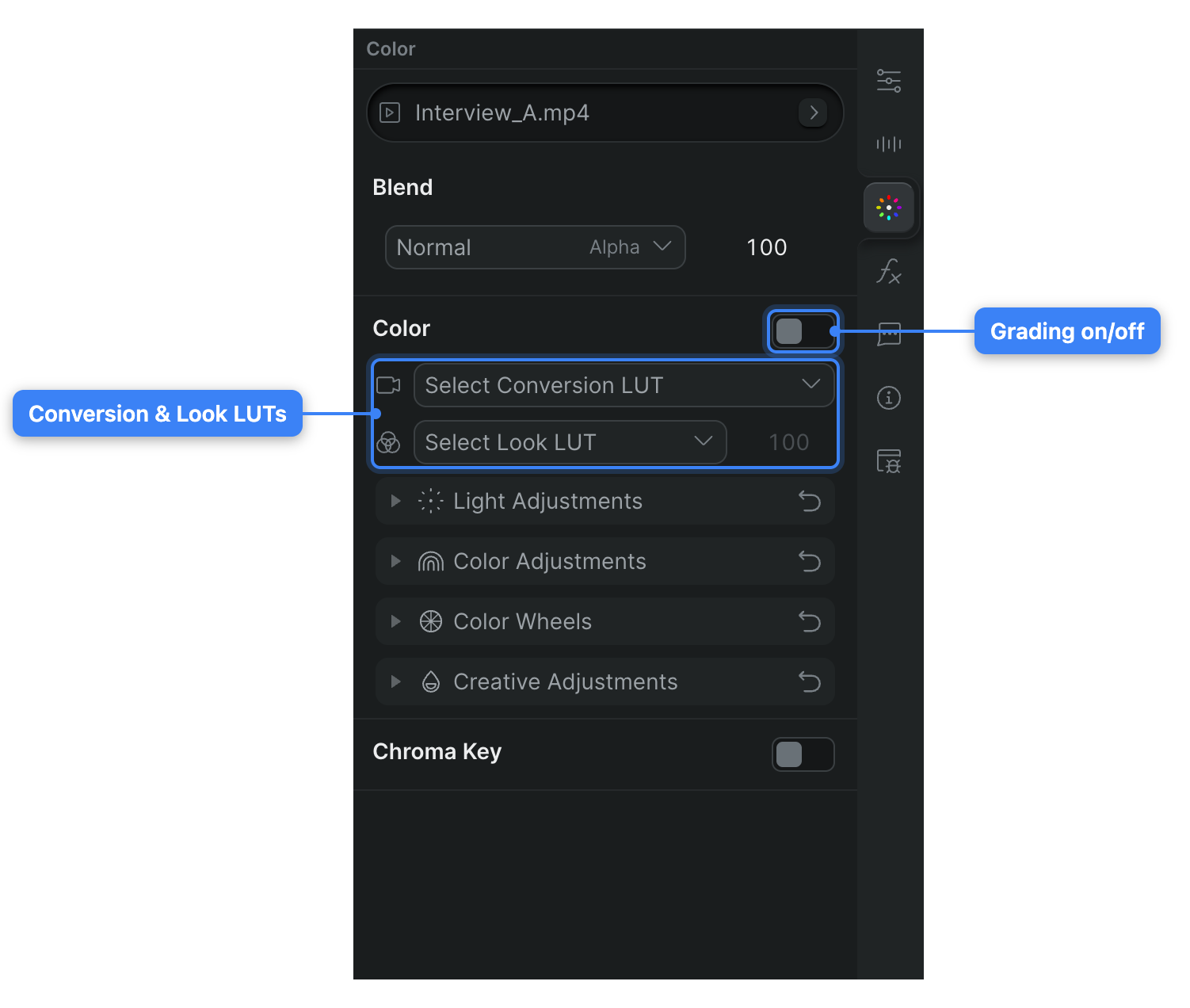
An orientation to the Color tab — its master switch, LUTs, adjustment modules, and color wheels — and which control to reach for.
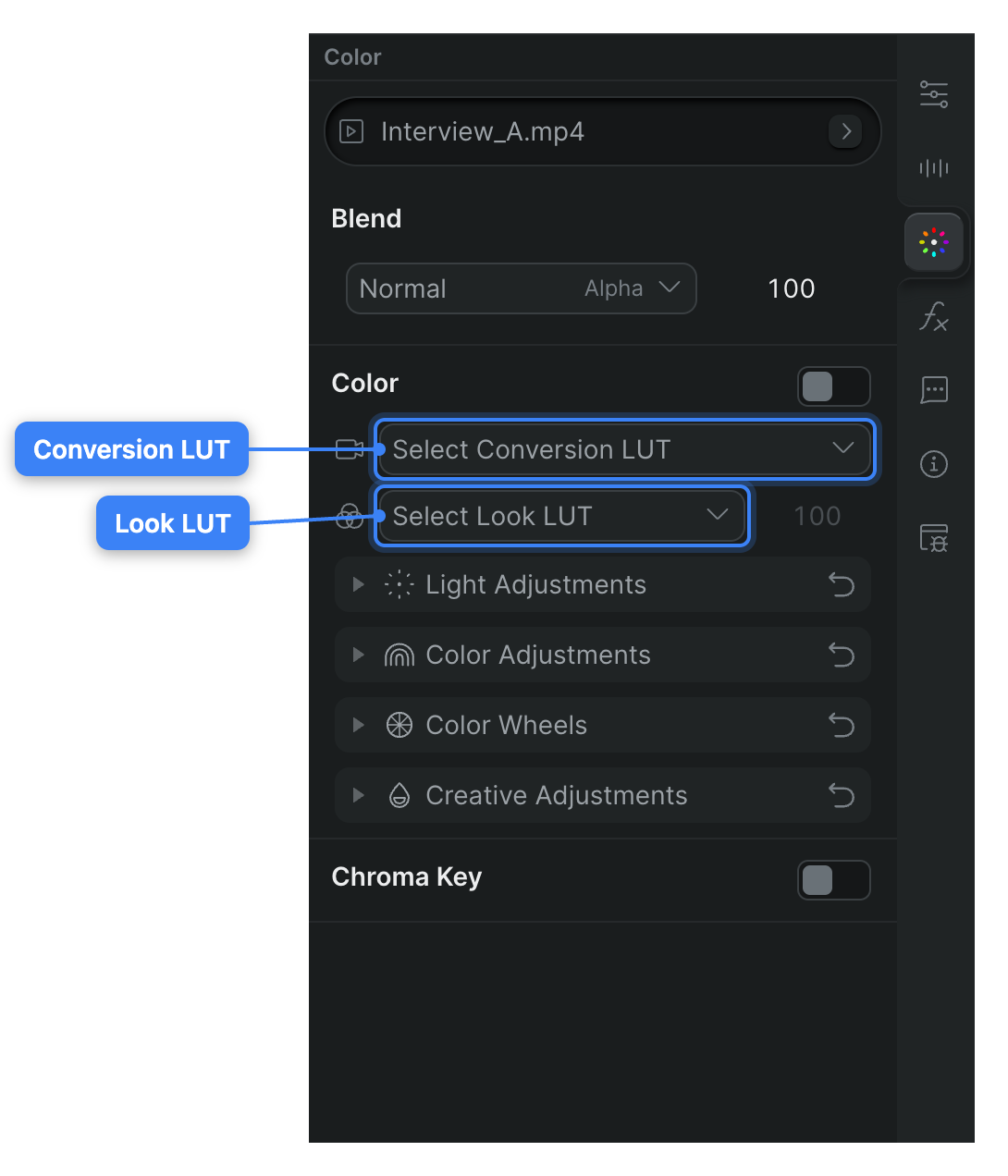
Apply a camera conversion LUT, a creative look LUT, or your own uploaded .cube file from the Color tab.
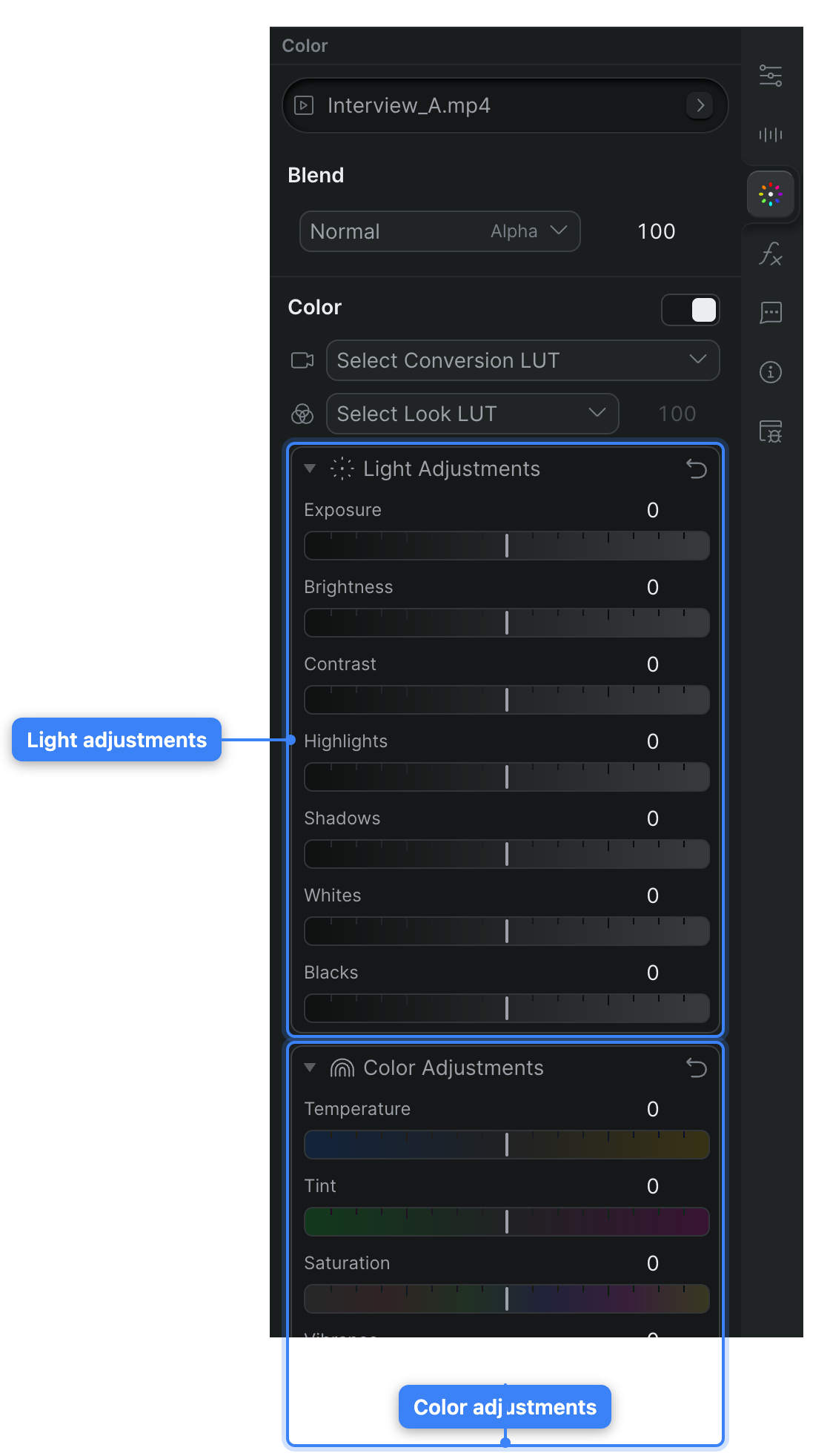
Reference for the Light, Color, and Creative sliders in the inspector's Color tab, with each control's range and default.
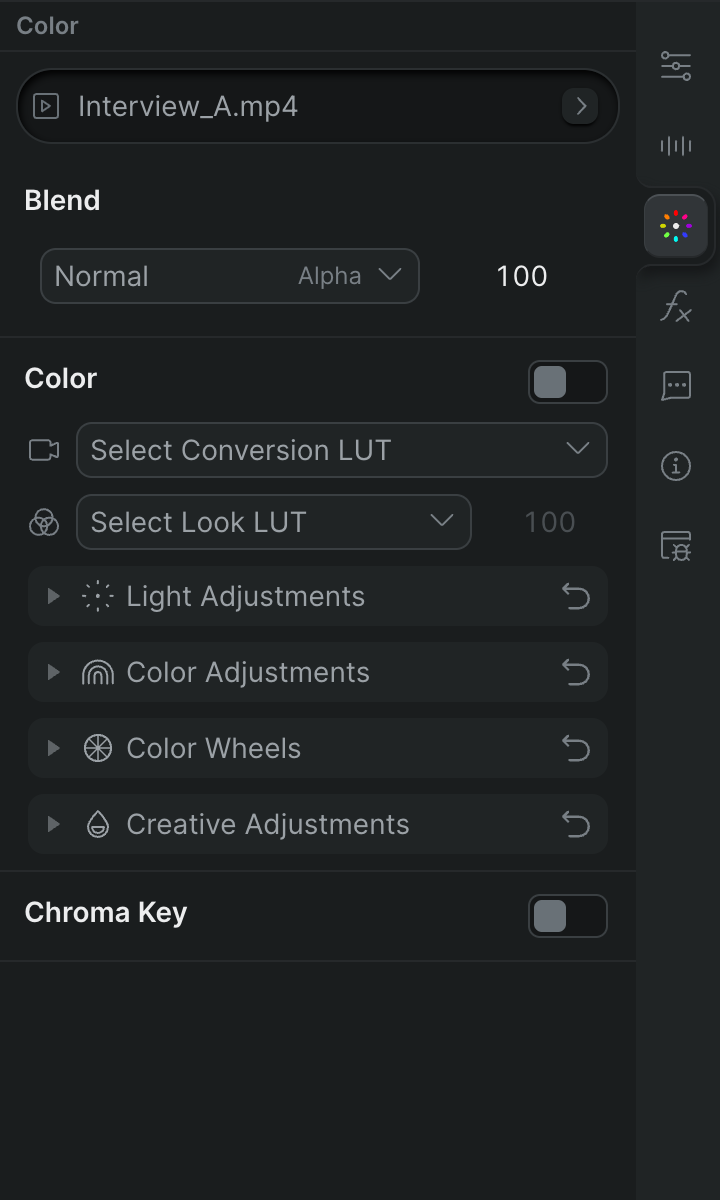
Grade a single clip end to end in Sequence's Color panel — open the Color tab, work down the controls, and animate the result over time.
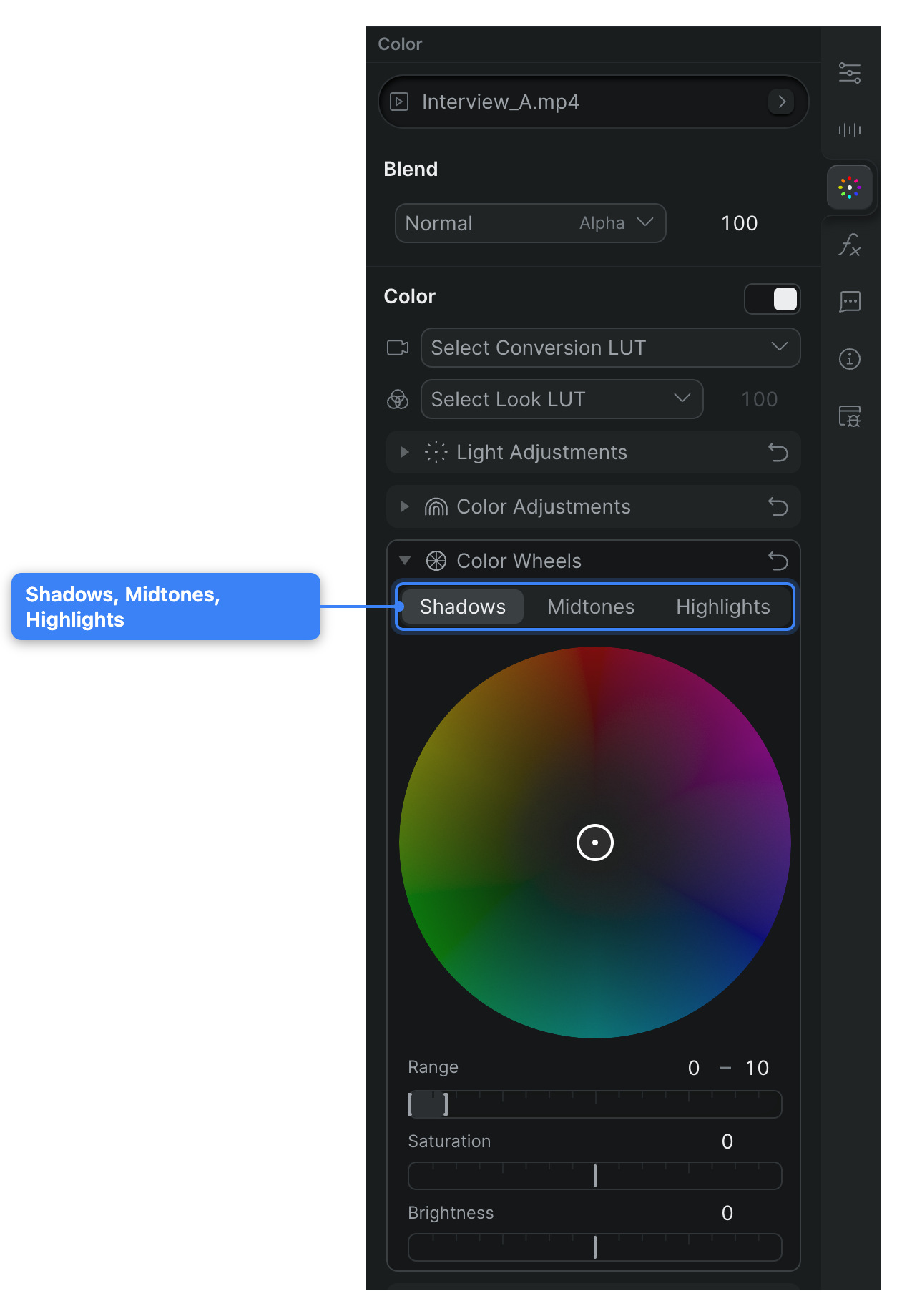
Push a color cast into shadows, midtones, or highlights with the three-way color wheels in the Color tab.
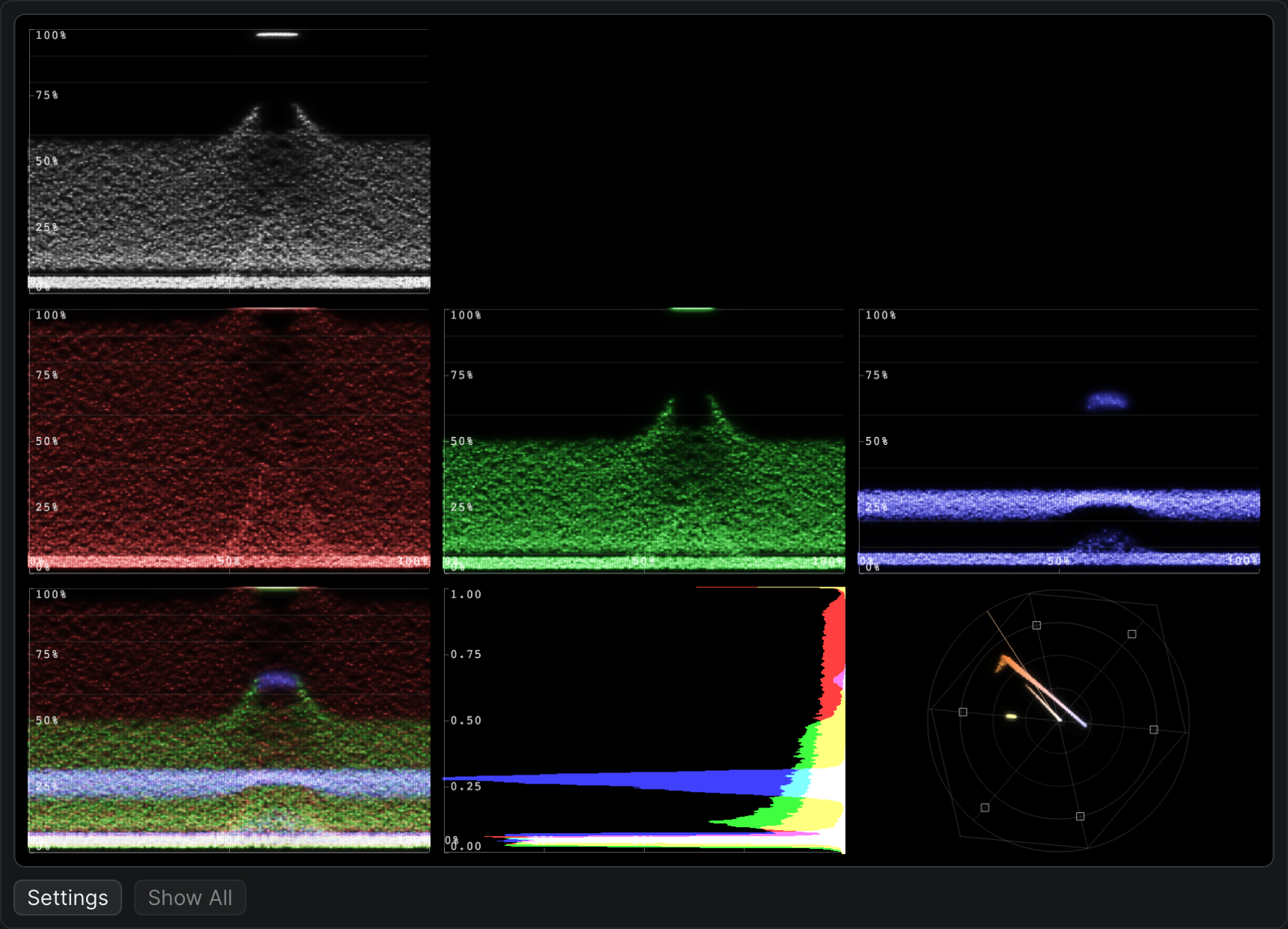
Read Sequence's video scopes — waveform, histogram, and vector scope — and set the overlays and units a colorist uses to grade a frame.
Keying and compositing
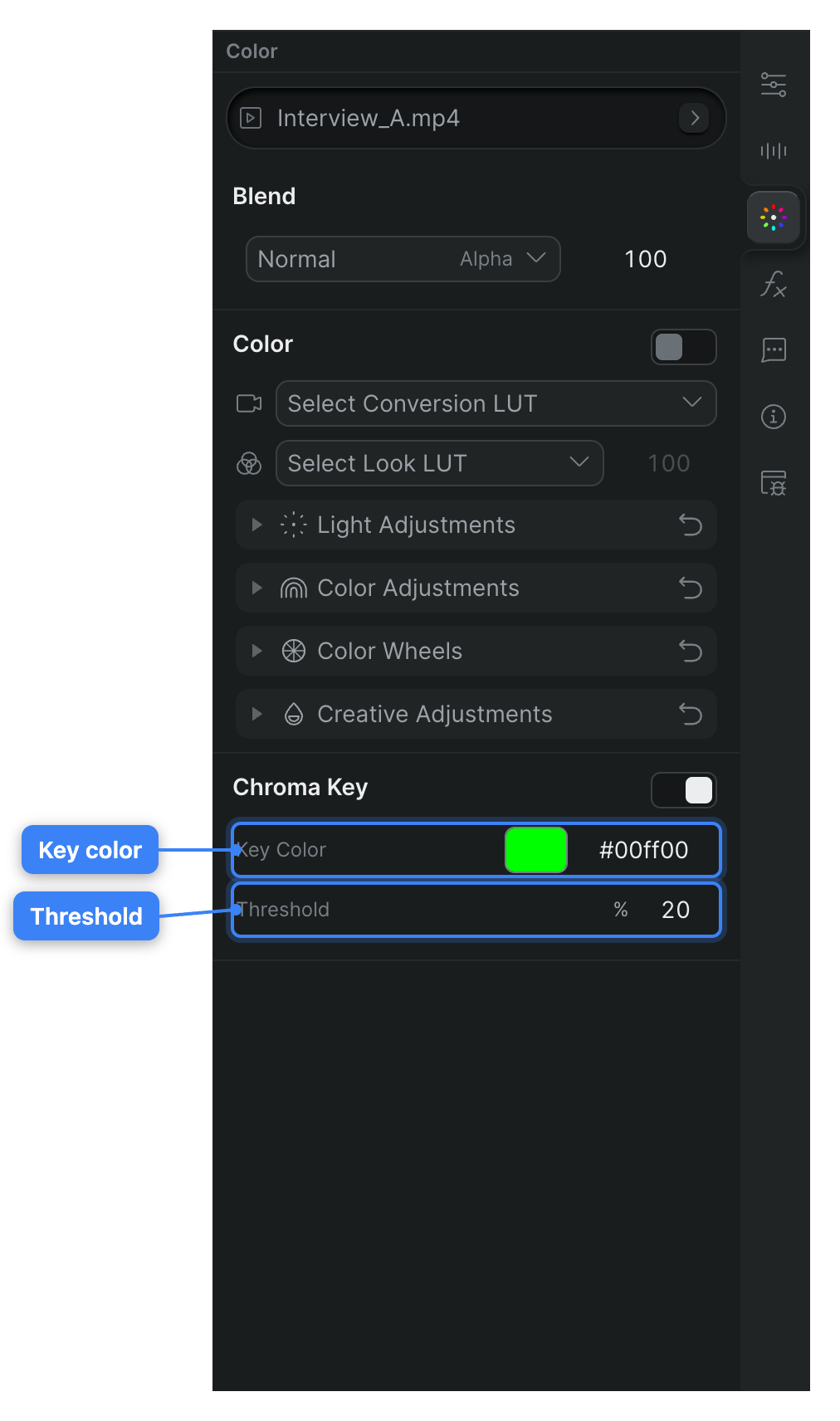
Use the Chroma Key module in the Color tab to make a green- or blue-screen background transparent, then tune the Threshold.
Use the Blend module in the Color tab to control how a clip's pixels combine with the layers beneath it, and to set clip opacity.
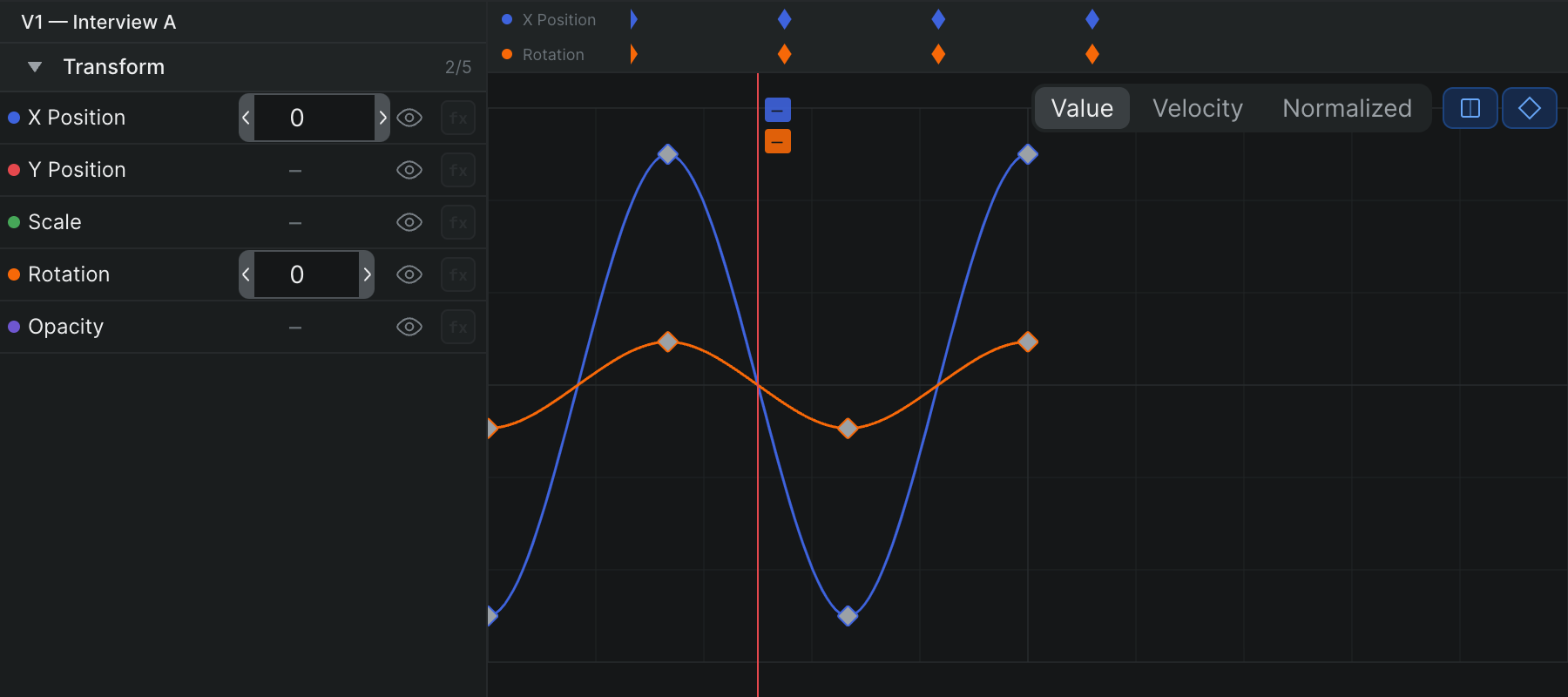
How to fade clips in Sequence with opacity and volume keyframes — and why there are no built-in transitions.
Effects
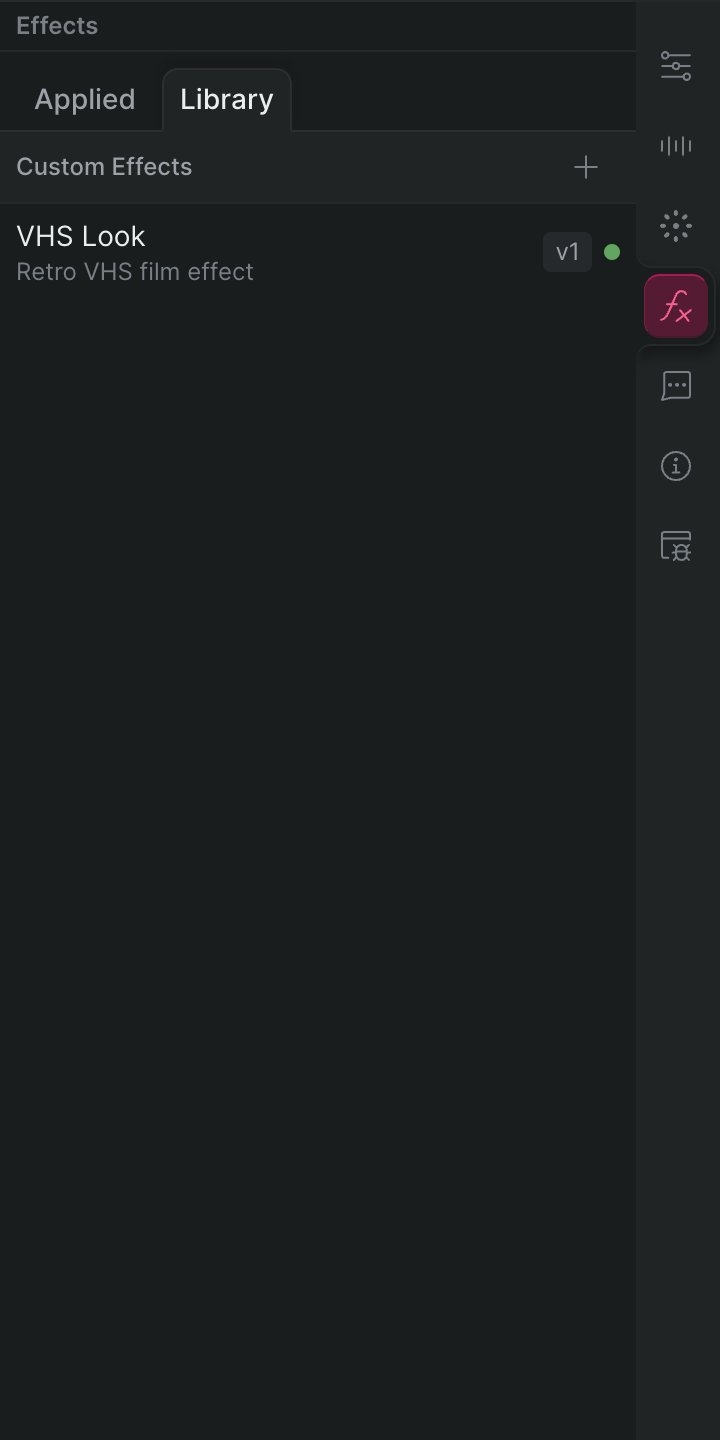
Custom effects are video or audio effects you bring yourself and apply to any clip, with adjustable controls that show up right in the Effects tab.
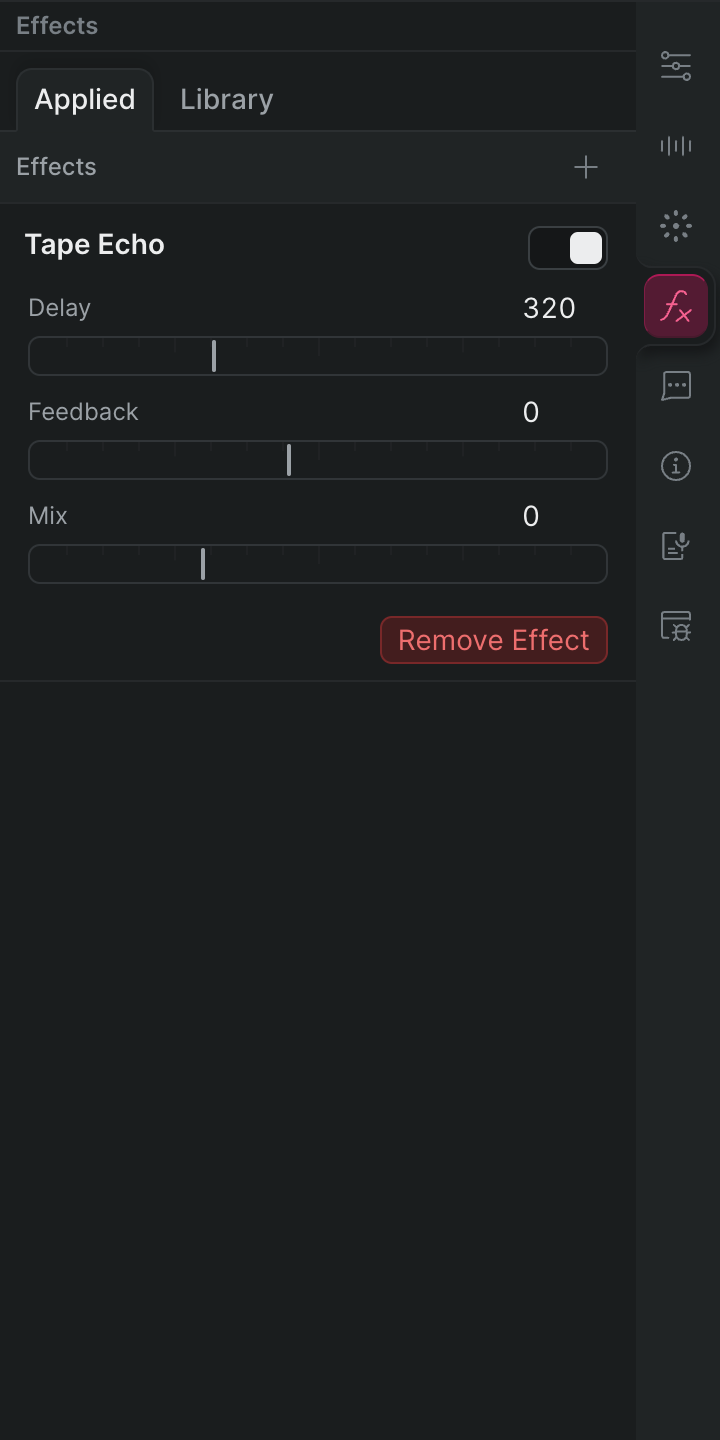
Ask Snippy for the look or sound you want and it builds the custom effect, saves it to the project, and applies it to your clip — with adjustable controls in the Effects tab.
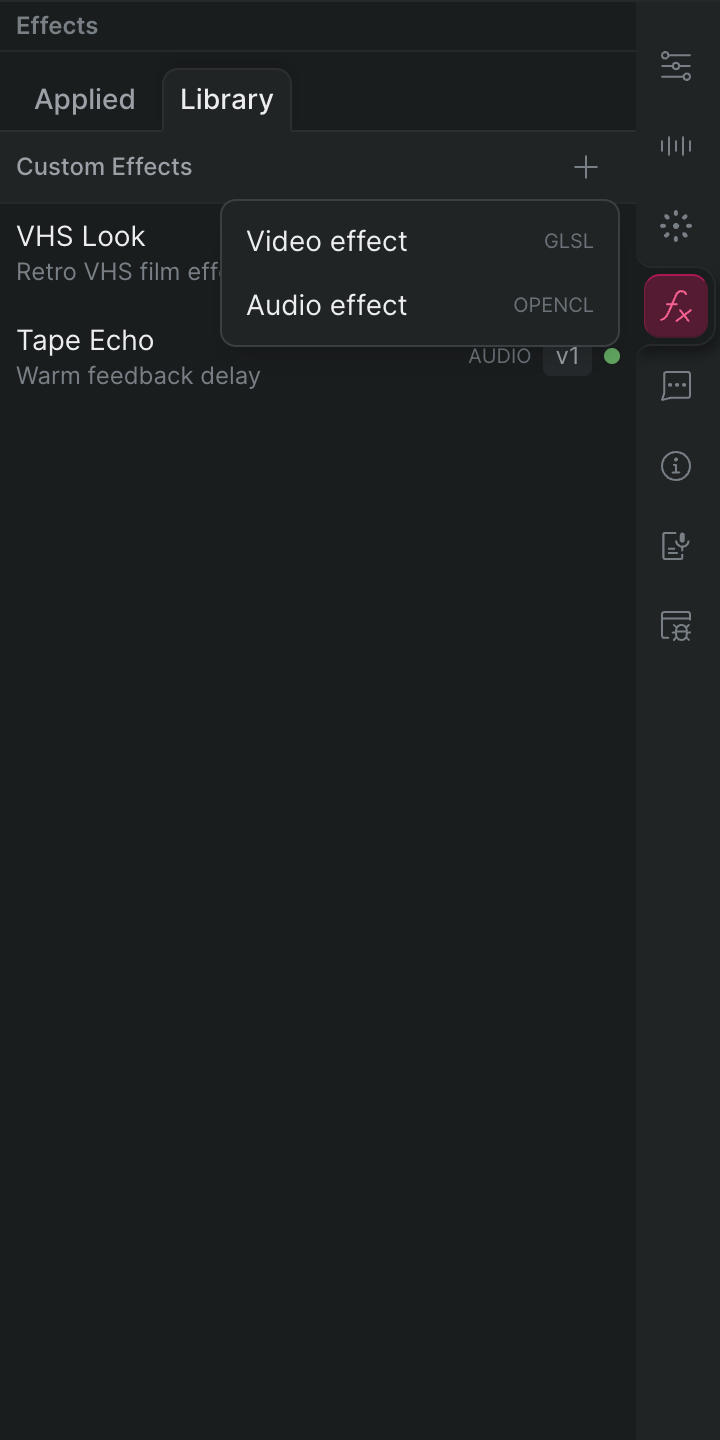
Build a custom effect in the effect editor — paste in your own code and controls as JSON, or use Copy LLM Prompt to have an outside assistant like Claude or ChatGPT write it, then publish it to the project's effect Library.