Editing
Build your timeline: add and arrange clips, trim precisely, structure your edit, and step back through its history.
Start editing
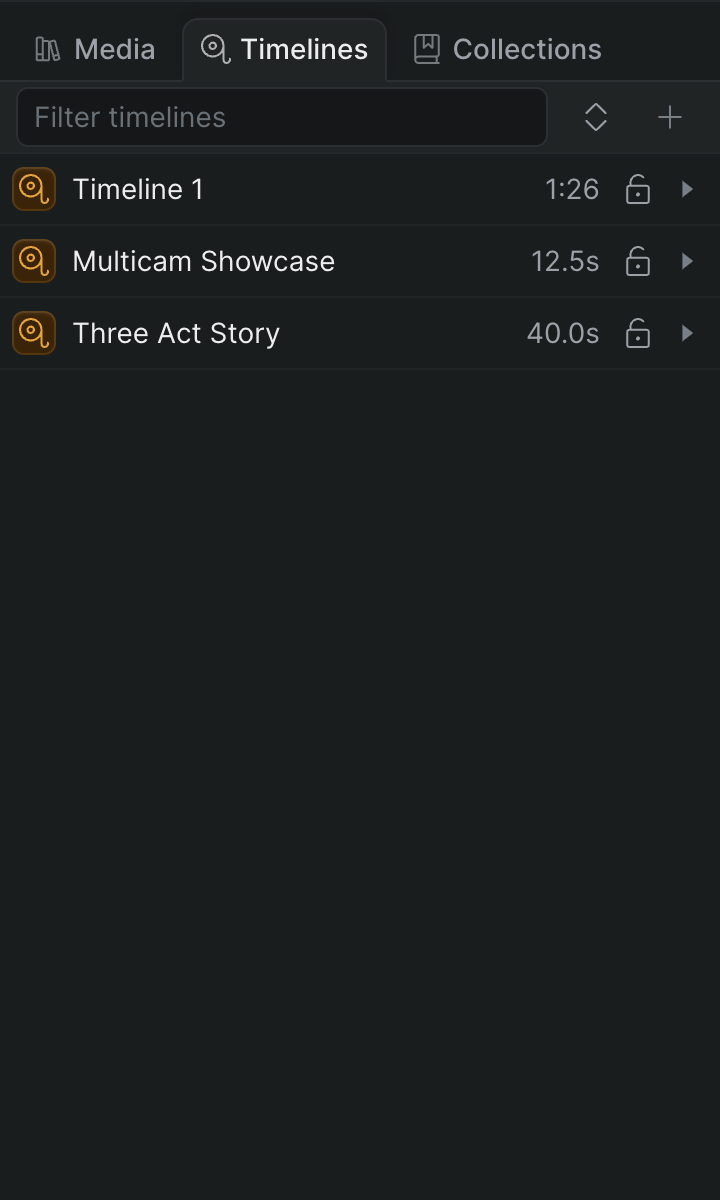
Create, rename, duplicate, delete, and browse your project's timelines from the Timelines tab, and set each timeline's resolution and frame rate.
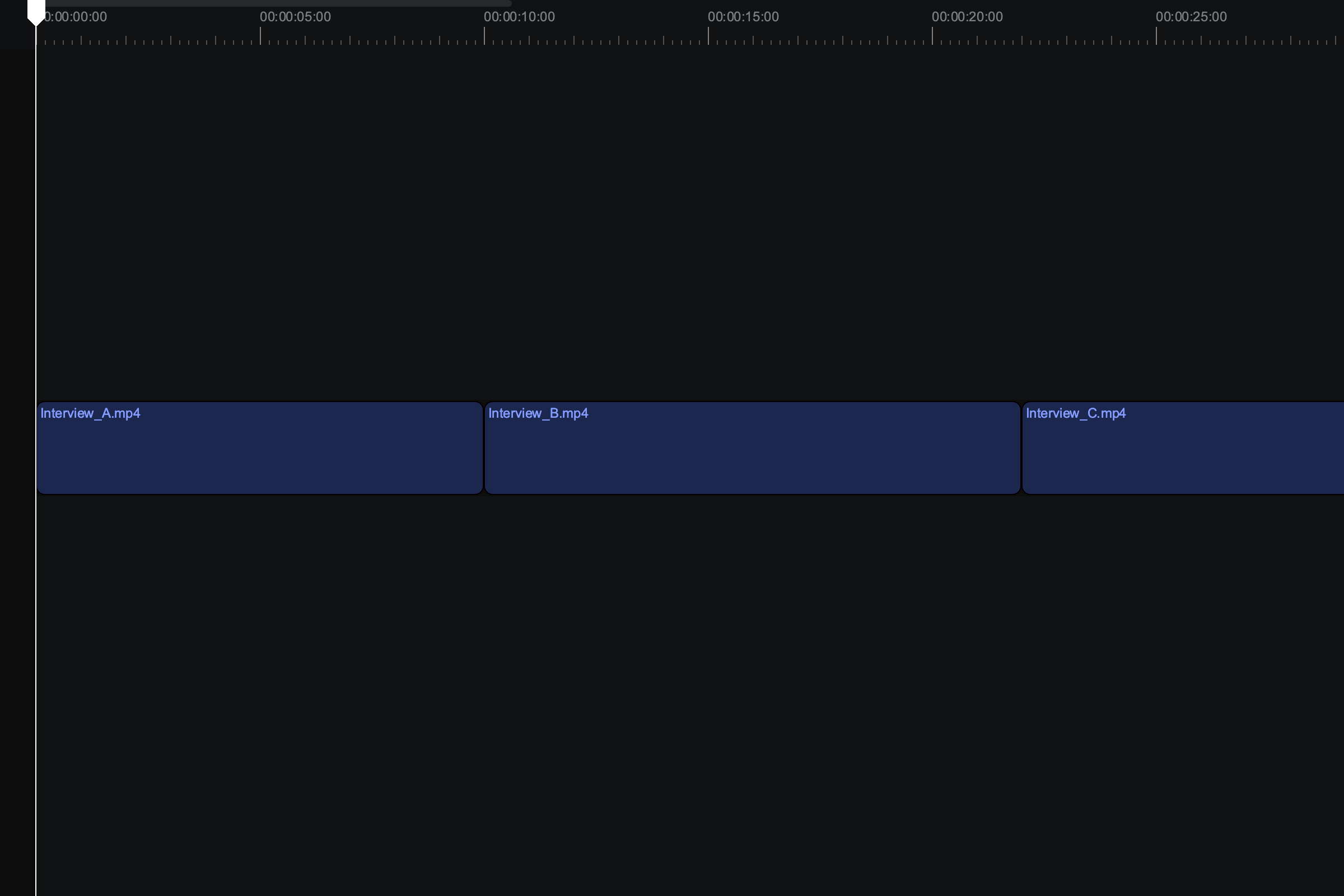
Understand the Reflow Timeline in Sequence — its primary lane, attached clips, skimmer, playhead, and toolbelt — and learn which tool does what.
Every tool, toggle, and view control on the timeline control bar, with the keyboard shortcut for each.
Add and arrange clips
Add clips to the timeline by dragging from the library, or with Insert, Append, and Drop from the preview monitor.
Use the Advanced Trim tool to slip, slide, and roll edits — retiming a clip against its neighbors without opening gaps in the timeline.
Retime a clip in Sequence by setting its speed percentage, reversing playback, or holding on a single frame.
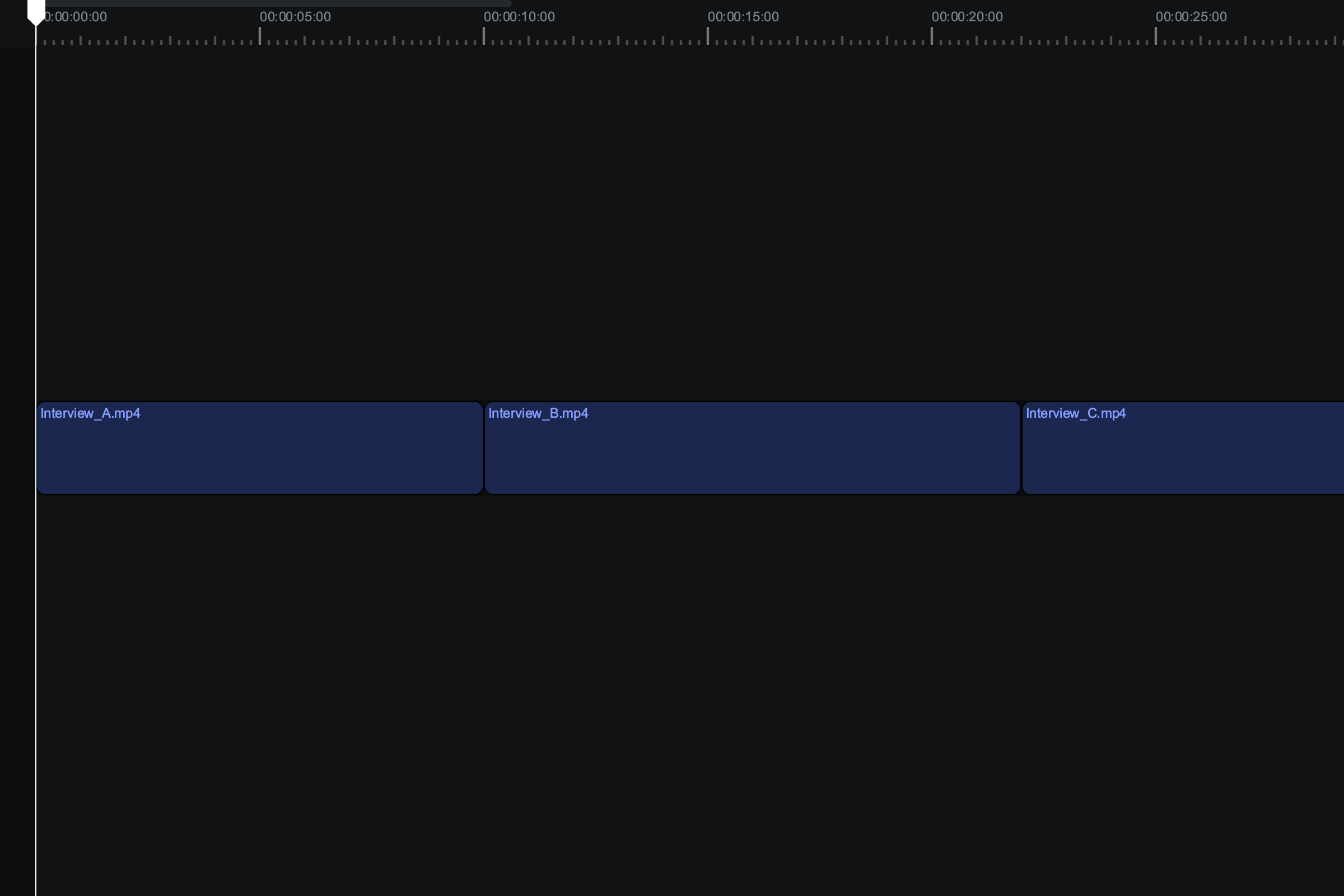
Select clips on the timeline, then cut, copy, paste, and delete them — and copy one clip's adjustments and effects onto another with Copy and Paste clip properties.
Structure your edit
Add camera angles to a multicam timeline, then switch between them while you edit using number-key shortcuts.
Collapse a group of clips into their own nested timeline, or place an existing timeline as a clip, to build and reuse a sequence within a sequence.
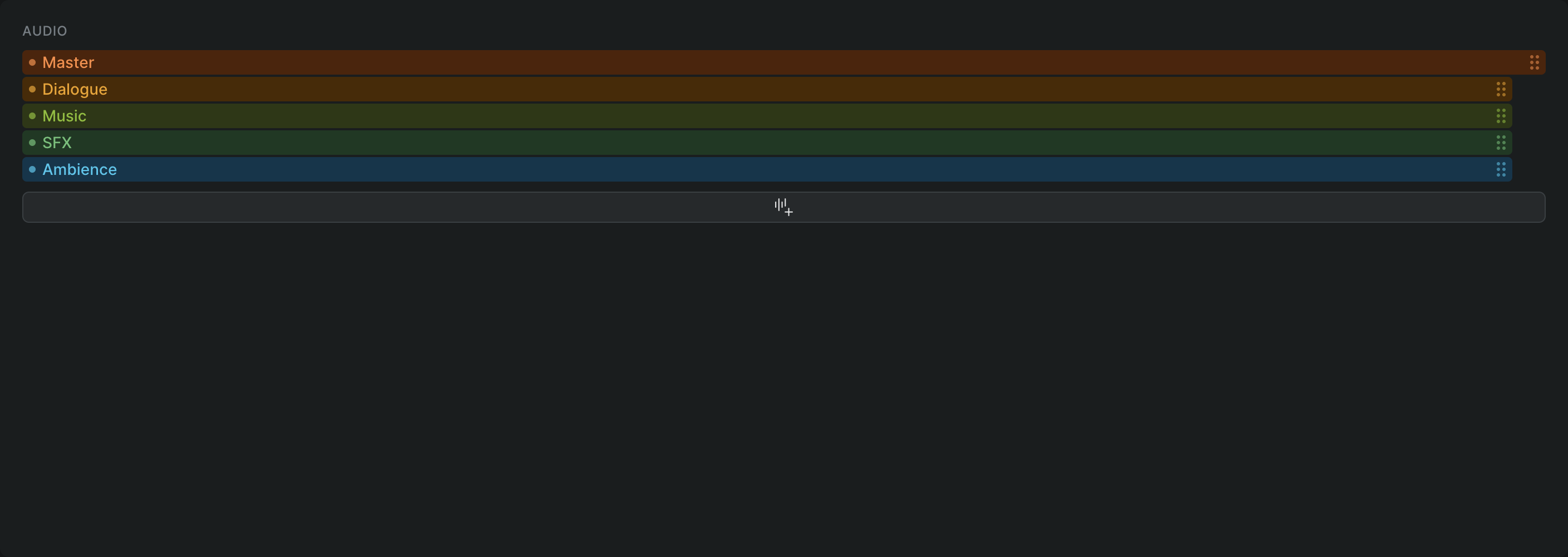
Add, rename, reorder, and delete component tracks to organize layered audio and graphics inside a clip in Sequence.
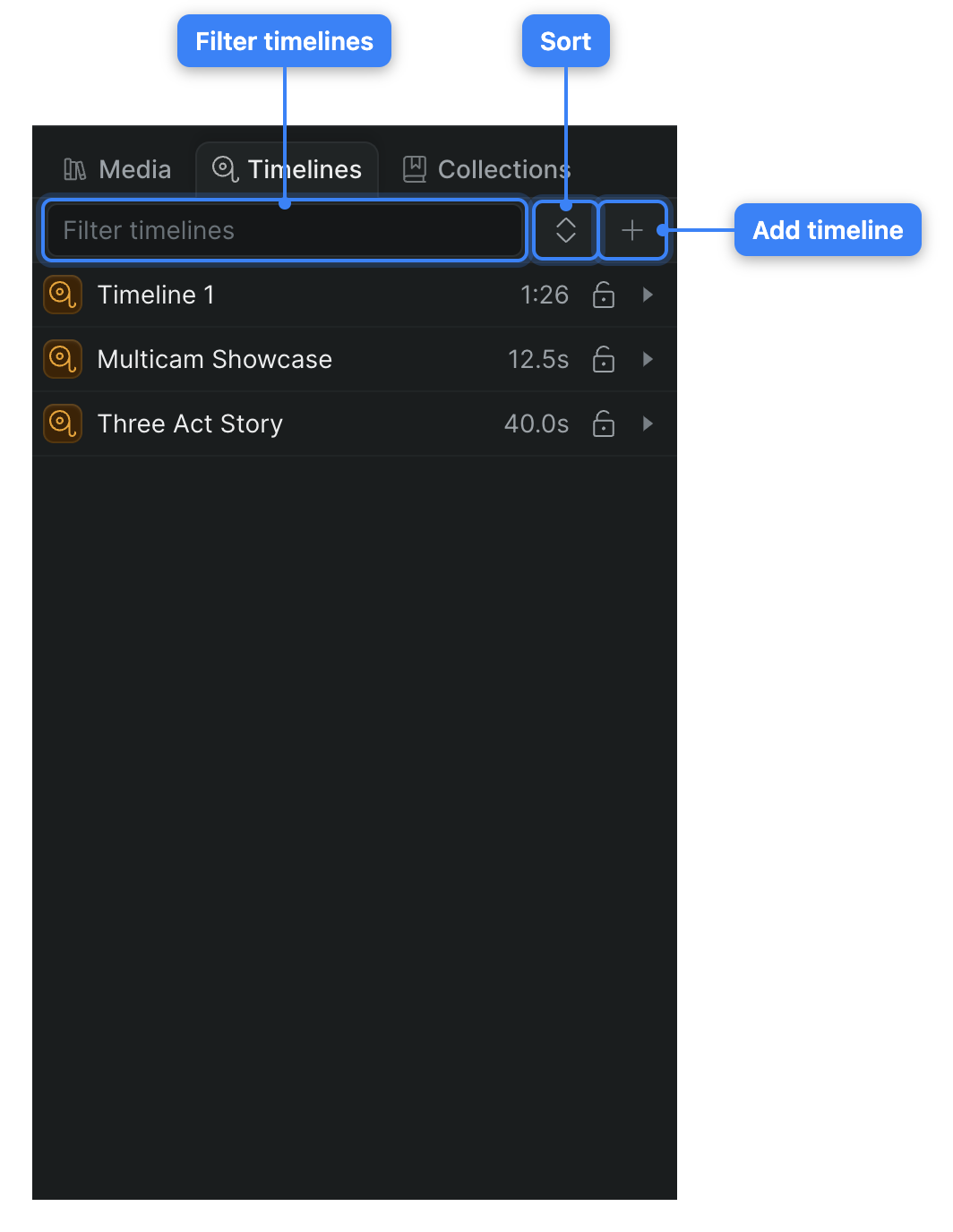
Read your project's timelines as a nested tree in the Timelines tab — expand, drill into, filter, sort, and right-click rows to rename, lock, or delete a timeline.