Open the command palette to run any of these — see Use the command palette. This page groups those actions by area so you can see what's on offer; for the full list of key bindings, see Keyboard shortcuts.
Many actions also have a keyboard shortcut, and where one exists the palette shows it beside the command. But plenty of actions have no shortcut at all — searching for them in the palette is the fastest way to run them.
Note
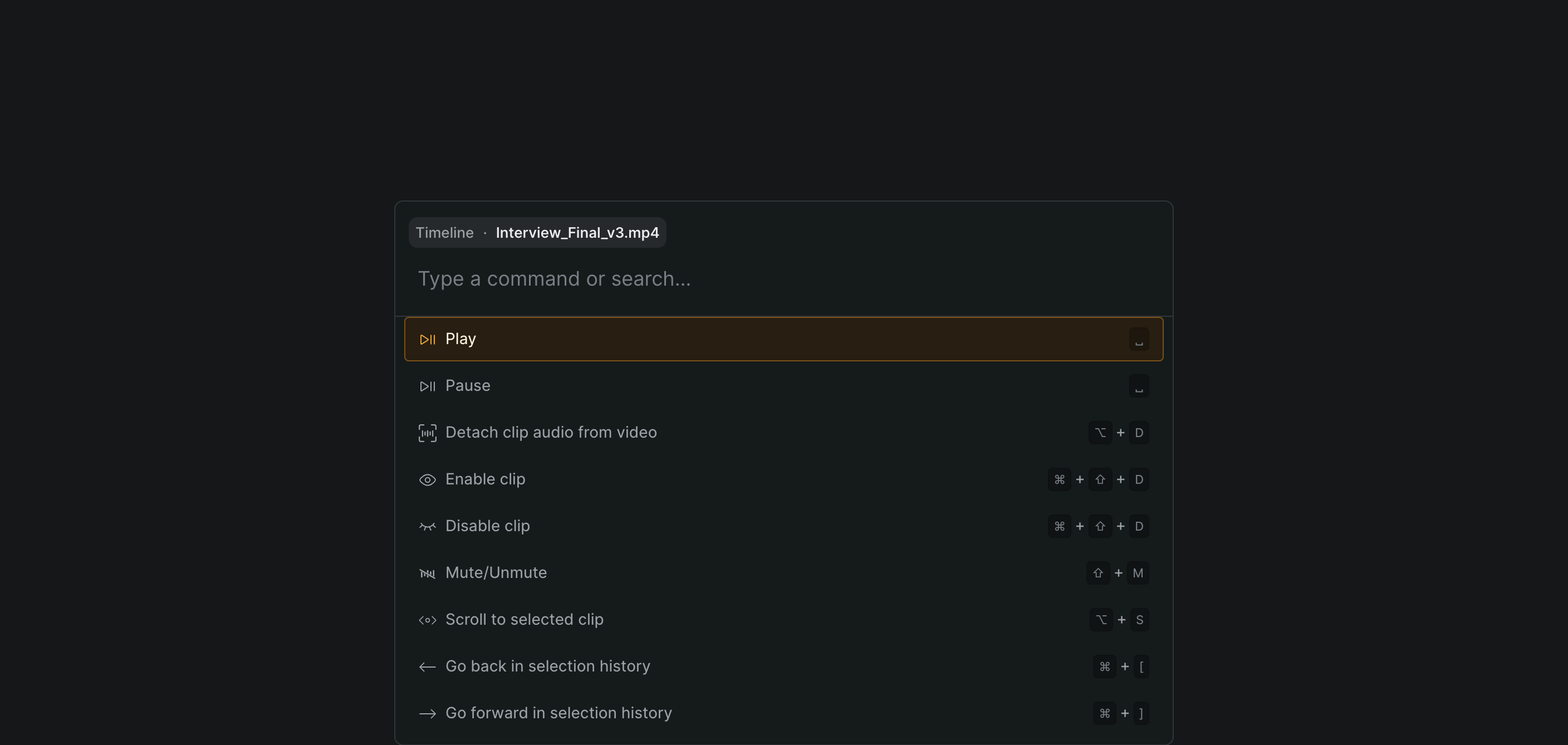
The palette only offers the commands that apply to where you are. It shows the actions for your current context — the timeline, the Color panel, the Audio panel, and so on — with a pill above the field naming that context, rather than every command at once. The areas below cover the commands you'll meet most often; they aren't the product's entire command set.
The palette organizes its commands into these areas.
Playback#
Control how the preview plays. Commands include Play and Pause, playback direction (forward, reverse, and hold), and speed presets such as Speed: 50%.
Timeline#
The largest area — everything you do to clips on the timeline.
- Move clips with Cut (Cmd-X; Windows: Ctrl-X), Copy (Cmd-C; Windows: Ctrl-C), and paste, and copy or paste a clip's adjustments with Copy clip properties (Option-C; Windows: Alt-C) and Paste clip properties (Option-V; Windows: Alt-V).
- Turn a clip on or off with the combined Enable clip / Disable clip toggle (Cmd-Shift-D; Windows: Ctrl-Shift-D), and mute or unmute its audio.
- Split a clip with Blade at playhead (Cmd-B; Windows: Ctrl-B) or Blade selected clip (Cmd-Shift-B; Windows: Ctrl-Shift-B).
- Detach clip audio from video (Option-D; Windows: Alt-D) and Nest clip(s) into timeline (Option-N; Windows: Alt-N).
- Reposition an attached clip with Move attached clip up (Option-Up; Windows: Alt-Up) and Move attached clip down (Option-Down; Windows: Alt-Down).
- Frame the view with Scroll to selected clip, Move playhead to center of selected clip, Scale to fill, and Scale to fit, and turn snapping on or off with Toggle Timeline Snapping.
- Switch the active tool, such as Tool: Blade Mode.
- Leave feedback with Comment on clip at playhead (Shift-Option-M; Windows: Shift-Alt-M).
- Switch between multicam angles, such as Switch to Angle 1.
Library#
Work with the assets and folders in your project: create, rename, and delete folders; move assets between them; rename, download, and delete assets; and jump from a timeline clip to its source with View source asset in Library. Library commands also cover creating a screening, adding a project tag, and switching the library's view.
Navigation#
Move around the editor and open its panels. Panel commands — such as Go to Color Panel — take you to the Edit, Color, Audio, or Info panel; others open the library or collections panel, show the AI panel, or step back and forward through your selection history.
Color#
Open the Color panel's views and toggle its scopes on or off — the individual red, green, blue, luma, RGB, histogram, and vector scopes, plus showing or hiding all scopes at once.
Collections#
Rate and label your selects. Apply a star rating, such as Rate 3 Stars, or remove one; mark a selection as a favorite or reject it; and apply color labels, including Orange (Zesty), Green (Evergreen), and Purple (Violet). Collections commands also create, rename, and delete selects and search or toggle tags.
Audio#
Work with audio tracks and the Audio panel — for example, Add Audio Track, and mute or unmute a clip's audio.
Layout#
Commands for the Edit panel and how the editor's panels are arranged.
Note
Running a command does exactly what performing the action by hand would — so anything visible to your collaborators, like adding a comment or switching a multicam angle, stays visible to them. A command runs only when it applies to your current selection or context; clip commands, for example, need a clip selected.