Media
Bring in your footage, keep your library organized, and get clips ready to edit.
Add media
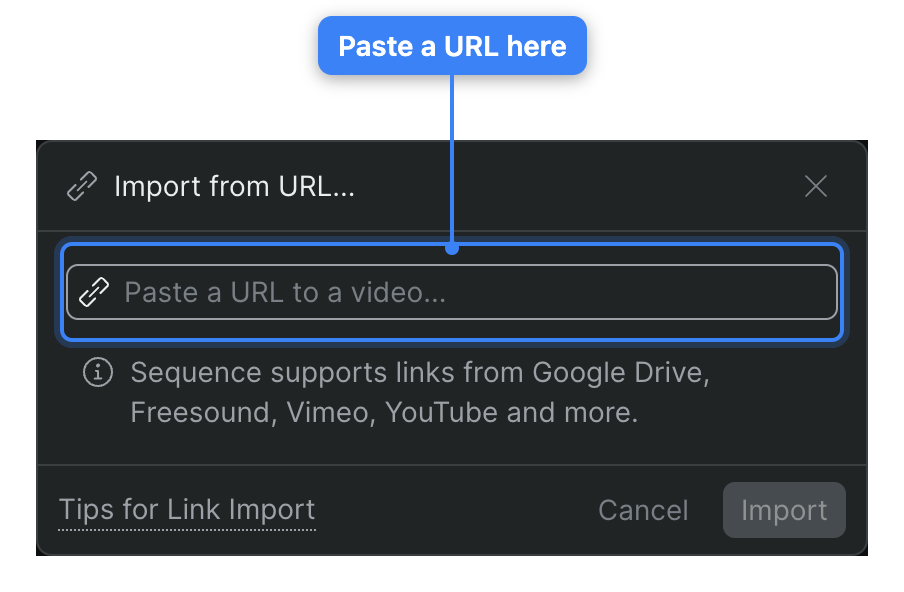
Upload files from your computer or import them from a URL, then track their progress as Sequence transfers and processes them.
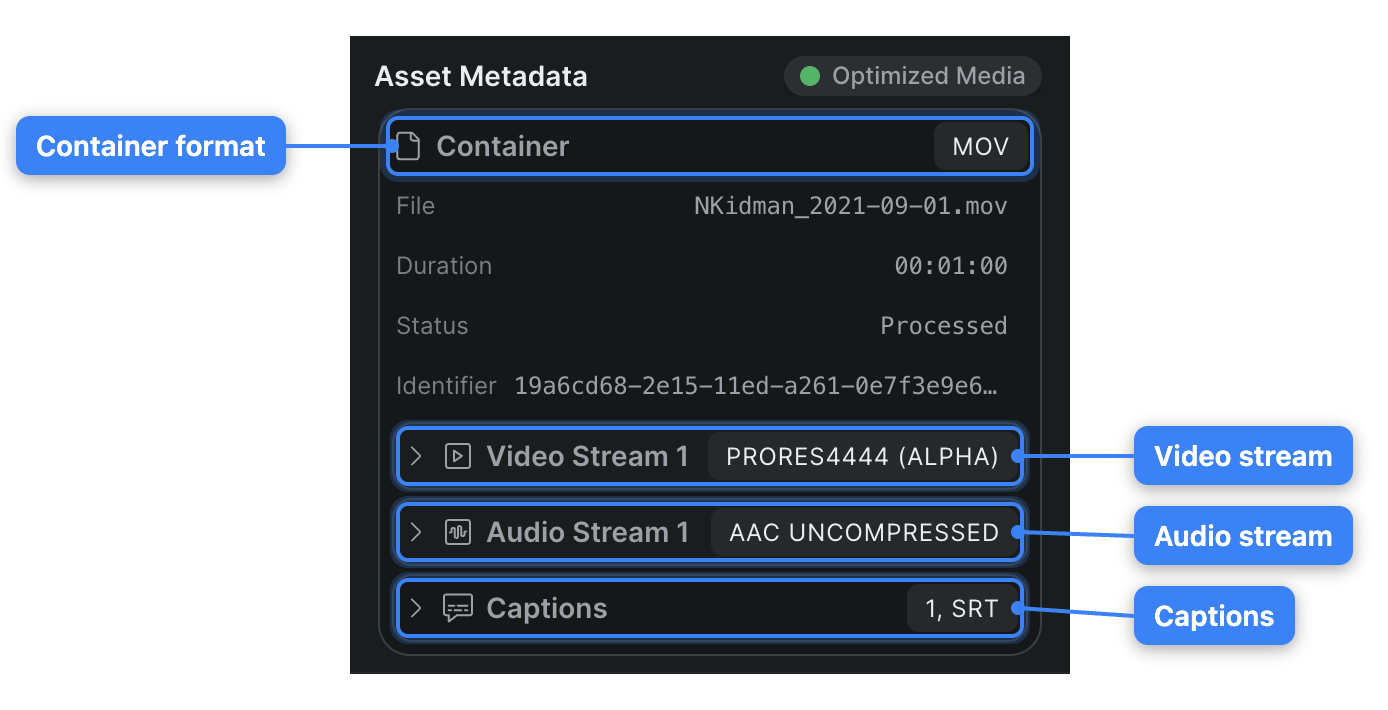
What Sequence accepts when you add files, how it turns uploads into playable and optimized media, and where to check a file's format.
Organize your library
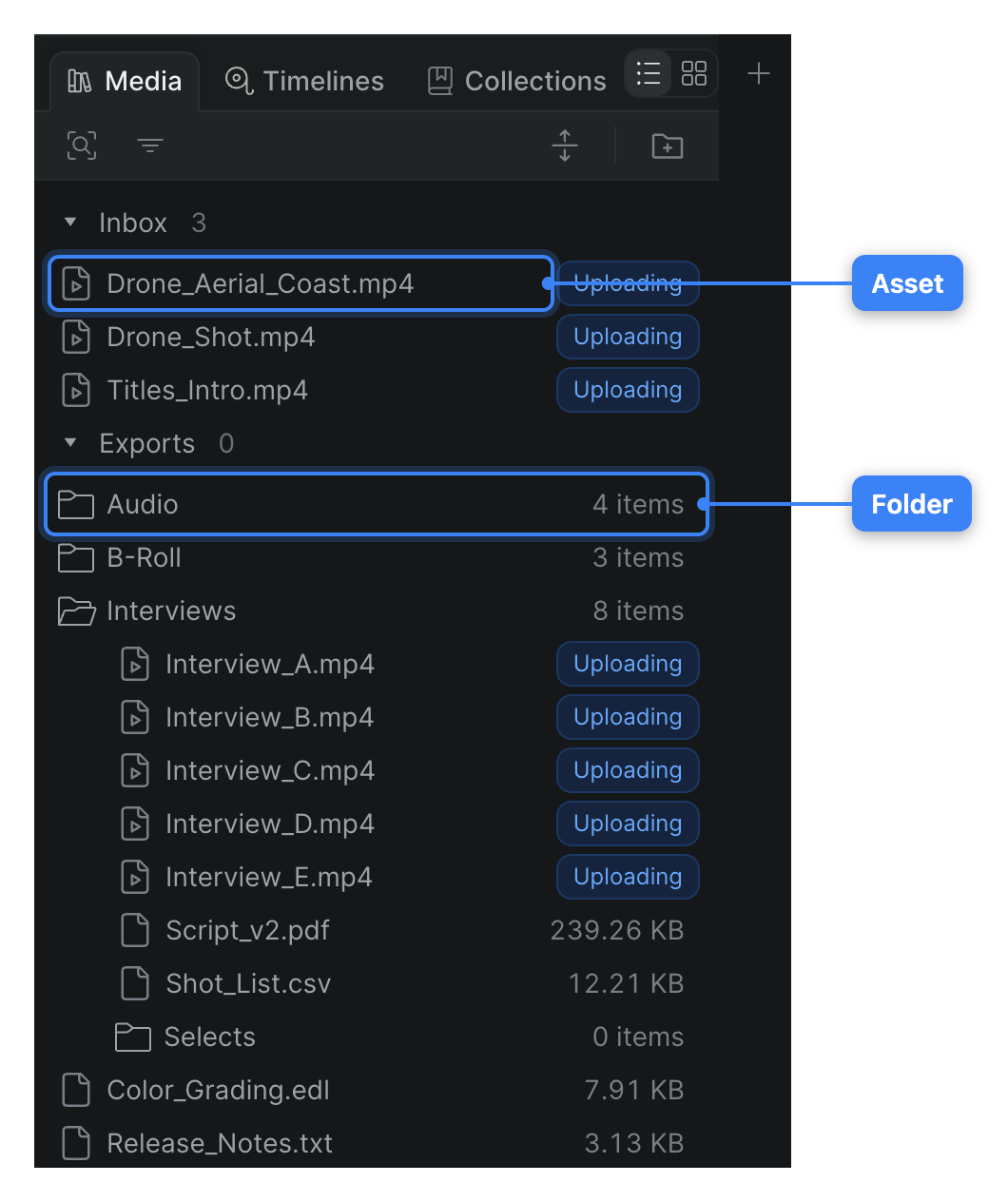
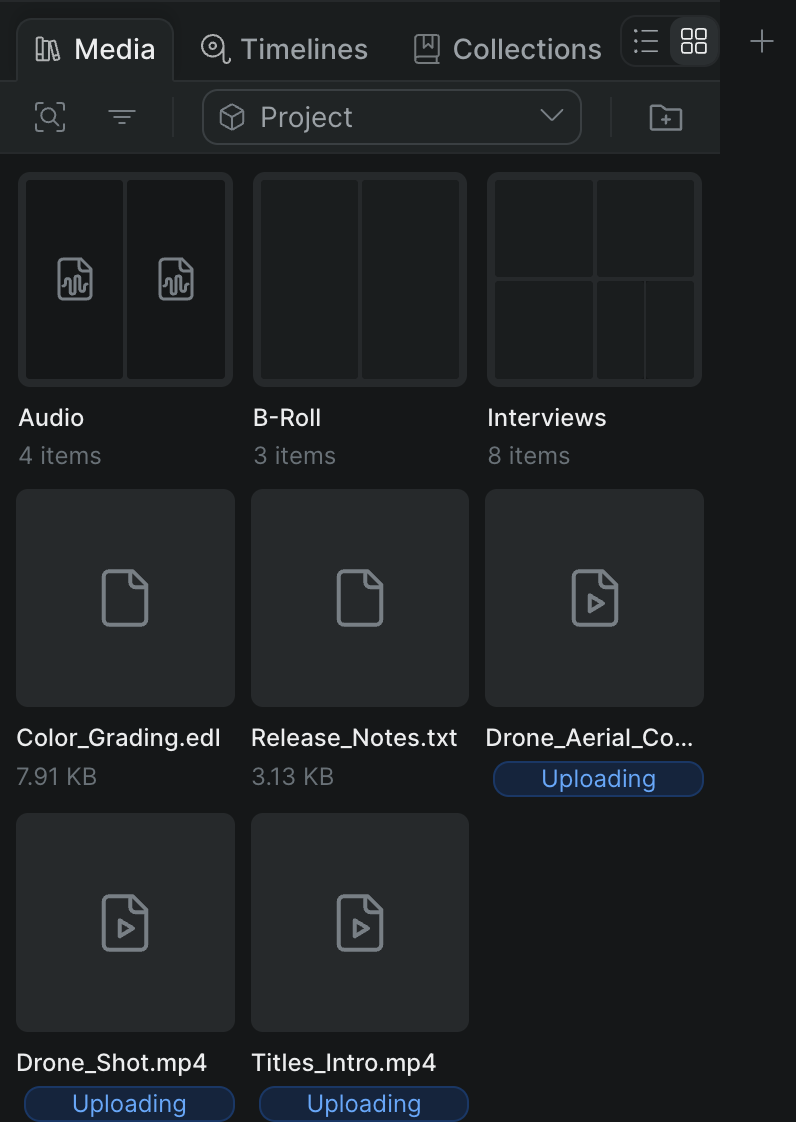
Switch between list and grid view, create folders, and nest media to keep your project's library organized.
Use the library item menu to rename a clip, download its original file, delete it, create a screening, or open it in Shuttle.
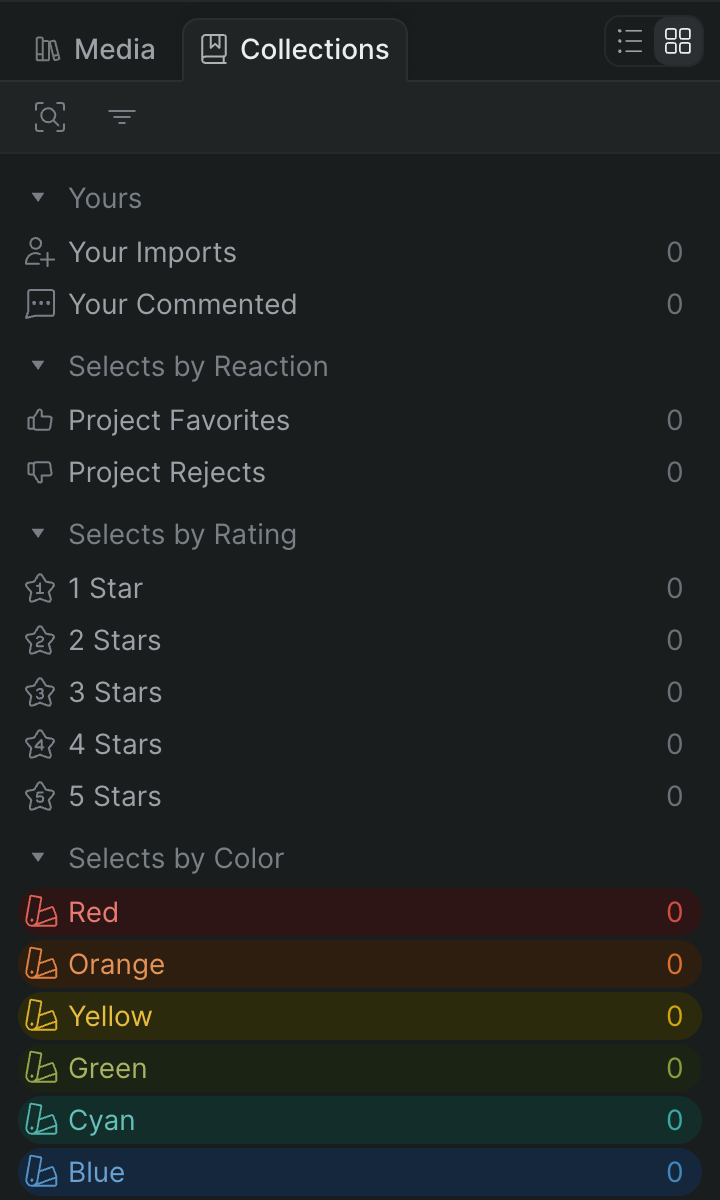
Collections are auto-populated views that gather your project's selects, tags, ratings, colors, and characters so you can find marked media fast.
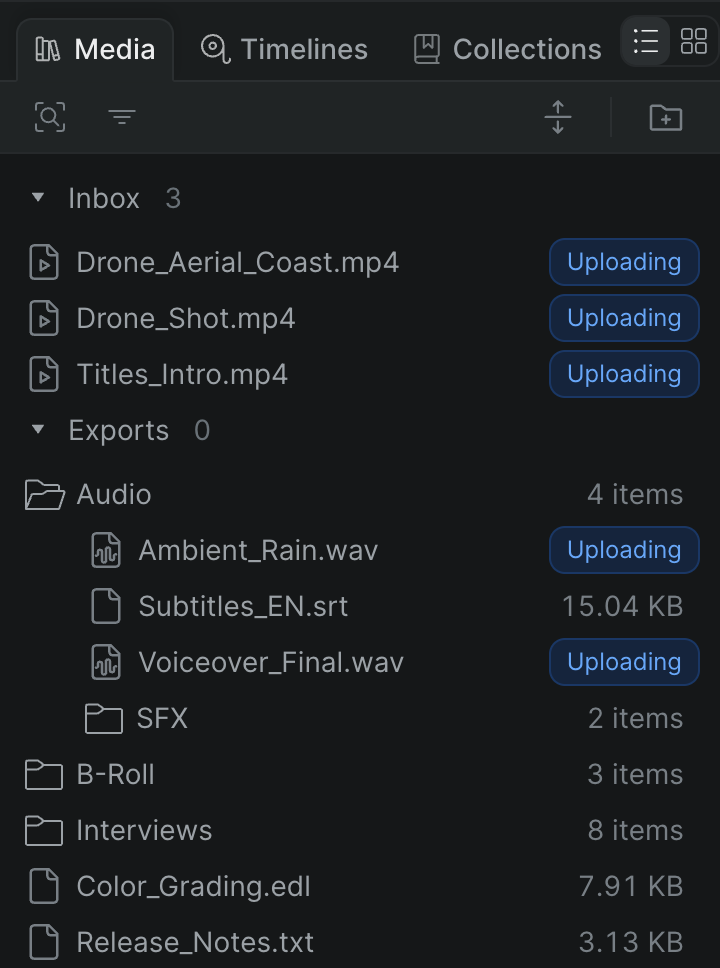
A document is any non-media file in your library — scripts, spreadsheets, subtitles, LUTs, or a file Snippy writes for you.
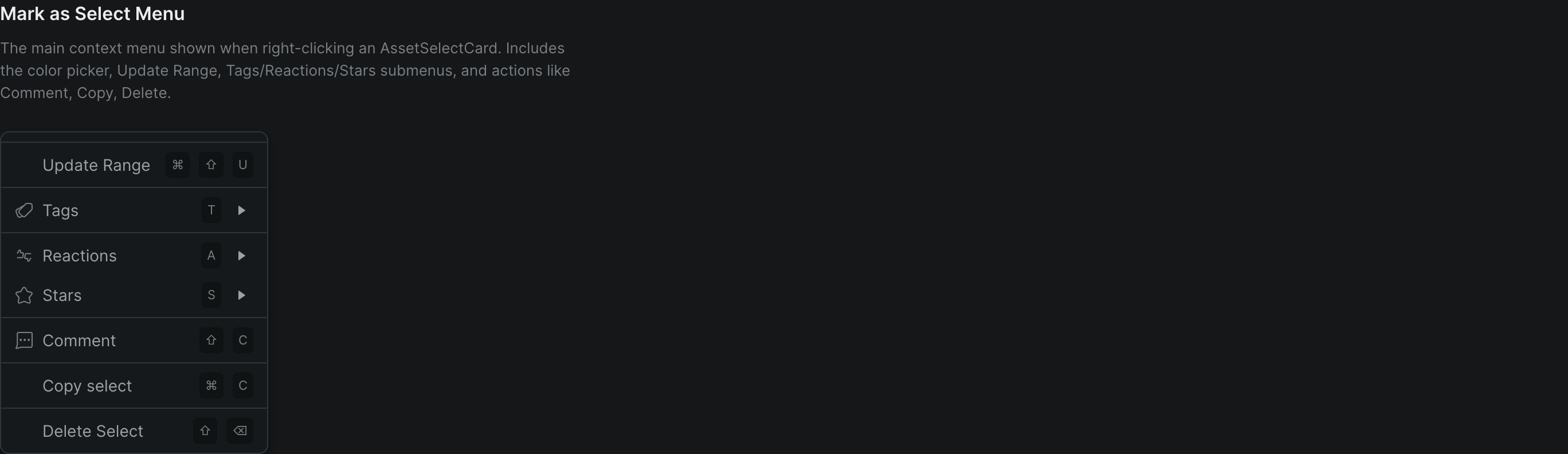
Mark ranges on your media as selects, then name, color-code, tag, rate, and react to them so your team can find them fast.
Preview and analyze
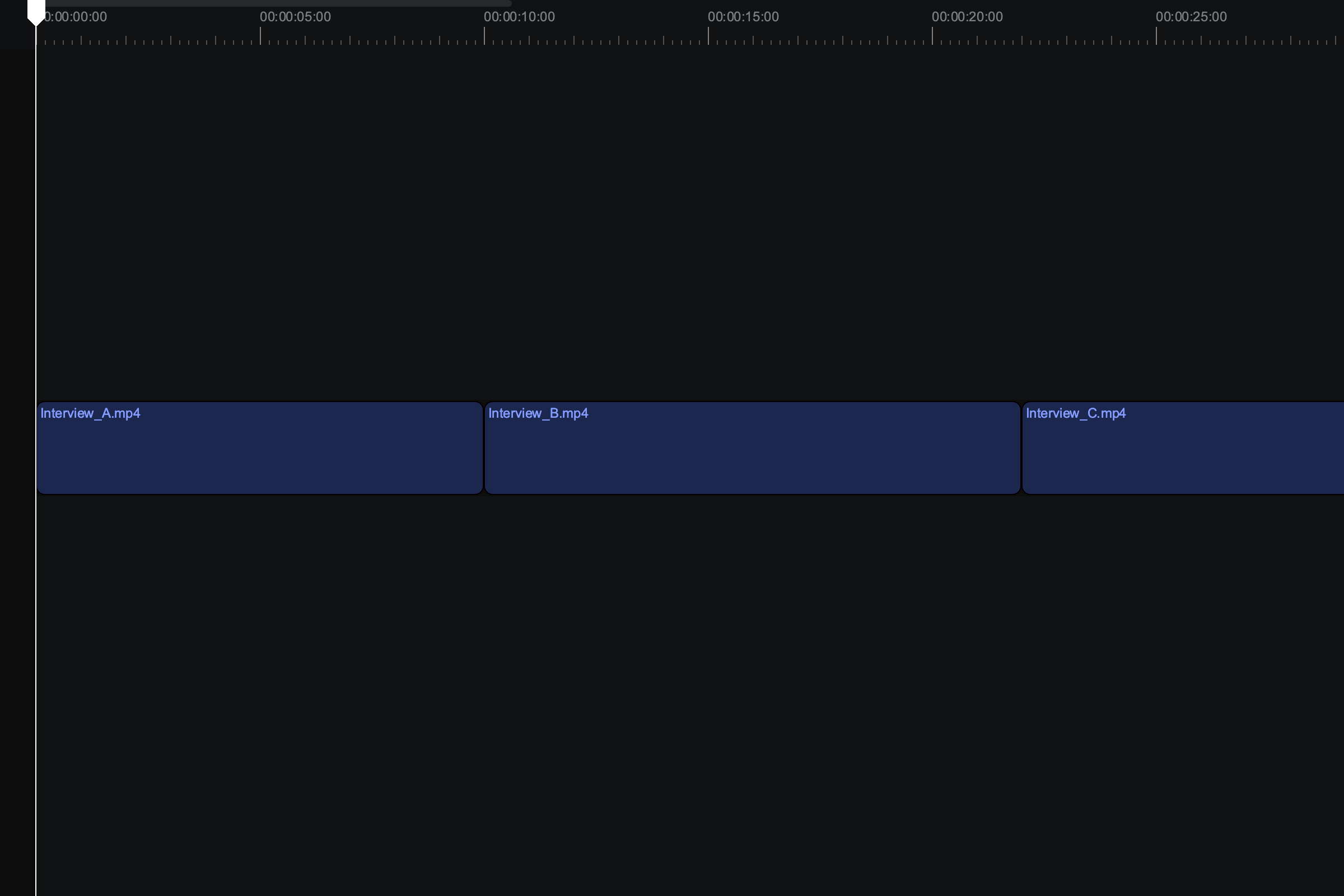
Skim, scrub, and play library items and timelines with the player controls and keyboard, and set a range before adding a clip to the timeline.
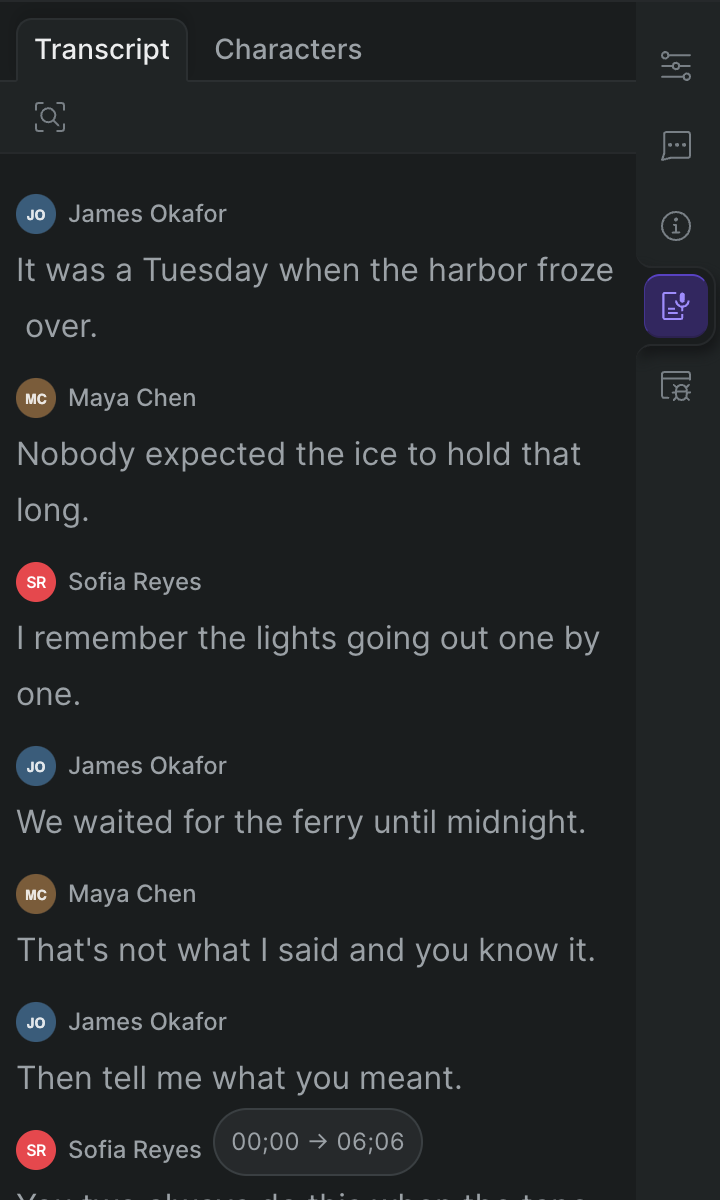
Read, search, and follow along with the auto-generated transcript of a clip's audio.
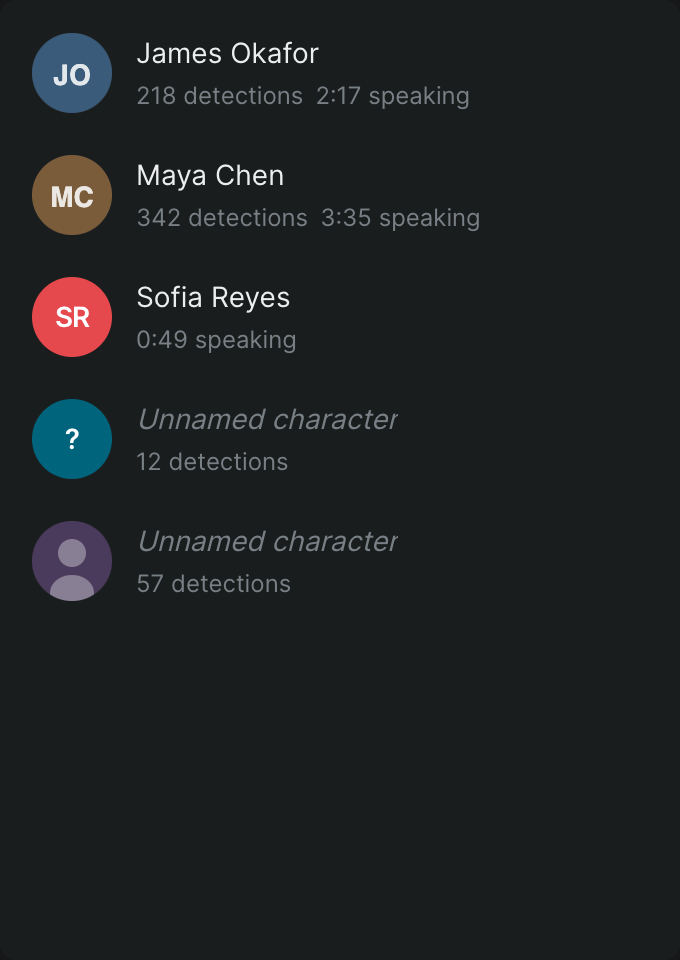
Review the speakers and faces Sequence detects in a clip — names, detection counts, and total speaking time — on the Characters tab.
Inspector Panel
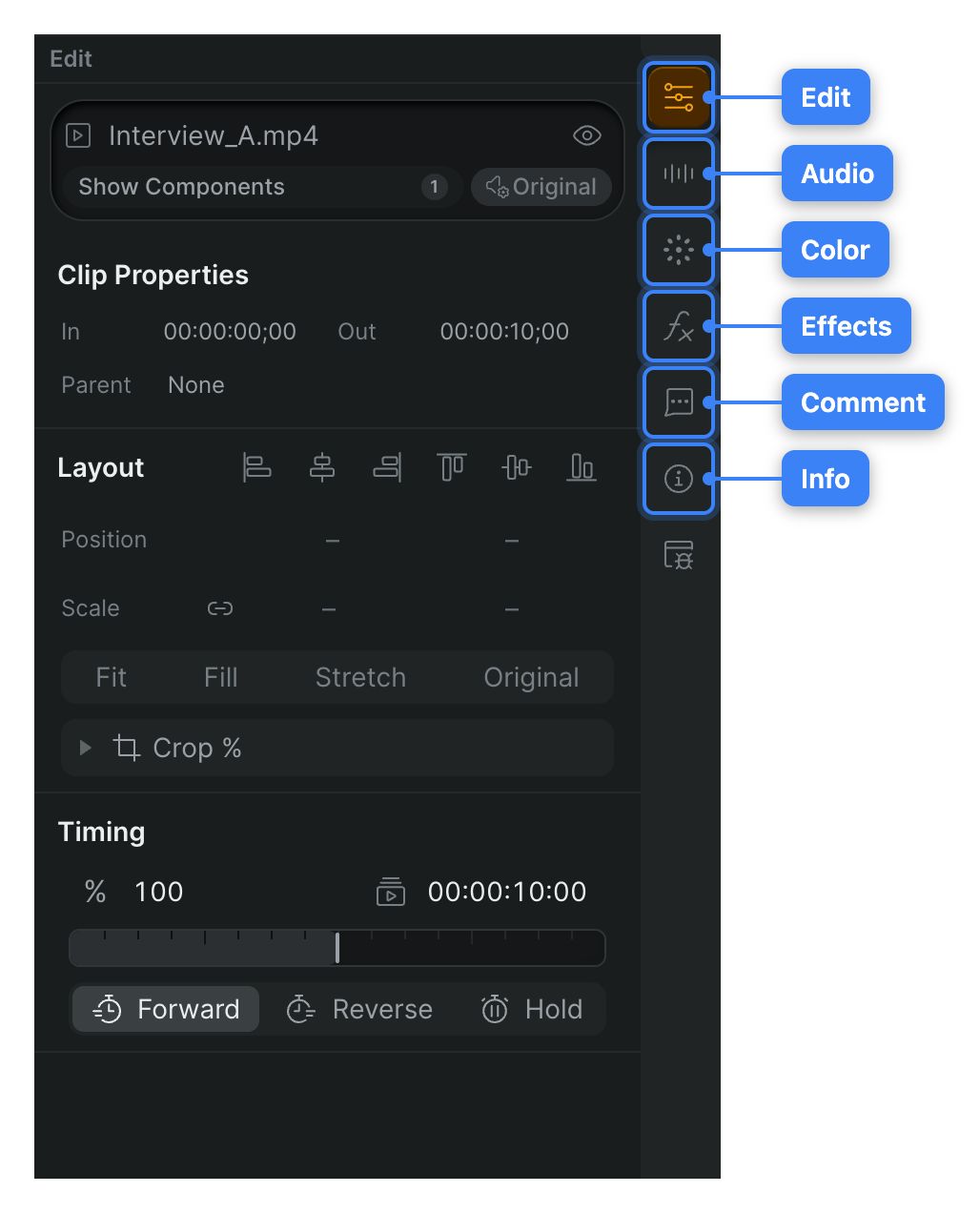
A control-by-control reference for the Inspector Panel, where you view and adjust the properties of the clip, timeline, or library item you have selected.
A module-by-module reference for the inspector's Info tab: description, selects, screenings, people, and asset metadata.