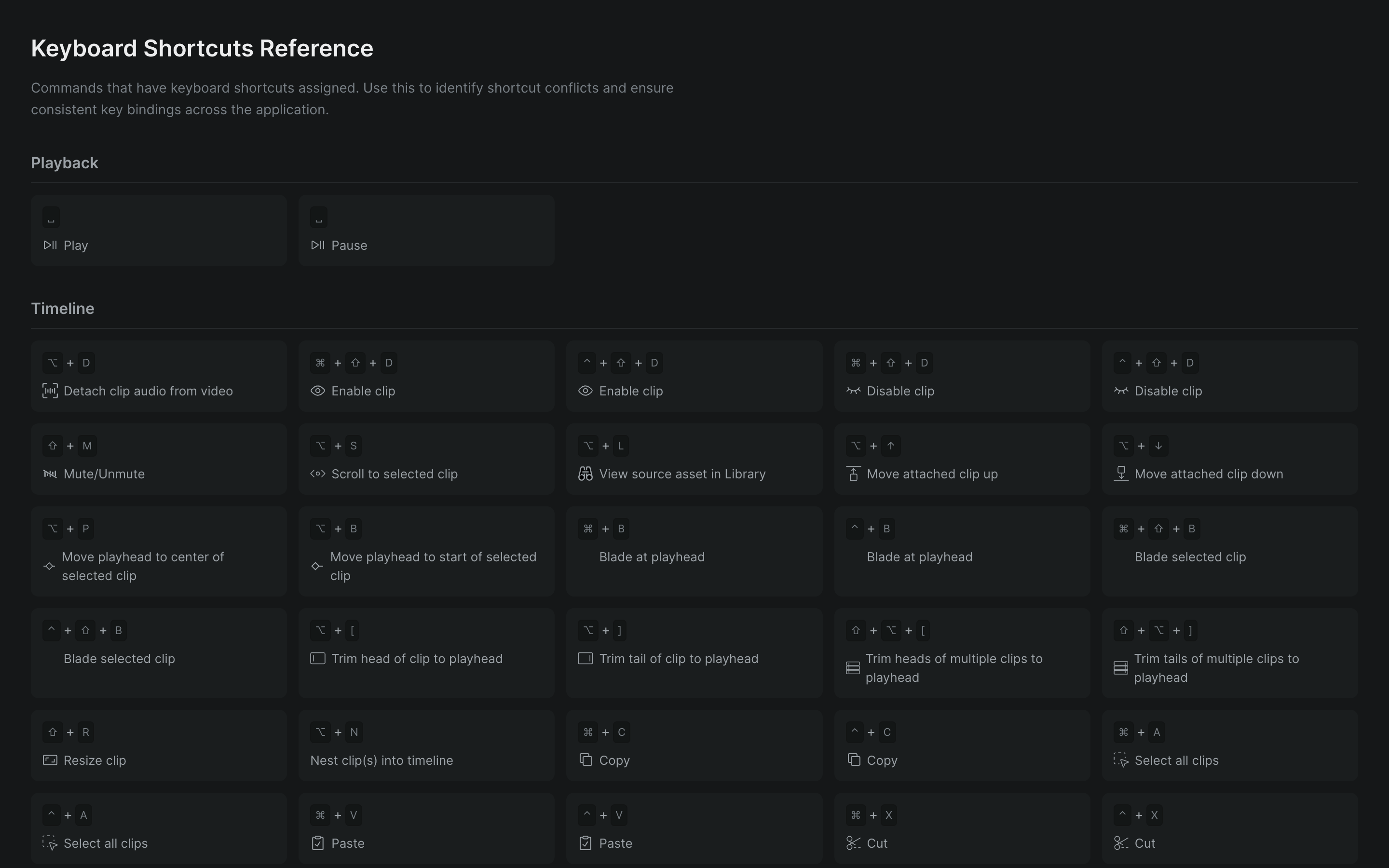
Keyboard shortcuts let you play, edit, and move through a project without reaching for the pointer. This page lists the shortcuts available while you're editing a project in Sequence, grouped by task. Keys that differ between platforms are shown in separate macOS and Windows columns; where only one key is listed, it's the same on both.
The fastest way to find any shortcut is the command palette: press Cmd-K (Windows: Ctrl-K), search for an action, and its shortcut appears beside it. See Use the command palette.
Note
These shortcuts work while you're editing a project. When your cursor is in a text field — a name, a comment, or the command palette's search box — typing enters text instead of triggering a shortcut. Reviewers watching a shared screening use a separate set of playback keys; see Share a screening for review.
Play and preview#
| Action | macOS | Windows |
|---|---|---|
| Play or pause | Space or K | Space or K |
| Play forward | L | L |
| Play in reverse | J | J |
| Play at half speed | Option-L / Option-J | Alt-L / Alt-J |
| Step back one frame | Left | Left |
| Step forward one frame | Right | Right |
| Jump back several frames | Shift-Left | Shift-Left |
| Jump forward several frames | Shift-Right | Shift-Right |
| Go to the previous edit point | Up | Up |
| Go to the next edit point | Down | Down |
| Loop playback | Shift-R | Shift-R |
Press L or J more than once to shuttle faster in that direction.
An edit point is a cut between two clips on the timeline.
Mark a range#
Set a range to define the section of the timeline you want to loop, export, or work within.
| Action | macOS | Windows |
|---|---|---|
| Set the range in point | I | I |
| Set the range out point | O | O |
| Clear the range | X | X |
Move around the timeline#
| Action | macOS | Windows |
|---|---|---|
| Move the playhead to the start | Home | Home |
| Move the playhead to the end | End | End |
| Zoom in | = | = |
| Zoom out | - | - |
| Fit the timeline in view | \ or Shift-Z | \ or Shift-Z |
| Scroll the timeline | Shift-Up / Shift-Down | Shift-Up / Shift-Down |
| Move an attached clip up | Option-Up | Alt-Up |
| Move an attached clip down | Option-Down | Alt-Down |
Fit the timeline in view toggles between showing the whole timeline at once and the zoom level you were last working at.
Tip
Hold Shift-Up or Shift-Down to keep scrolling — the longer you hold, the faster the timeline moves.
Select clips from the keyboard#
Move the selection from clip to clip, select everything at once, or step through your recent selections — without the pointer.
| Action | macOS | Windows |
|---|---|---|
| Select the clip above | W | W |
| Select the clip to the left | A | A |
| Select the clip below | S | S |
| Select the clip to the right | D | D |
| Select all clips | Cmd-A | Ctrl-A |
| Go back to your previous selection | Cmd-[ | Ctrl-[ |
| Go forward to your next selection | Cmd-] | Ctrl-] |
Go back and go forward retrace your recent selections, like a browser's back and forward buttons; Sequence remembers up to your last five.
Choose a tool#
Switch the timeline's active tool without clicking the toolbar.
| Action | macOS | Windows |
|---|---|---|
| Selection tool | V | V |
| Blade tool | B | B |
| Hand tool | H | H |
| Placeholder tool | P | P |
| Comment tool | C | C |
| Toggle snapping | Option-M | Alt-M |
Edit selected clips#
| Action | macOS | Windows |
|---|---|---|
| Cut | Cmd-X | Ctrl-X |
| Copy | Cmd-C | Ctrl-C |
| Paste | Cmd-V | Ctrl-V |
| Delete the selected clips | Backspace or Delete | Backspace or Delete |
| Copy clip properties | Option-C | Alt-C |
| Paste clip properties | Option-V | Alt-V |
| Enable or disable the clip | Cmd-Shift-D | Ctrl-Shift-D |
| Nest selected clips into a new timeline | Option-N | Alt-N |
| Trim the clip's head to the playhead | Option-[ | Alt-[ |
| Trim the clip's tail to the playhead | Option-] | Alt-] |
| Undo | Cmd-Z | Ctrl-Z |
| Redo | Cmd-Shift-Z | Ctrl-Shift-Z |
| Rename a library item | F2 | F2 |
Copy clip properties copies a clip's adjustments — such as its transform and color settings — so you can paste them onto another clip. Trim the clip's head and trim the clip's tail move that edge of the clip to the playhead, dropping the frames on that side. See Nest clips into a timeline for what nesting does.
Open a panel#
Open the inspector panels with a two-key sequence: press G, release it, then press the second key. The keyframe panel has its own toggle.
| Action | macOS | Windows |
|---|---|---|
| Open the Edit panel | G then E | G then E |
| Open the Audio panel | G then A | G then A |
| Open the Color panel | G then C | G then C |
| Open the Info panel | G then I | G then I |
| Show or hide the keyframe panel | Shift-K | Shift-K |
Switch multicam angles#
With a multicam clip selected, or a multicam timeline open for editing.
| Action | macOS | Windows |
|---|---|---|
| Switch to angle 1–9 | 1–9 | 1–9 |
| Switch to angle 10 | 0 | 0 |
| Cycle to the next angle | ` | ` |
| Cycle to the previous angle | Shift-` | Shift-` |
| Toggle audio for angle 1–9 | Option-1–Option-9 | Alt-1–Alt-9 |
| Toggle audio for angle 10 | Option-0 | Alt-0 |
Only the first ten angles get a number-key shortcut. See Switch multicam angles.
Collaborate#
| Action | macOS | Windows |
|---|---|---|
| Open the command palette | Cmd-K | Ctrl-K |
| Open the Snippy launcher | Cmd-Option-K | Ctrl-Alt-K |
| Start cursor chat | / | / |
Cursor chat lets you type a short message that appears next to your cursor, so collaborators editing the same project see it live. The Snippy launcher opens an inline prompt where you ask Snippy, Sequence's AI assistant, to carry out a task; see Chatting with Snippy.