Install Sequence Shuttle on your Mac and sign in to connect it to your Sequence workspace.
- In Sequence, open the workspace sidebar and click Download Shuttle Desktop App — or, on a project's Upload page, click the "For faster uploads, try Shuttle — our native desktop uploader" link shown above the media uploader. Either one downloads the Shuttle installer as a disk image (a
.dmgfile, the standard format Mac apps use for installation) in a new browser tab. - Open the downloaded
.dmgfile and follow the prompts to install Sequence Shuttle. - Open Sequence Shuttle. Shuttle's icon appears in the menu bar at the top of your screen, and, since you haven't signed in on this Mac before, Shuttle opens your default web browser to sign you in.
- Log in with your Sequence account in the browser window that opens.
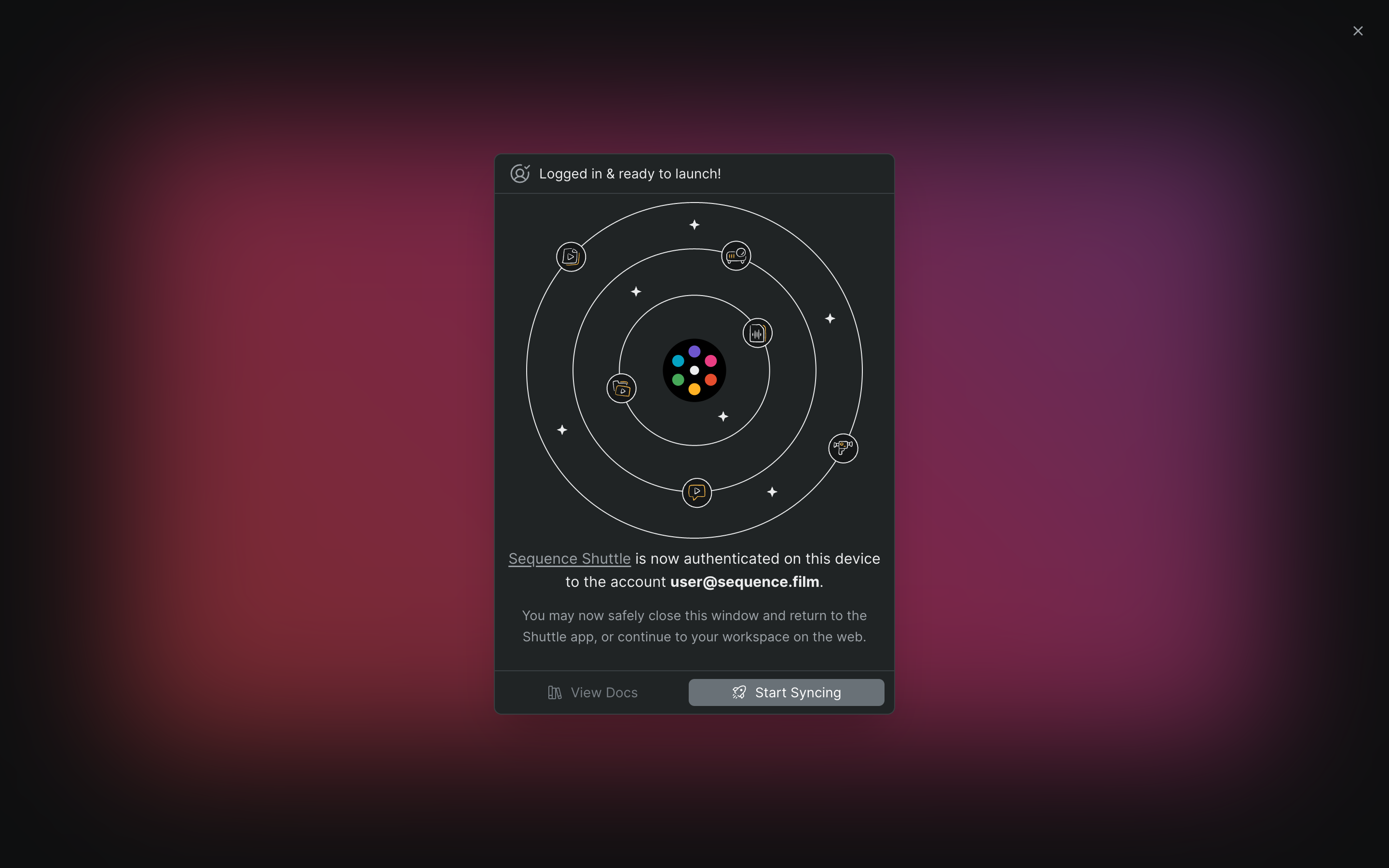
- When the Logged in & ready to launch! confirmation appears in the browser, close the tab to return to Shuttle.
Shuttle is signed in and ready. You're ready to mount a project as a local drive.
Tip
Click Start Syncing instead of closing the tab to go straight to your workspace in the Sequence web app.
Note
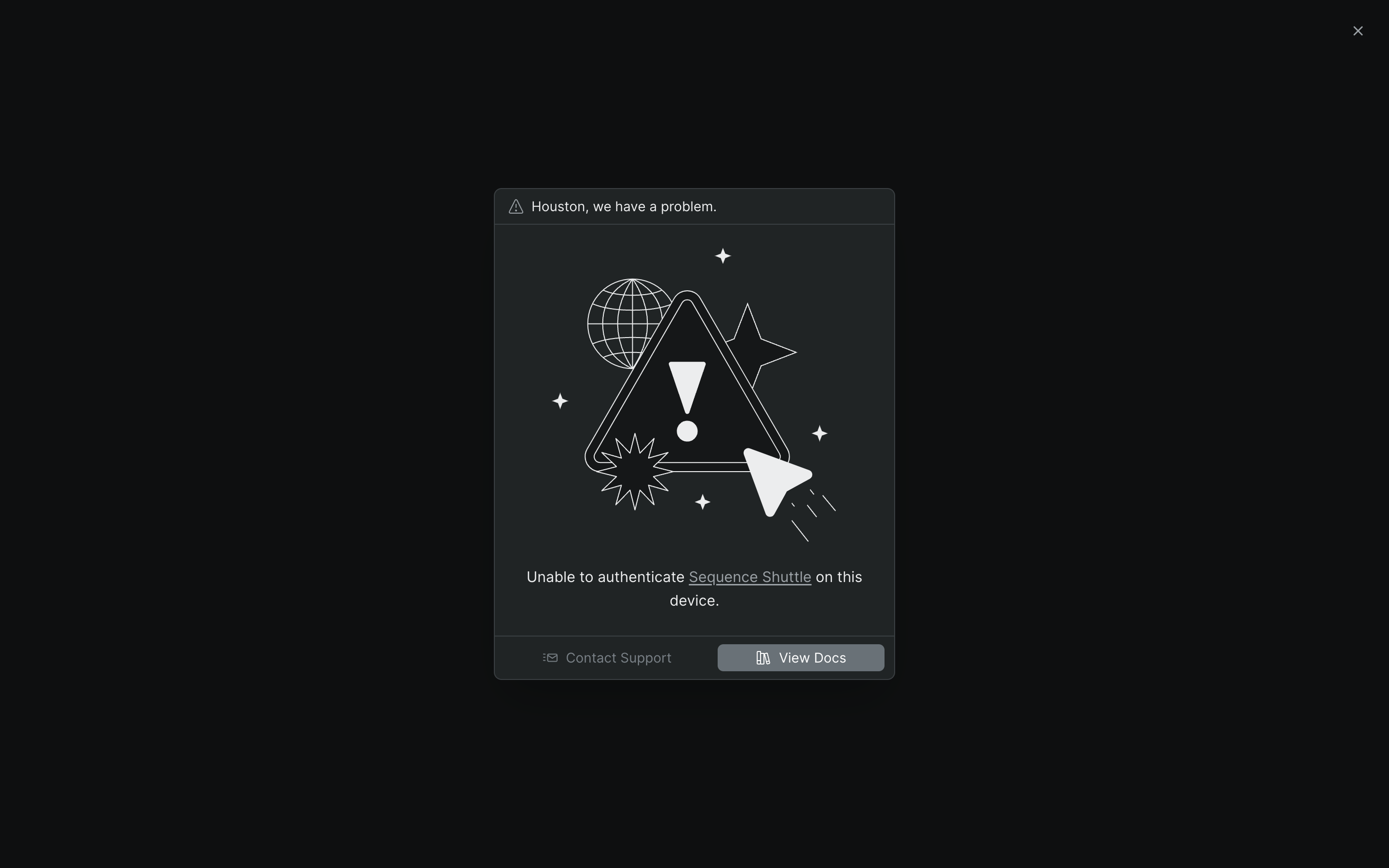
If sign-in fails, Sequence shows a "Houston, we have a problem." message in the browser instead, with options to View Docs or Contact Support.