You give Snippy a request in plain language and it carries the work out in your project — no exact commands or menus to remember. The fastest place to start is the Snippy launcher, an inline prompt that opens right in the editor. Type what you want, send it, and Snippy gets to work.
For what Snippy is and the kinds of jobs it takes on, see Intro to Snippy.
Open Snippy#
The Snippy panel lives in the right sidebar of the editor. It's where Snippy's conversations run — you send a request, then watch Snippy work and read its replies there.
There are two ways to bring Snippy up:
- Open the launcher. Press Cmd-Alt-K (Windows: Ctrl-Alt-K) to open the inline launcher, type your request, and send it. Sending a request — or switching to an existing session — opens the Snippy panel so you can follow along.
- Open the panel directly. From the Reel menu, choose Show Snippy Panel, or press ] to toggle the right sidebar. The same entry reads Hide Snippy Panel while the panel is open.
Note
Snippy isn't turned on in every workspace yet. If the panel or the launcher doesn't appear, Snippy may not be enabled for your workspace.
Find your chats in the panel#
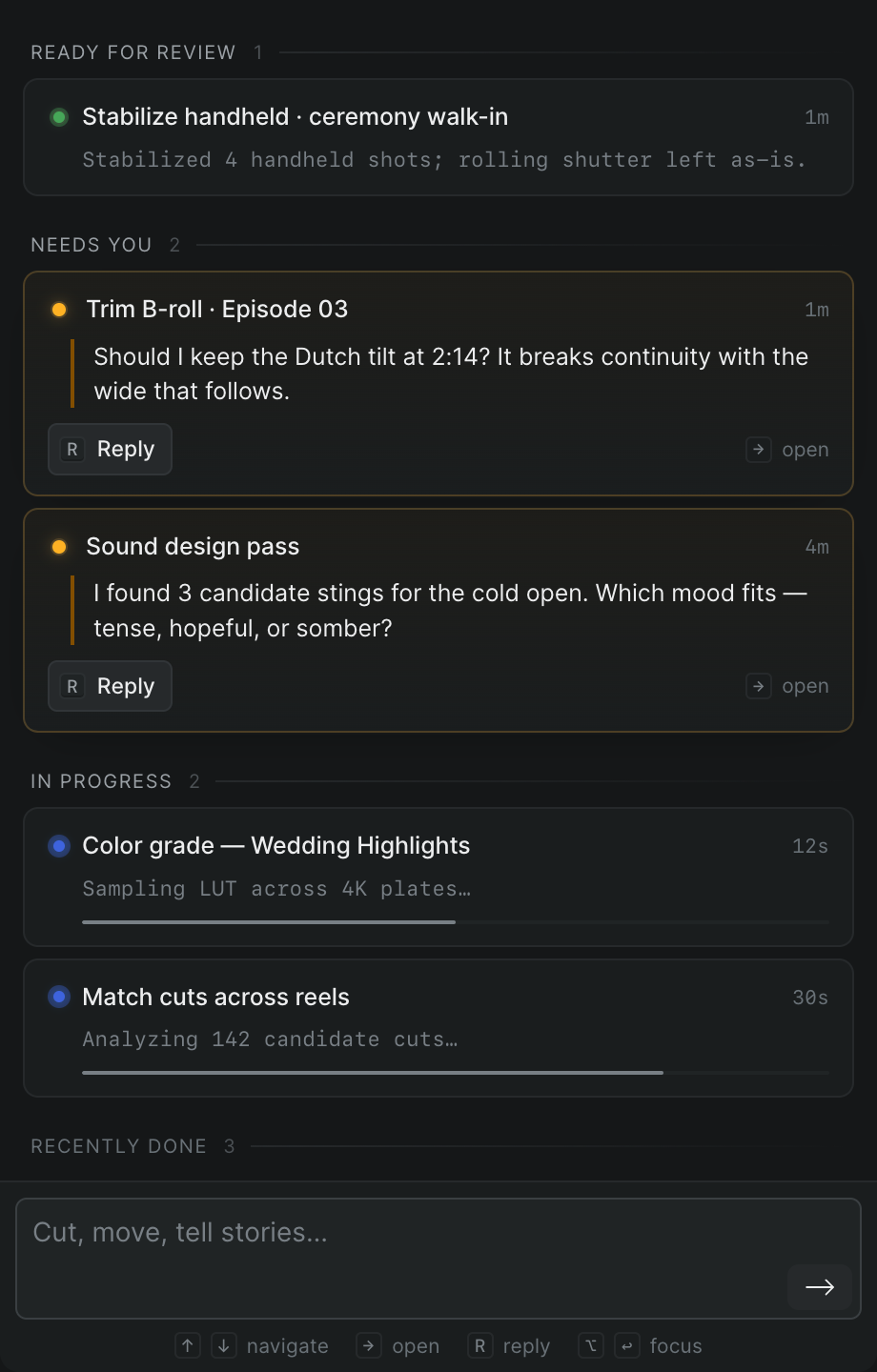
The Snippy panel opens onto your recent Snippy sessions rather than a single thread — each request you send becomes its own session you can return to.
- Sessions are grouped by state: the ones that need your input, the ones Snippy is still working on, and the ones recently done.
- Select a session to open its conversation. The back arrow at the top left of the panel returns you to the list.
- To start a fresh conversation, select New chat (the + button beside the Snippy title), or type a new request in the box at the bottom of the panel.
Send Snippy a request#
- In Sequence, open the project you want to work in.
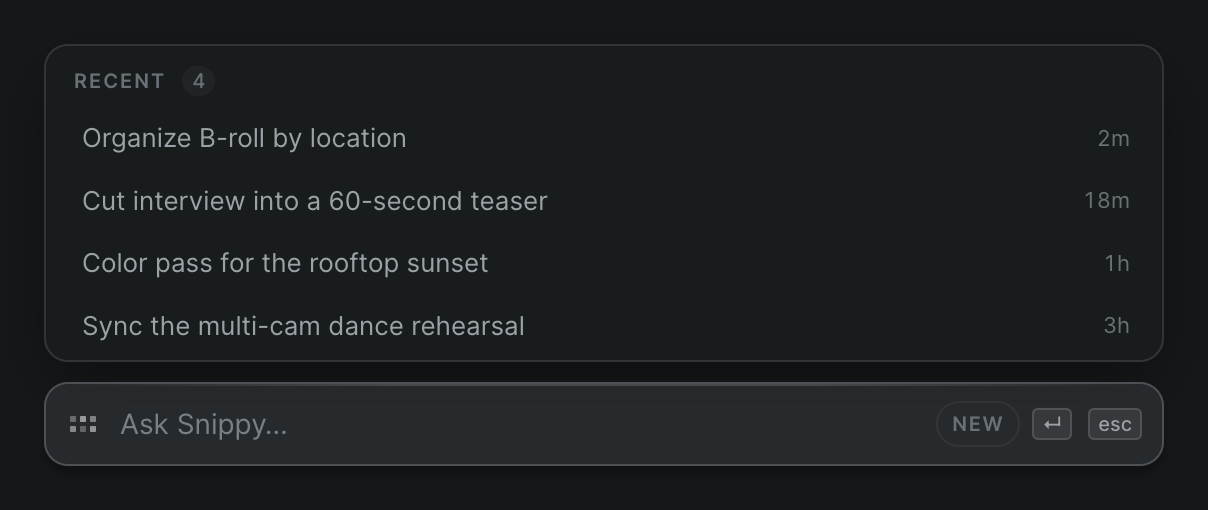
- Open the Snippy launcher by pressing Cmd-Alt-K (Windows: Ctrl-Alt-K). It appears as an inline prompt in the editor.
- Type your request into the prompt, where the placeholder reads Ask Snippy…. Describe the outcome you want the way you'd tell a collaborator — for example, "Organize my B-roll by location and add the best takes to a selects folder."
- Press Enter to send. Snippy starts a new conversation and begins working in the background.
While Snippy works, you see a Snippy is working… message. Snippy carries out your request and applies the changes directly to your project.
Tip
To always start a fresh conversation — even when a recent one is highlighted — press Cmd-Enter (Windows: Ctrl-Enter). To close the launcher without sending, press Escape.
Point Snippy at something specific#
To scope a request to a particular item instead of the whole project, mention it directly:
- In the prompt, type @. A list of things you can reference opens.
- Choose from Timelines, Assets, Selects, or Folders, then pick the item you mean.
- Finish your request and press Enter.
A request like "tag everything in @B-roll" scopes the work to that folder alone. You can add more than one mention in a single request.
Follow along and continue the conversation#
After you send a request, open the Snippy panel to watch Snippy work and read its reply. Snippy responds in a conversation, and as it works it shows its progress:
- A reasoning block holds Snippy's plan. Click it to expand or collapse the detail.
- A status banner tracks the steps in progress, updating with action verbs — like Scrubbing — as each one lands.
To continue an earlier conversation, open the Snippy launcher and use the arrow keys to highlight a session in the Recent list before you send. Snippy then sends your request into that conversation instead of starting a new one.
Tip
With the Snippy panel focused, press Alt-Enter to jump your cursor straight to the message box for a follow-up. To stop Snippy while it's mid-task, press Ctrl-C.
Note
Snippy works in the background, so you can keep editing while it runs. It edits the real project, not a private draft — the folders, clips, and timelines it changes are part of the shared project, and collaborators see them the same as any edit you make by hand.