Snippy is Sequence's built-in AI assistant. You ask it, in plain language, to do editing and library work — organize your B-roll by location, find every sunset shot, build a rough cut from your interview selects — and Snippy carries it out inside your project.
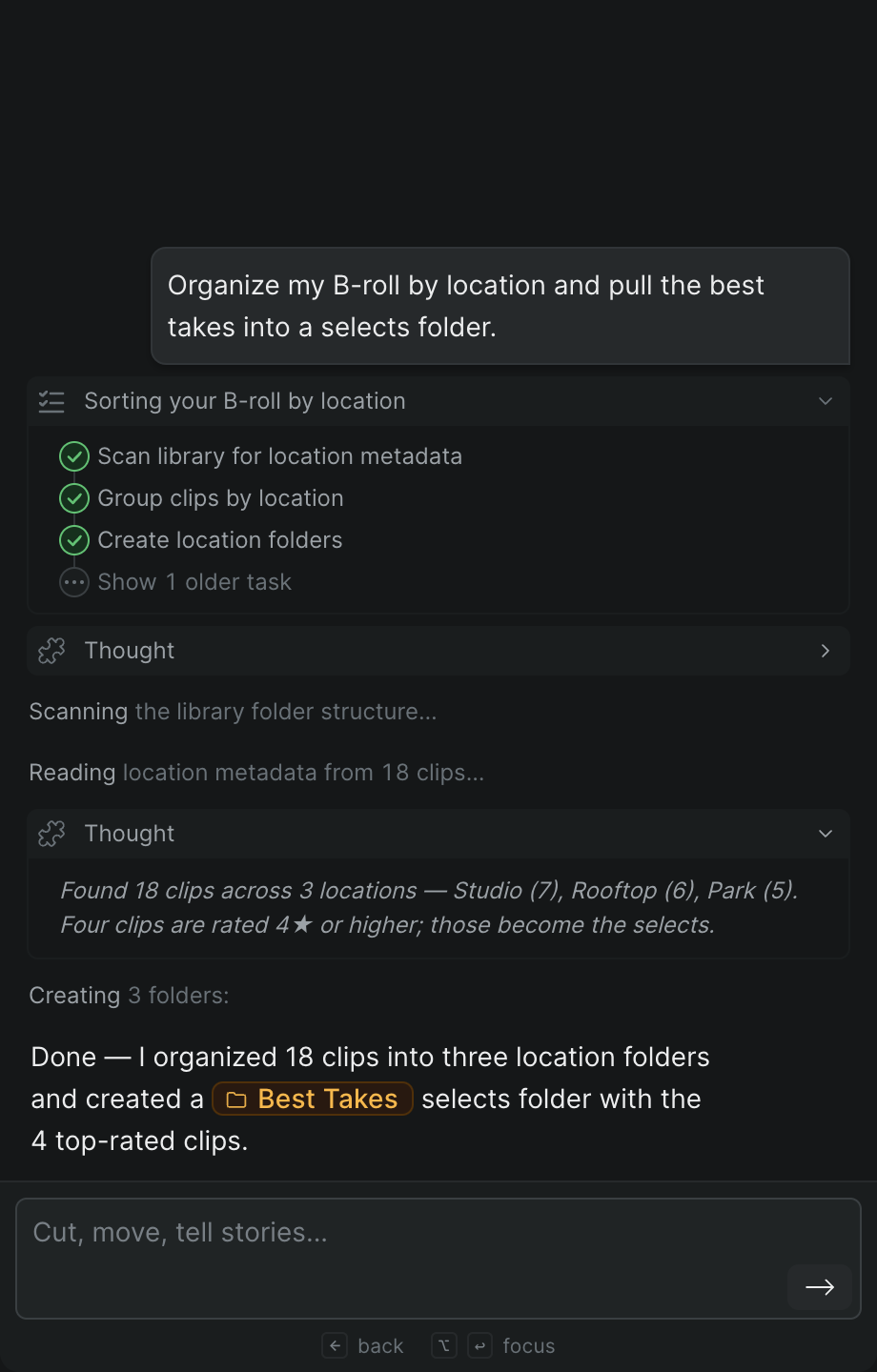
You talk to Snippy in the Snippy panel. Type a request into the message box (its placeholder reads "Cut, move, tell stories...") and send it. You don't need to name exact commands or menus; describe the outcome you want the way you'd tell a collaborator.
How Snippy works#
Snippy uses tools to act on the real project. Depending on what you ask, it can create folders, move and tag clips, add clips to a timeline, scan frames, and organize assets. Rather than only answering with text, it makes the change and shows you what it did.
To point Snippy at something specific, @mention it in your message. Typing @ opens a list of things you can reference — Timelines, Assets, Selects, Folders, Documents, Tags, and Comments — so a request like "tag everything in @B-roll" scopes the work to exactly that folder instead of the whole project.
As it works, Snippy shows what it's doing. A reasoning block (its plan) appears with a Thinking label while it works and Thought once it finishes; click it to expand or collapse the detail. A status banner tracks the tool calls in progress, so you can watch each step land in real time.
Note
Snippy edits the real project, not a private draft. The folders it creates, the clips it moves, and the timelines it builds are changes to the shared project — collaborators see them the same as any edit you make by hand.