Snippy works across your whole project — your library, your timelines, and your documents. You describe an outcome in plain language from the Snippy panel in your project's right sidebar, and Snippy carries it out by drawing on dozens of built-in tools that act directly on the project. This page catalogs what those tools let it do.
For what Snippy is and how to send it a request, see Intro to Snippy and Chat with Snippy.
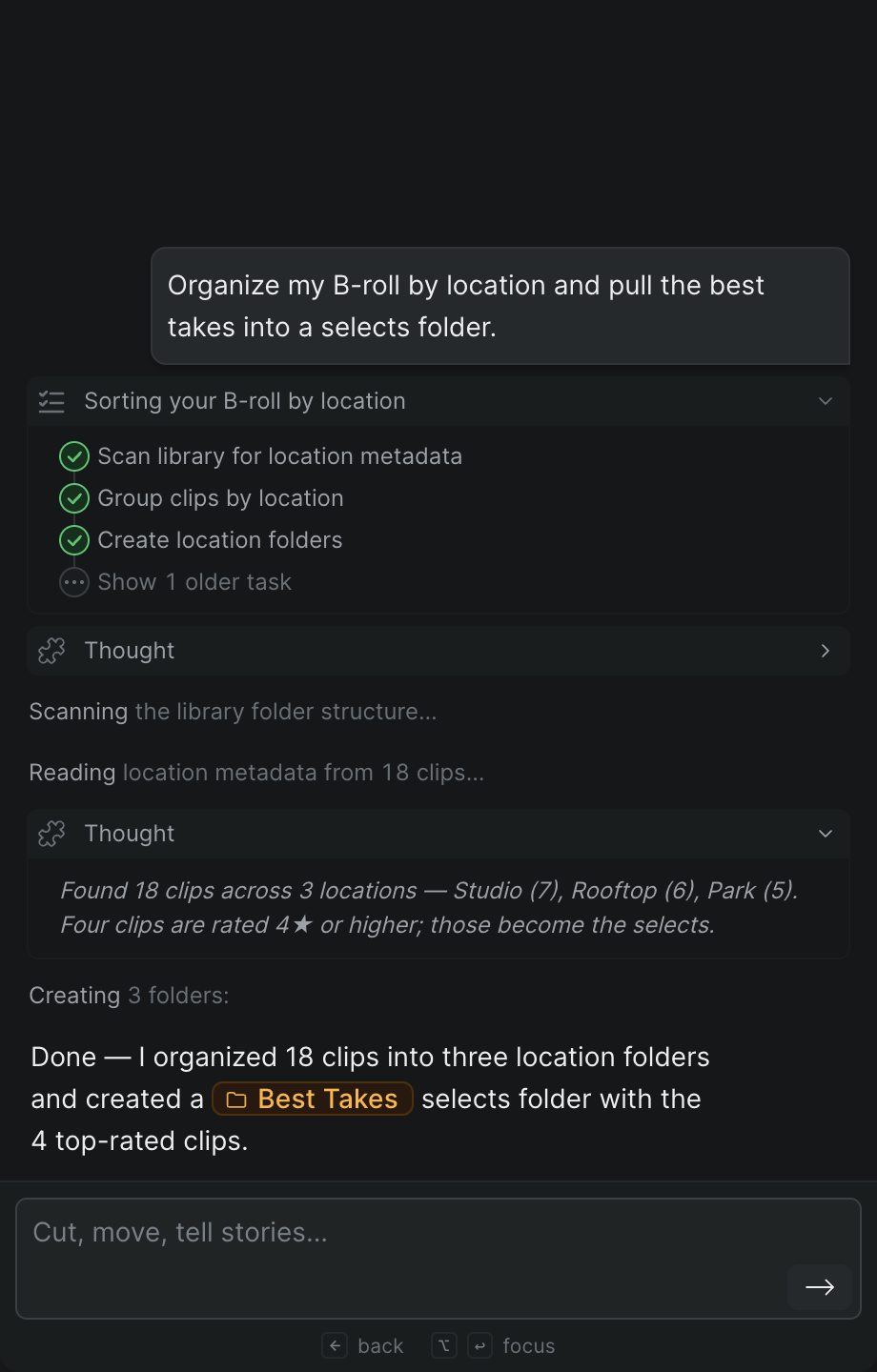
Before it changes anything, Snippy reads the current state of your project — your folder tree, tags, selects, and a timeline's layout and elements — so a request lands where you mean it to.
Organize your library#
Snippy can keep your media tidy without you dragging things by hand:
- Create, rename, and delete folders, and move clips and other items into them.
- Create and edit Selects (marked ranges of a clip) — rename a select, change its time range, add or remove tags, and set its rating, reaction, or color.
- Create and edit project Tags.
- Rename assets and update their descriptions.
For how selects and folders work when you organize by hand, see Organizing Files.
Build and edit timelines#
Snippy can assemble and shape a cut:
- Create, rename, and delete timelines, and add assets or selects to a timeline.
- Add placeholder clips and title clips.
- Cut and adjust the edit: blade-cut a clip at a point, trim a clip's start or end, and slip, slide, or roll clips.
- Move storyline and attached clips vertically between tracks or earlier and later in time, and remove elements you no longer want.
Snippy assembles a timeline from the clips and selects you point it at — it's not a one-click rough-cut generator, so tell it which material to use and how you want it shaped. For the editing tools this mirrors, see Timeline Overview & Tools.
Sync multicam#
Snippy can build and sync a multicam timeline (one that lines up several camera angles of the same moment):
- Create a multicam timeline and add, remove, or reorder its angles.
- Place assets on angles, one at a time or each in turn, and add sync gap clips to line footage up.
- Set which angle you're monitoring and match the timeline's format to your source footage.
- Name each angle after the asset it carries once syncing is done — so an angle reads as its camera or recorder (for example, "A CAM" or "Boom 1") instead of a generic default name.
Apply custom effects#
Snippy can manage custom shader effects (programmable looks applied to clips):
- List the custom effects in your project and load an effect's source.
- See which effects are on an element, apply a custom effect to elements, or remove one.
- Save a new custom effect for reuse.
Work with comments#
Snippy can create, edit, and read comments, so it can leave feedback on the project or act on notes that are already there. Comments are part of the shared project, so anyone with access sees them.
Manage documents#
Snippy can create and remove file documents and read a document's metadata.
Read scripts and story#
Snippy can work with your project's written material:
- List the scripts in your project and read a script breakdown.
- Walk the project's story tree and record a shot composition.
Understand your media#
Snippy can look inside a clip before it acts on it:
- Fetch an asset's transcript.
- Visually scan a clip's frames and show the scanned frames as a strip right in the conversation, so you can see what it found.
- Start playback of a source.
Aim Snippy at specific items#
Any of these jobs can target a single item instead of the whole project. Type @ in your message to open the list of things you can reference — Timelines, Assets, Selects, Folders, Documents, Tags, and Comments — then pick the item you mean and finish your request. Snippy scopes the work to exactly what you mentioned. See Chat with Snippy for how @-mentions work, and Run tasks with Snippy for how Snippy reports progress while it works.
Note
Snippy edits the real project, not a private draft. Every folder, clip, tag, select, comment, document, and timeline it creates or changes is a shared object — collaborators see and edit it the same as any change you make by hand. If someone else is holding a timeline, Snippy can be blocked from changing it until they release it, just as you would be.