Snippy can run work as background tasks, so you can hand off a job and keep editing while it works. Each task runs in its own session, and Snippy can carry several at once—you don't have to wait for one to finish before starting the next. The multi-session panel gathers all your tasks in one place and groups them by state.
To start a session and give Snippy a task, see Chat with Snippy.
How a task moves through its states#
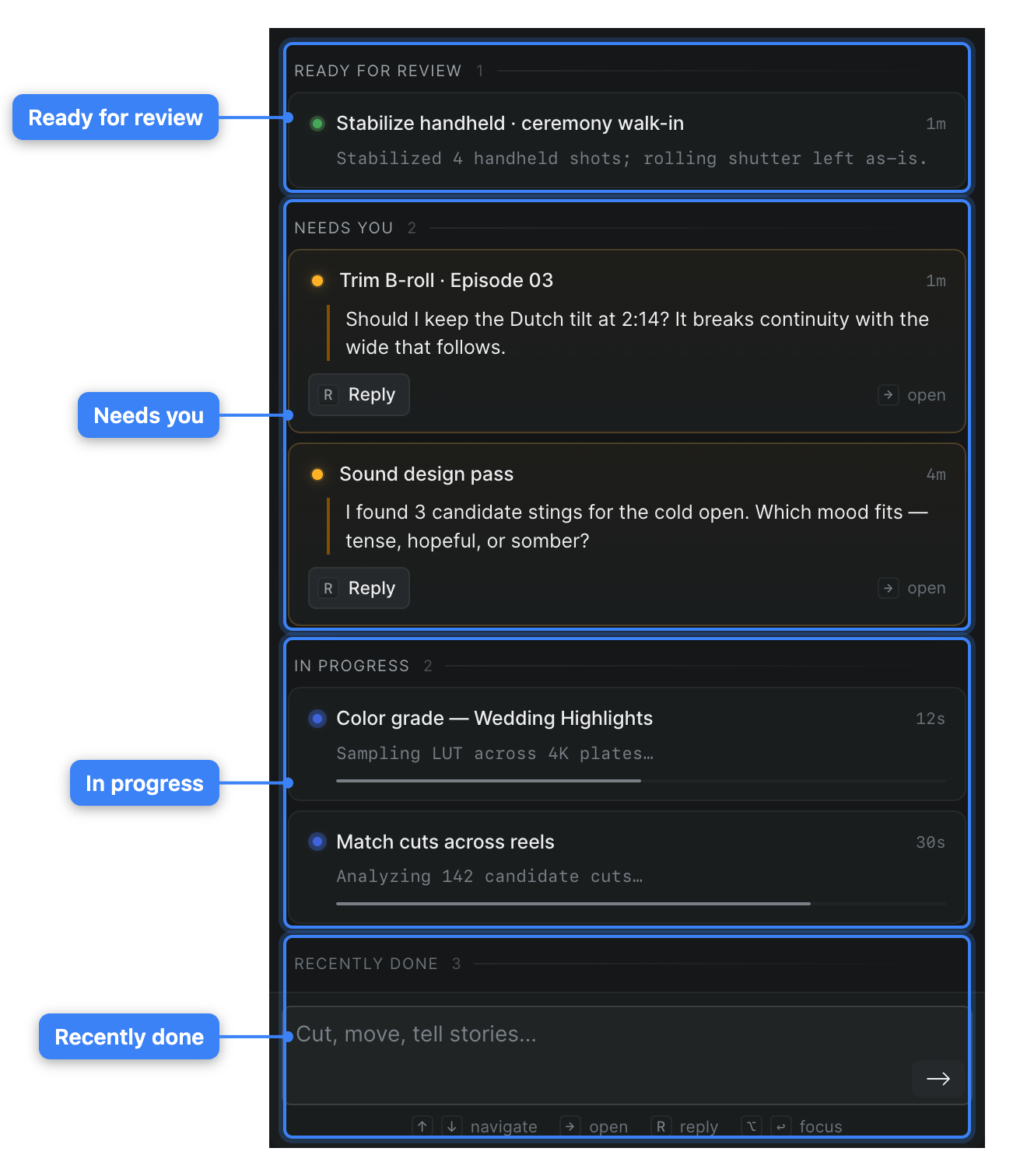
As Snippy works, a task moves through a few states. The multi-session panel groups your tasks by state so you can see at a glance which ones need you:
- In Progress — Snippy is mid-task. The card shows the step it's working on and a progress bar.
- Needs you — Snippy has paused to ask a question. The card shows the question so you can answer without opening the session.
- Ready for review — Snippy has finished a turn and is waiting for you to look. The card shows what it did.
- Recently Done — the task is complete. Done tasks collapse into a compact list beneath the active ones.
Snippy floats the tasks that need your attention to the top, so Ready for review and Needs you cards sit above In Progress and Recently Done.
Review a task that needs you#
- In Sequence, open the Snippy panel to see your tasks.
- Under Needs you or Ready for review, find the task you want to review.
- Read the question or result shown on the card.
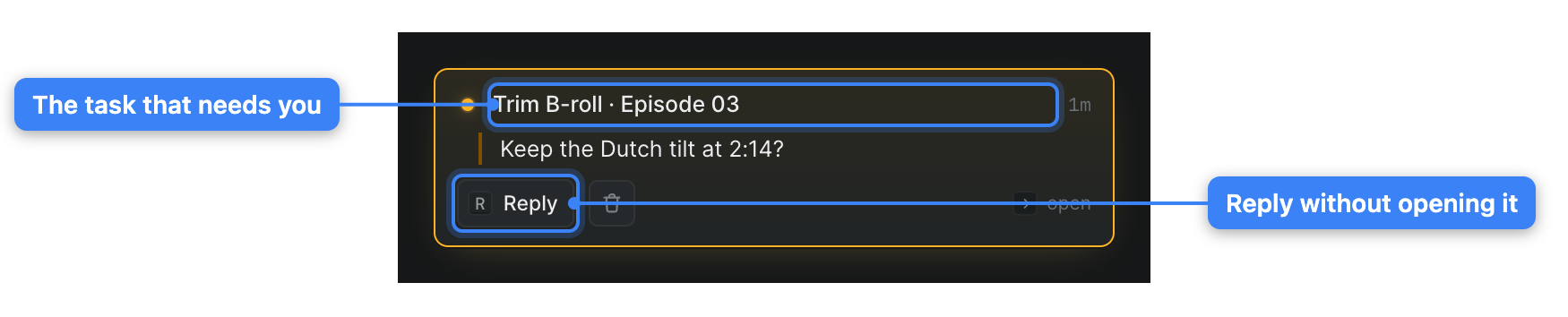
- Click Reply on the card (or press R) to answer without leaving the panel, or click the card to open the full session.
- Type your answer and send it.
Snippy takes your reply and continues working. When it finishes, the task moves to Recently Done, where its last result stays on the row for reference.
Move through your sessions with the keyboard#
The multi-session panel is keyboard-driven, so you can triage tasks without reaching for the mouse. With the Snippy panel focused, do any of the following:
- Move through the list: Press the Up or Down arrow to highlight a session.
- Open a session: Press Enter or the Right arrow to open the highlighted session.
- Reply to the highlighted session: Press R to answer without opening it.
- Close a session: Press Escape or the Left arrow to return to the list.
- Delete the highlighted session: Press Cmd-D (Windows: Ctrl-D).
When you're all caught up#
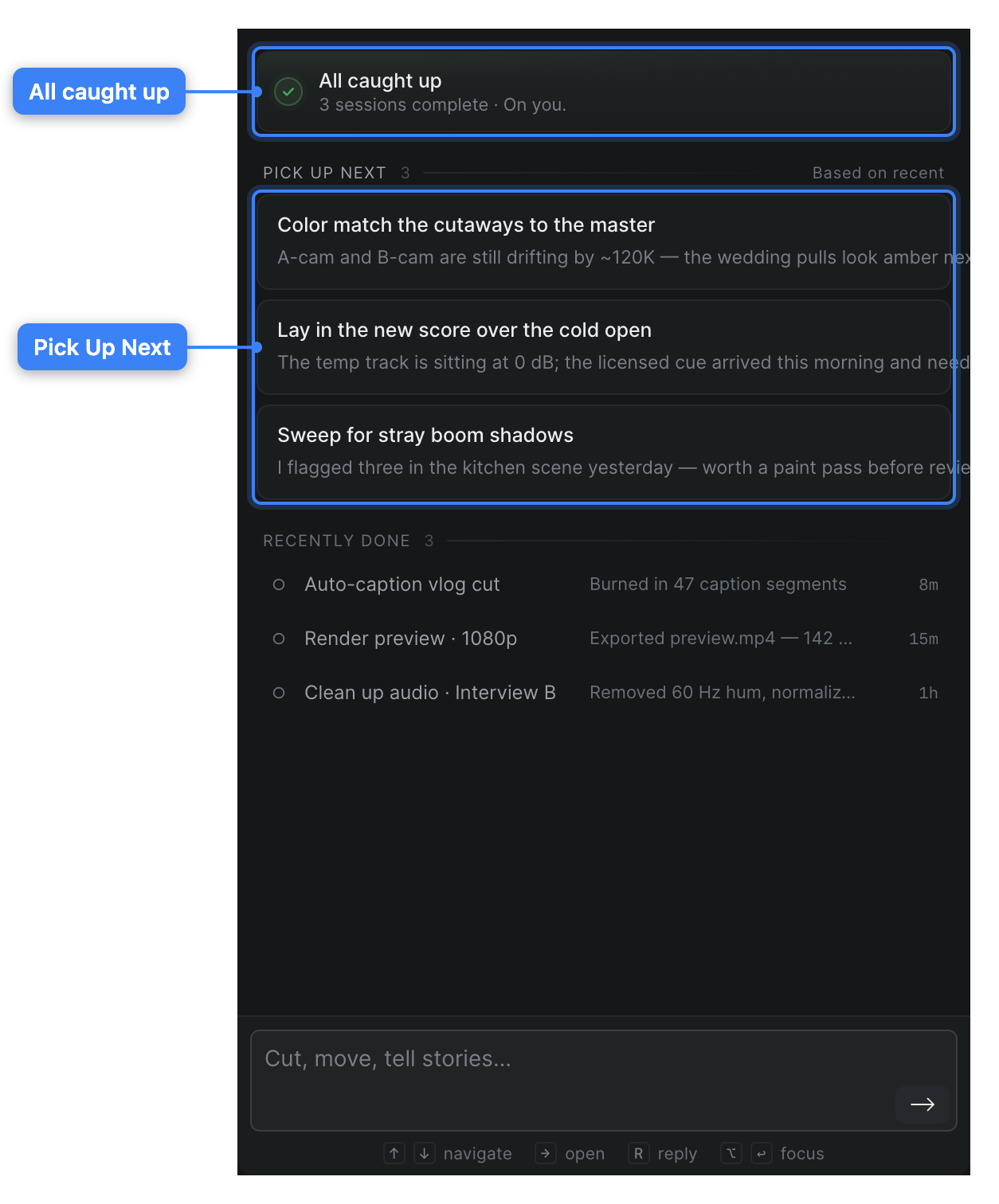
When every task is complete, the panel replaces the list with an All caught up banner and a count of completed sessions. Below it, Pick Up Next suggests tasks you might start next, drawn from your recent work—click one to open a new session pre-filled with that task.