Access to your work in Sequence has two layers. Workspace members belong to your whole workspace, with a workspace role — Owner, Admin, Member, or Guest. Project collaborators are the people on one specific project, with a project role — Owner, Admin, Editor, or Guest. This page covers both: inviting and managing workspace members below, then adding and managing collaborators on an individual project further down.
How the two layers connect
Every workspace member who isn't a workspace Guest already has some access to every project in the workspace by default — no per-project invite needed. Give the whole workspace access (in the Project collaborators section below) sets that default. A person's own project role, set from that same section, always overrides the default for them specifically. Workspace Guests get none of the default — they need to be added to a project individually to access it at all. For what each role can do, see Workspace roles and permissions.
Open workspace member settings#
- In Sequence, open your workspace.
- Go to workspace settings and, under Workspace in the settings sidebar, click Members.
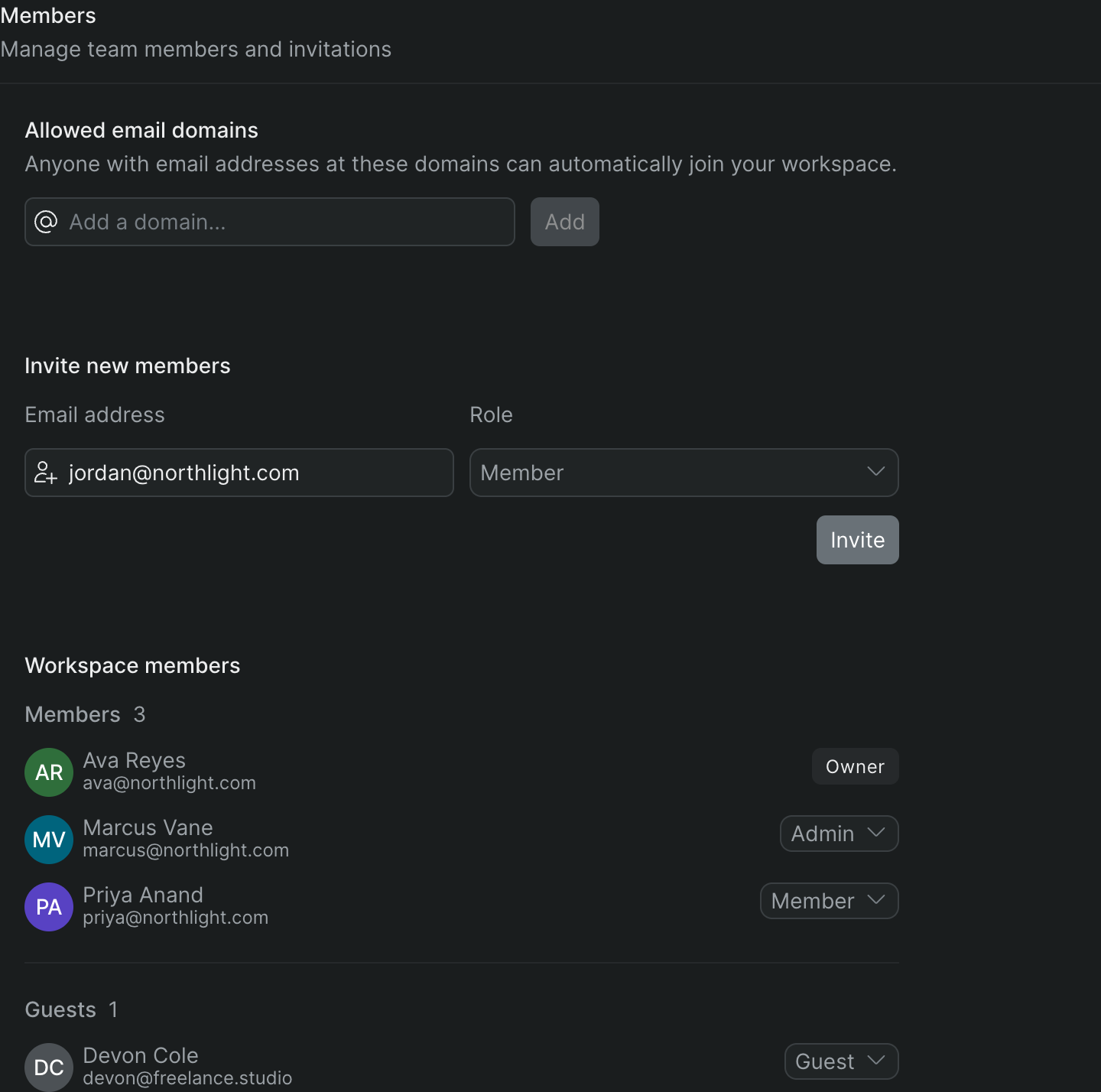
The Members settings screen opens, with sections for inviting members, allowed email domains, and your current workspace members.
Note
You need to be a workspace Owner or Admin to invite members or change roles. If you're a Member, the invite fields are disabled and Sequence shows "Only workspace admins can invite members." See Workspace roles and permissions.
Invite members by email#
- On the Members settings screen, find the Invite new members section.
- In an Email address field, type the person's email.
- In the Role dropdown next to it, choose the workspace role to grant:
- Member: Full workspace access. This is the default.
- Admin: Everything a Member can do, plus managing members, billing, and workspace settings.
- Guest: Limited access for outside collaborators. For what each role can do, see Workspace roles and permissions.
- To invite more than one person at once, type into the next Email address field — a new empty row appears automatically as you fill the last one. Set a role for each.
- Click Invite.
Sequence sends an invitation to each valid address and confirms with a "Members invited" message. Each invited person appears in your Workspace members list right away as a pending invite until they accept.
Note
If you type an address Sequence can't read as an email, the field is outlined and it shows "Please enter valid email addresses." Fix the address, then click Invite again.
Tip
To let anyone with your company's email domain join automatically instead of inviting them one by one, see Allowed email domains.
If invites are blocked by your seat limit#
Every workspace member counts toward the maximum number of seats on your plan. When you reach that limit, the Invite new members section is disabled and Sequence shows an "Upgrade to add more team members" banner explaining you've reached your workspace member limit.
To add more people, click Upgrade Now in the banner to move to a plan with more seats, or remove members you no longer need to free up a seat. See Plans and billing.
Change a member's role#
- On the Members settings screen, scroll to the Workspace members list.
- Find the person in the Members or Guests group.
- Click the role dropdown to the right of their name and choose a new role — Admin, Member, or Guest.
Sequence applies the new role immediately. If you switch someone to or from Guest, they move between the Members and Guests groups in the list.
Note
The workspace Owner shows a fixed Owner label instead of a dropdown — you can't change the Owner's role from this screen.
Understand the Guest tier#
Guests are workspace members with limited access, listed in their own Guests group beneath the regular Members group. Invite someone as a Guest when they need to work with your team but shouldn't have full workspace access — for example, a freelancer or an external reviewer. Guests still count toward your seat limit. For exactly what a Guest can and can't do, see Workspace roles and permissions.
Remove a member#
- On the Members settings screen, find the person in the Workspace members list.
- Click their role dropdown and choose Remove.
- In the confirmation dialog, confirm that you want to remove them.
Sequence removes the member and frees up their seat. They lose access to the workspace and its projects.
Warning
Removing a member revokes their workspace access immediately. To bring them back, invite them again by email.
Project-level access
Everything below is scoped to one project rather than the whole workspace, managed from that project's Collaborators list.
Open a project's Collaborators list#
Do either of the following:
- From the editor: Open the project and click Share in the top bar. The Share sheet opens with a Collaborators section at the top.
- From project settings: Open the project, click Settings (the gear icon) in the project tab bar, and find the Project Members section.
Both open the same list — everyone with access to this project, each with a role menu, and any invites that haven't been accepted yet.
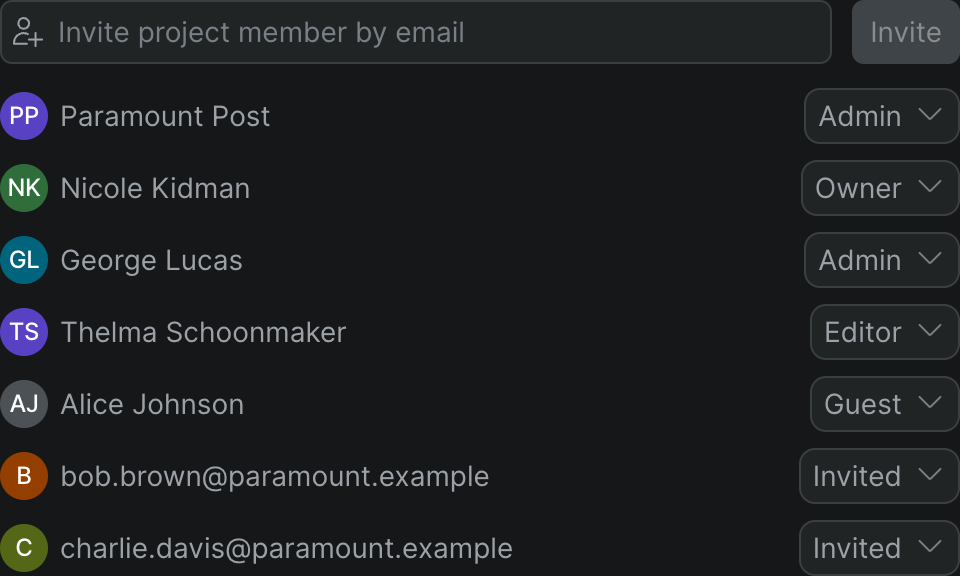
To invite, change roles, or remove people on a project, you need to be an Owner or Admin on that project, or an Owner or Admin of the workspace it belongs to. Without those permissions you can still open the list and see who's on the project, but the controls are read-only.
Give the whole workspace access#
Above the member list, a row reads Members of [workspace name] with a dropdown next to it. This sets the access level every workspace member gets on this project by default — a new project starts everyone at can edit. An Owner or Admin can raise it to can manage here, for the whole workspace at once.
- In the project's Collaborators list, find the Members of [workspace name] row.
- Open its dropdown and choose can edit or can manage.
Sequence applies the change to the whole workspace right away. A person's own role below still overrides this default for them specifically — so you can raise the workspace default to can manage and still keep one person at Editor, or invite someone as a Guest even though the rest of the workspace can edit.
Invite a collaborator#
- In the project's Collaborators list, type the person's address in the Invite project member by email field.
- Click Invite.
Sequence adds the person as a Guest and sends them an invitation. Until they accept, they appear in the list with the status Invited. Once they join, they show up with their name and avatar.
Note
Each workspace plan includes a set number of member seats. If your workspace is at its limit, an Upgrade to add more team members banner appears and inviting is disabled until you upgrade the plan or free up a seat.
Change a collaborator's role#
- In the project's Collaborators list, find the person.
- Open the role menu on their row and choose a new role:
- Owner — Full control of the project, including managing members and deleting the project.
- Admin — Can edit the project and manage its members.
- Editor — Can edit the project, but can't manage members.
- Guest — Limited access; this is the role newly invited people start with.
Sequence saves the new role right away and the member list refreshes to show it.
Note
A Guest — and any invite that hasn't been accepted yet — shows only Remove in its menu, so you can't reassign their role from this list. The full set of roles is available for members who are an Editor, Admin, or Owner.
Remove a collaborator#
- In the project's Collaborators list, find the person you want to remove.
- Open their role menu and choose Remove.
Sequence revokes their access immediately. For someone who was only invited, choosing Remove cancels the pending invitation.