Collaborators are the people who share a Sequence project with you. You invite them by email, give each one a role that sets what they can do, and remove them when they no longer need access — all from the Project Members dialog.
To invite, change roles, or remove people, you need to be an Owner or Admin on the project, or an Owner or Admin of the workspace it belongs to. Without those permissions you can still open the dialog and see who's on the project, but the controls are read-only.
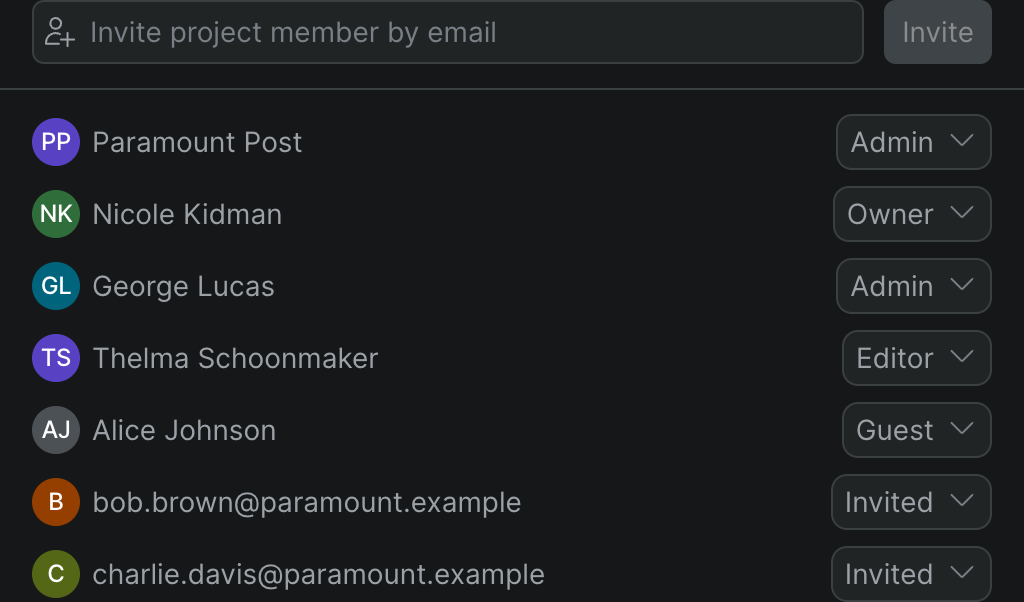
Open the Project Members dialog#
- In Sequence, open the project you want to share.
- Click Invite in the editor to open the Project Members dialog. If you don't have permission to manage members, the button reads Members instead and the dialog opens read-only.
The dialog lists everyone with access, each with a role menu, and shows any invites that haven't been accepted yet.
Invite a collaborator#
- In the Project Members dialog, type the person's address in the Invite project member by email field.
- Click Invite.
Sequence adds the person as a Guest and sends them an invitation. Until they accept, they appear in the list with the status Invited. Once they join, they show up with their name and avatar.
Note
Each workspace plan includes a set number of member seats. If your workspace is at its limit, an Upgrade to add more team members banner appears and inviting is disabled until you upgrade the plan or free up a seat.
Change a collaborator's role#
- In the Project Members dialog, find the person in the list.
- Open the role menu on their row and choose a new role:
- Owner — Full control of the project, including managing members and deleting the project.
- Admin — Can edit the project and manage its members.
- Editor — Can edit the project, but can't manage members.
- Guest — Limited access; this is the role newly invited people start with.
Sequence saves the new role right away and the member list refreshes to show it.
Note
A Guest — and any invite that hasn't been accepted yet — shows only Remove in its menu, so you can't reassign their role from this list. The full set of roles is available for members who are an Editor, Admin, or Owner.
Remove a collaborator#
- In the Project Members dialog, find the person you want to remove.
- Open their role menu and choose Remove.
Sequence revokes their access immediately. For someone who was only invited, choosing Remove cancels the pending invitation.
Share a link to the project#
At the bottom of the Project Members dialog, click Copy Link to copy the project's URL. Send it to people you've invited so they can jump straight into the project. The link doesn't grant access on its own — the recipient still needs to be a member.
Tip
To gather feedback from people you don't want inside the project — clients or outside reviewers — send them a screening instead. See Share a screening for review.