AAF (Advanced Authoring Format) is the interchange format audio teams use to conform a mix. Generate an AAF timeline package to hand a Sequence timeline's audio off to Pro Tools or Avid Media Composer. For the shared concept, see Timeline packages.
Generate an AAF package#
- In Sequence, right-click the timeline you want to take out and choose Generate Timeline Package.
- Type a Name for the file.
- Set Format to AAF — audio conform (.aaf).
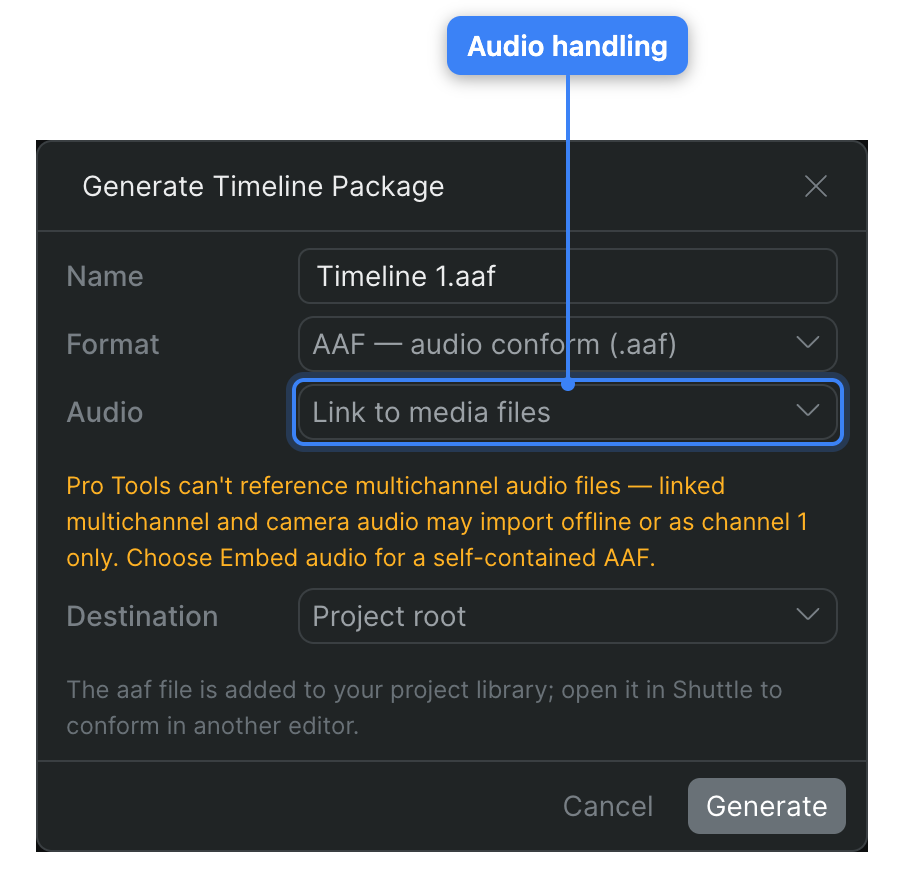
- Choose how to handle the audio in the Audio control:
- Embed audio (recommended): Packages the decoded audio inside the AAF, producing a self-contained file. This is the default and the most reliable option.
- Link to media files: References the audio instead of embedding it.
- Choose a Destination folder in your project library.
- Click Generate.
Sequence builds the .aaf file in the background and adds it to your library at the chosen destination. To open it in Pro Tools or Media Composer with its media linked, open it in Shuttle — see Conform with Shuttle.
Note: Choose Embed audio unless you have a specific reason not to. When you select Link to media files, the dialog warns that Pro Tools can't reference multichannel audio files — linked multichannel and camera audio may import offline or as channel 1 only. An embedded AAF avoids this.
Note: AAF is an audio-focused interchange. Use it to conform sound; for a full picture-and-sound cut in another editor, use OTIO or Final Cut Pro 7 XML instead.