A timeline package is an interchange file that describes your Sequence edit — clips, cuts, and timing — in a format another editing application can open. Filmmaking moves between tools, so Sequence lets you take a timeline out to a dedicated NLE for finishing while keeping the collaborative edit in Sequence.
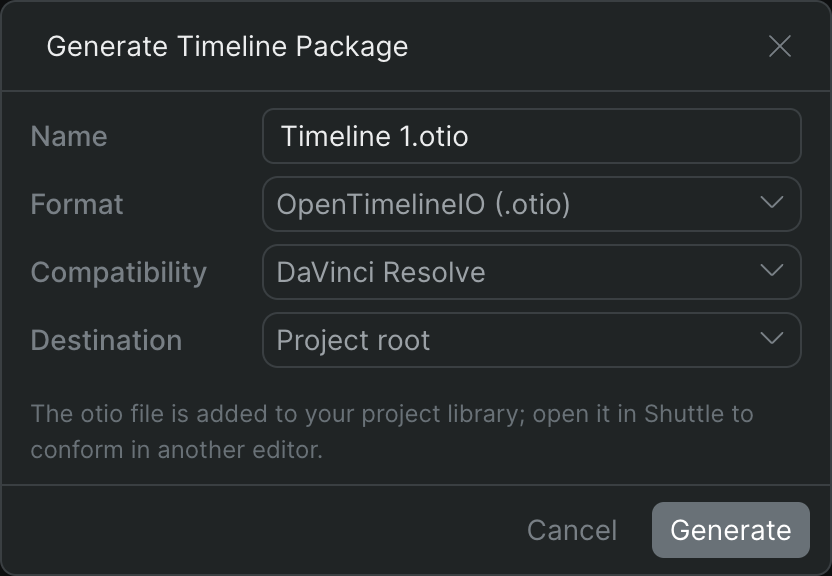
You generate every timeline package from one place: the Generate Timeline Package dialog. It offers three interchange formats, each suited to a different destination:
- OpenTimelineIO (.otio) — an open interchange format for moving a full cut between editors. It's the default, and the quickest path into DaVinci Resolve. See Export to OpenTimelineIO (OTIO).
- AAF (.aaf) — the audio conform path for a mix in Pro Tools or Avid Media Composer. See Export an AAF for audio conform.
- Final Cut Pro 7 XML (.xml) — the legacy XMEML interchange (plain
.xml, not Final Cut Pro X's.fcpxml) read by Resolve, Premiere Pro, and Media Composer. See Export Final Cut Pro 7 XML.
How it works#
When you generate a package, Sequence builds the interchange file as a background job and adds it to your project library at the destination you chose. Because an interchange file describes the edit rather than containing the media, it points at your project's source media rather than embedding it. To open a package in another editor with its media linked, use Shuttle — Sequence's desktop app — which mounts your project media locally. See Conform with Shuttle below.
Note: This is the first version of timeline packages. Most properties you change in Sequence — effects, keyframes, and other clip adjustments — don't yet translate to the destination editor. For now, treat the Sequence timeline as your collaborative edit and the destination NLE as where you finish. Feature parity between apps will grow over time.
Generate a package#
The steps are the same for every format; the format-specific options are covered on each format's page.
- In Sequence, open or locate the timeline you want to take out.
- Do either of the following to open the Generate Timeline Package dialog:
- Right-click the timeline and choose Generate Timeline Package.
- Open the timeline in the editor and use the editor's top menu.
- Type a Name for the file. The extension follows the format you pick.
- Choose a Format — OpenTimelineIO, AAF, or Final Cut Pro 7 XML — and set any format-specific options that appear.
- Choose a Destination — Project root or any folder in your project library.
- Click Generate.
Sequence builds the package as a background job and shows a Generating timeline package in background message. When it finishes, the file appears in your library at the destination you chose. Track progress in the progress queue — see Background jobs and the progress queue.
Conform with Shuttle#
A timeline package describes your edit but doesn't contain the media — it points at your project's source files. Shuttle, Sequence's desktop app, mounts that media on your computer so those references resolve, letting you open the package in another editor and conform (relink the edit to its media) for finishing. This is how you take a package the last step into DaVinci Resolve, Premiere Pro, Pro Tools, or Avid.
Install Shuttle#
- In Sequence, in the workspace sidebar, click Download Shuttle Desktop App.
- Install and open Shuttle, then sign in with your Sequence account.
Shuttle is also Sequence's native uploader — if you already use it for faster uploads, it's the same app. See Uploading files.
Mount your project media#
- In Sequence, open your project and go to the project Overview.
- Click Mount with Shuttle.
Shuttle mounts the project's media on your computer, so the media references inside your timeline packages resolve locally.
Note: If Shuttle isn't installed, Sequence sends you to the download page instead of opening the app.
Open a package in Shuttle#
- In Sequence, find the timeline package in your project library — it's in the destination folder you chose when you generated it.
- Right-click the package and choose Open in Shuttle.
Shuttle opens the file with your project media mounted. From there, import or open the package in your target editor and relink to the mounted media to finish the conform. The exact relink step depends on your editor — see the format pages for how each package opens in its destination app: OTIO, AAF, and Final Cut Pro 7 XML.