These controls live in the Export Timeline dialog, which you open by right-clicking a timeline and choosing Export Timeline, or from the Timeline Exports module in the inspector. Use them to control how Sequence renders your finished video file. To start an export, see Export a timeline to video.
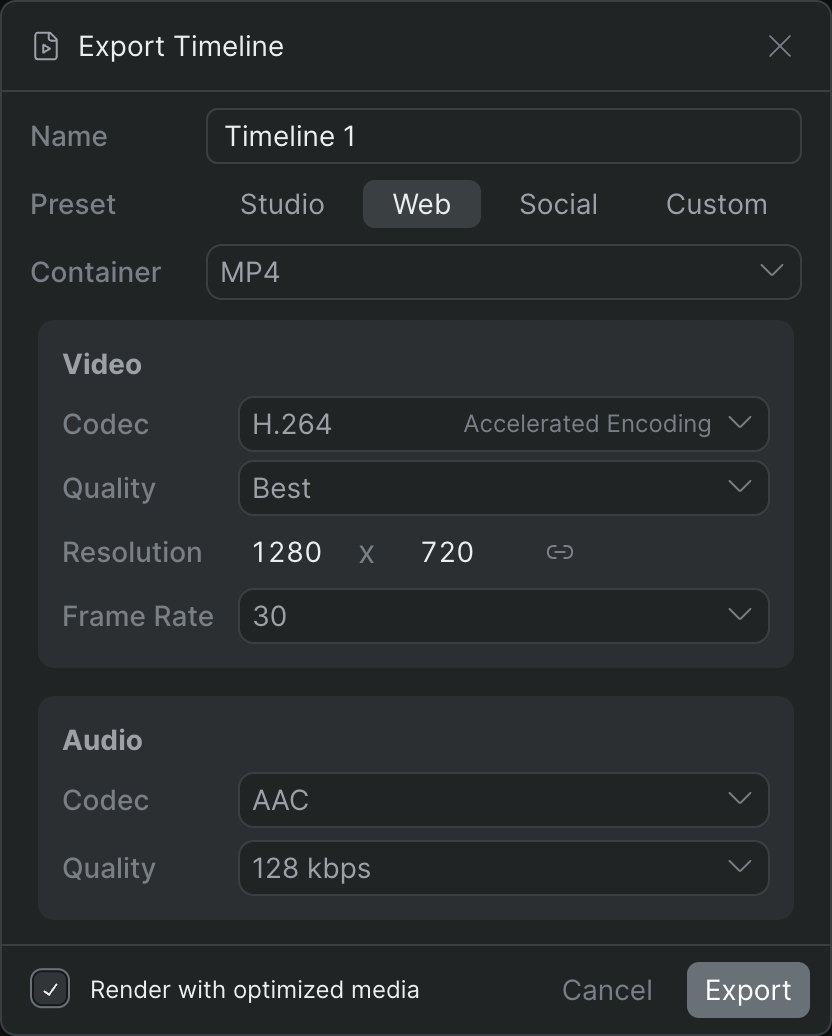
Name#
Name: The file name for the exported video. Defaults to the timeline's name. The finished file appears under this name in the Exports folder in your library.
Preset#
Preset: A starting point that fills in the container, codec, and quality in one click. Choosing a preset overwrites those fields; changing any individual field afterward switches the preset to Custom.
- Studio: MOV container, ProRes video (HQ profile), and uncompressed (RAW) audio — for finishing and archival.
- Web: MP4 container, H.264 video at Best quality, and AAC audio at 128 kbps. This is the default.
- Social: MP4 container, H.264 video at Good quality, and MP3 audio at 64 kbps — a smaller file for sharing.
- Custom: Leaves every control set to whatever you last chose, so you can configure the export by hand.
Container#
Container: The file wrapper for the export. The container you pick determines which video and audio codecs are available.
- MP4: H.264 or H.265 video; AAC or MP3 audio.
- MOV: H.264, H.265, or ProRes video; AAC, MP3, or RAW (uncompressed) audio.
If you switch containers to one that doesn't support your current codec, Sequence resets the codec to a supported default.
Video#
Codec: The video encoder. H.264 and H.265 are broadly compatible and use hardware-accelerated encoding; ProRes (MOV only) is a high-quality format for finishing and uses software encoding.
Quality: The video quality target. For H.264 and H.265 the options are Best, Good, and Draft — higher quality means a larger file. For ProRes, this control lists the ProRes profiles instead: 4444, HQ, Standard, LT, and Proxy, in descending order of quality and file size.
Resolution: The output width and height in pixels, set as two number fields. Defaults to the timeline's resolution. Use the constrain (aspect-lock) toggle next to the fields to keep the original aspect ratio: when it's on, changing one dimension updates the other automatically.
Frame Rate: The output frame rate. Defaults to the frame rate closest to the timeline's own. Options range from 12 to 60 fps and include the broadcast rates 23.976, 29.97.
Audio#
Codec: The audio encoder. AAC and MP3 are compressed and widely compatible; RAW (uncompressed PCM, MOV only) preserves full audio fidelity at a larger size.
Quality: The audio bitrate — 192 kbps, 128 kbps, or 64 kbps. Higher is better quality and a larger file.
Render options#
Render with optimized media: When on, Sequence renders from optimized (proxy) media for a faster export, at potentially lower quality than the source. Turn it off to render from the original source media. This choice is remembered between exports.
Warnings#
Unlinked items: If the timeline contains unlinked items, the dialog shows a This timeline contains unlinked items warning. Those items won't appear in the render.
Plan limits#
Some codecs and higher resolutions depend on your plan. When a selected codec or resolution isn't included in your plan, the Export button changes to Upgrade to Continue and links to your plan options.