OpenTimelineIO (OTIO) is an open-source interchange format for editorial timelines. Generate an OTIO package to move a Sequence timeline into DaVinci Resolve, Premiere Pro, or any application that reads OTIO. OTIO is the default format for a timeline package. For the shared concept, see Timeline packages.
Generate an OTIO package#
In Sequence, right-click the timeline you want to take out and choose Generate Timeline Package.
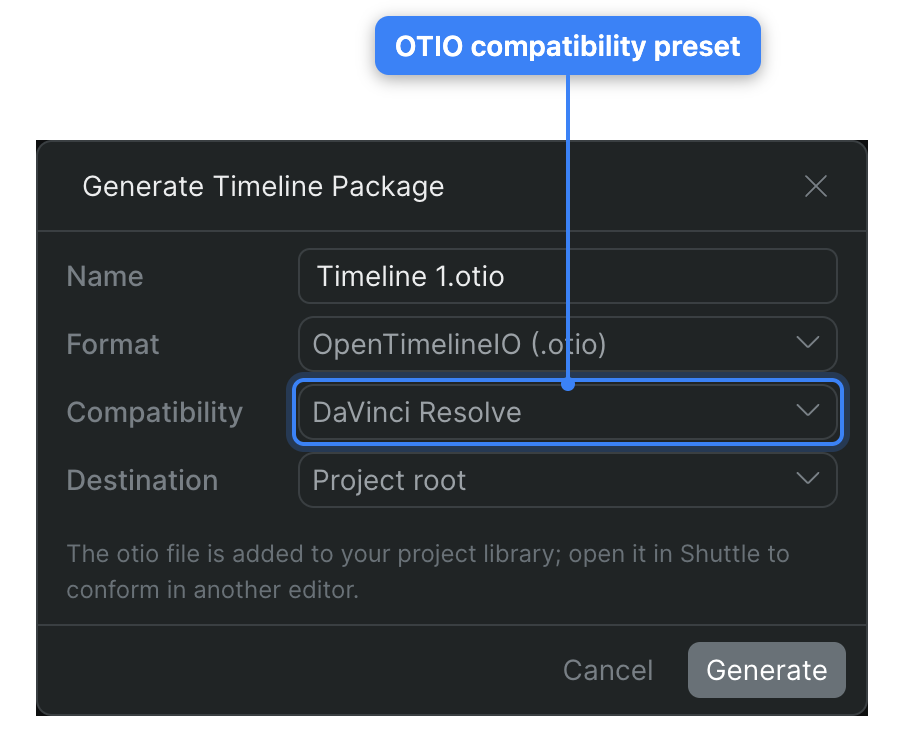
Type a Name for the file.
Leave Format set to OpenTimelineIO (.otio).
Choose a Compatibility preset for the editor you're headed to:
- DaVinci Resolve — the default.
- Adobe Premiere Pro
- Avid Media Composer
- Latest OTIO schema — the newest OTIO version, for tools that track it.
The preset downgrades the OTIO schema version so the file opens cleanly in the target editor.
Choose a Destination folder in your project library.
Click Generate.
Sequence builds the .otio file in the background and adds it to your library at the chosen destination. To open it in another editor with its media linked, open it in Shuttle — see Conform with Shuttle.
Open an OTIO package in DaVinci Resolve#
DaVinci Resolve supports OTIO natively, which makes it the quickest way to open a Sequence timeline in another app. First mount your project media and open the package in Shuttle (see Conform with Shuttle), then:
- In Resolve, create a new project or open the project you want to work in.
- In Resolve's menu bar, open File > Import > Timeline.
- In the file picker, select the
.otiofile. - Set any timeline settings you need in the import dialog.
Your Sequence timeline opens as a Resolve timeline, relinked to the mounted media.
Open in Premiere Pro or Final Cut Pro#
Premiere Pro and Final Cut Pro don't read OTIO natively. To bring an OTIO package into either one, import it into DaVinci Resolve first (above), then use Resolve's Export to Premiere Pro or Export to Final Cut Pro option.
Note: Effects, keyframes, and other clip properties don't yet translate — see Timeline packages. Gap clips may show as offline media.