Nesting turns a group of clips into their own timeline, which then appears as a single clip on the timeline it came from. Use it to group a complex sequence — a multi-clip montage, a repeated bumper — into one clip you can move, trim, and apply effects to as a unit. This page covers creating a nested timeline from a selection, and separately, placing a timeline you already have as a nested clip elsewhere. For browsing and drilling into nested timelines from the Timelines tab, see Create and navigate timelines.
Nest a selection of clips#
- In Sequence, select the clips on the timeline you want to group.
- Press Option-N (Windows: Alt-N).
Sequence collapses the selected clips into a new timeline and replaces them, in place, with a single clip that references it — the new clip spans the same duration the selection did. Any attached clips (titles, audio) travel with the storyline clips they're attached to.
Note
Sequence names the new nested timeline automatically. Rename it from the Timelines tab like any other timeline (see Create and navigate timelines).
Place an existing timeline as a nested clip#
- In Sequence, open the Timelines tab in the library.
- Drag a timeline from the list onto another timeline, the same way you'd drag in a media clip.
Sequence adds it as a nested clip at the drop position. Because this places a reference to the same timeline rather than a copy, editing that timeline's contents — from the Timelines tab, or from any other place it's nested — updates every instance of it.
Warning
If you've placed the same timeline as a nested clip in more than one spot, editing its contents changes all of them at once. Duplicate the timeline from the Timelines tab first if you need an independent copy.
Set nested timeline audio#
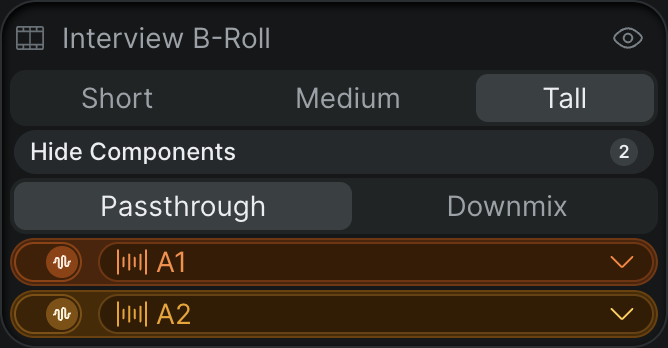
- In Sequence, select the nested timeline clip.
- In the Inspector's Info tab, set Audio to Passthrough (keeps the nested timeline's channels separate in the parent's mix) or Downmix (mixes them down to the parent timeline's output channels).
A nested timeline clip renders on the timeline with a distinct striped background so you can tell it apart from a regular clip at a glance. Like any clip, you can trim it, move it, and apply effects to it as a whole — but to change what's inside it, open it from the Timelines tab rather than editing it in place.