A multicam timeline holds one angle per camera — each angle is its own track-like storyline inside the multicam timeline. Add and sync angles inside the multicam timeline itself, then switch between them on a multicam clip (a clip on a regular timeline that references the multicam timeline) to cut video and audio from different cameras as you edit.
This page assumes you've already created a multicam timeline and placed synced footage from multiple cameras on it. See Create and navigate timelines for how to set one up.
Add and manage angles#
Do this inside the multicam timeline itself, not on a parent timeline that contains a multicam clip.
- In Sequence, open the multicam timeline and look for the Multicam Angles module in the Inspector.
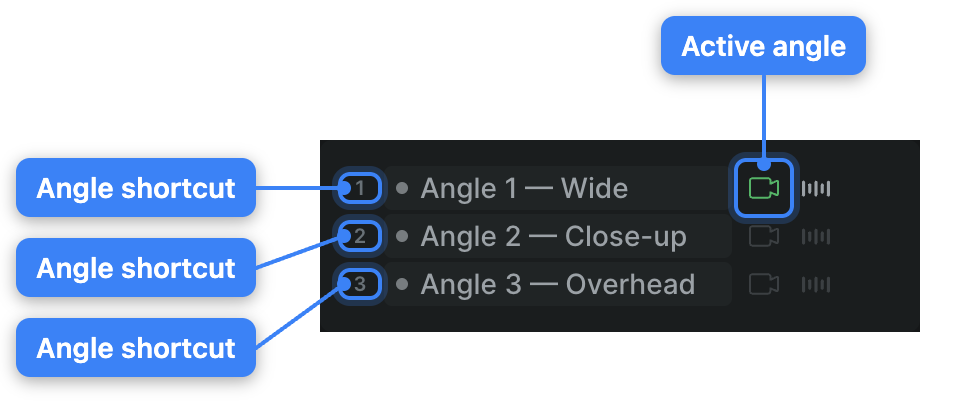
- Click Add Angle to add a new angle. Sequence names it "New Angle." A freshly created multicam timeline starts with three angles, named "Angle 1," "Angle 2," and "Angle 3."
- Click an angle's name to rename it, type the new name, and press Return (Windows: Enter).
- Drag an angle by its handle to reorder the list.
- Click the camera icon on an angle to set it as the one you're monitoring for video. Click the waveform icon to toggle whether that angle's audio is monitored too.
To delete an angle, click its X button, which appears when you hover the row.
Note
Sequence doesn't auto-detect sync from timecode or audio. Sync each angle by placing that camera's clips on its own angle at the right position — the same way you'd line up any clips on a timeline. If all your cameras share jam-synced timecode, set the multicam timeline's Starting Timecode (also in the Inspector, when the multicam timeline is selected) to match, so every angle's timecode reads correctly.
Switch angles on a multicam clip#
Do this on a parent timeline, where the multicam clip has been placed.
- In Sequence, select a multicam clip on the timeline.
- In the Inspector's Edit tab, find the Multicam Angles list.
- Click the camera icon next to an angle to make it the active video angle for that clip.
- Click the waveform icon next to an angle to make it the active audio angle for that clip. Video and audio can come from different angles.
Sequence updates the clip to play that angle's picture, and separately its audio, for its full duration on the timeline.
Switch angles with the keyboard#
This is the fastest way to cut a multicam sequence: play through the timeline and tap a key to cut to a different angle as you go, whether you're switching a selected multicam clip on a parent timeline or monitoring angles directly inside the multicam timeline.
| Action | Shortcut |
|---|---|
| Switch to angle 1–9 | 1–9 |
| Switch to angle 10 | 0 |
| Cycle to the next angle | ` (backtick) |
| Cycle to the previous angle | Shift-` |
| Toggle audio for angle 1–9 | Option-1 – Option-9 (Windows: Alt-1 – Alt-9) |
| Toggle audio for angle 10 | Option-0 (Windows: Alt-0) |
Only the first ten angles get a number-key shortcut. Each angle's row in the Multicam Angles list shows its shortcut number so you don't have to count.
Note
Sequence confirms every switch with a brief on-screen message naming the angle, so you can keep your eyes on playback while cutting.