The project overview is the home screen for a single project — the page you land on when you open a project from your workspace. It gathers everything about that one project in one place: a header describing the project, cards that launch its three apps, tabs for jobs and settings, and a list of the project's latest screenings.
This is different from the All Projects wall in your workspace, which shows every project as a card. The wall is where you pick a project; the overview is where you work inside the one you picked. See Create and manage your projects for the wall.
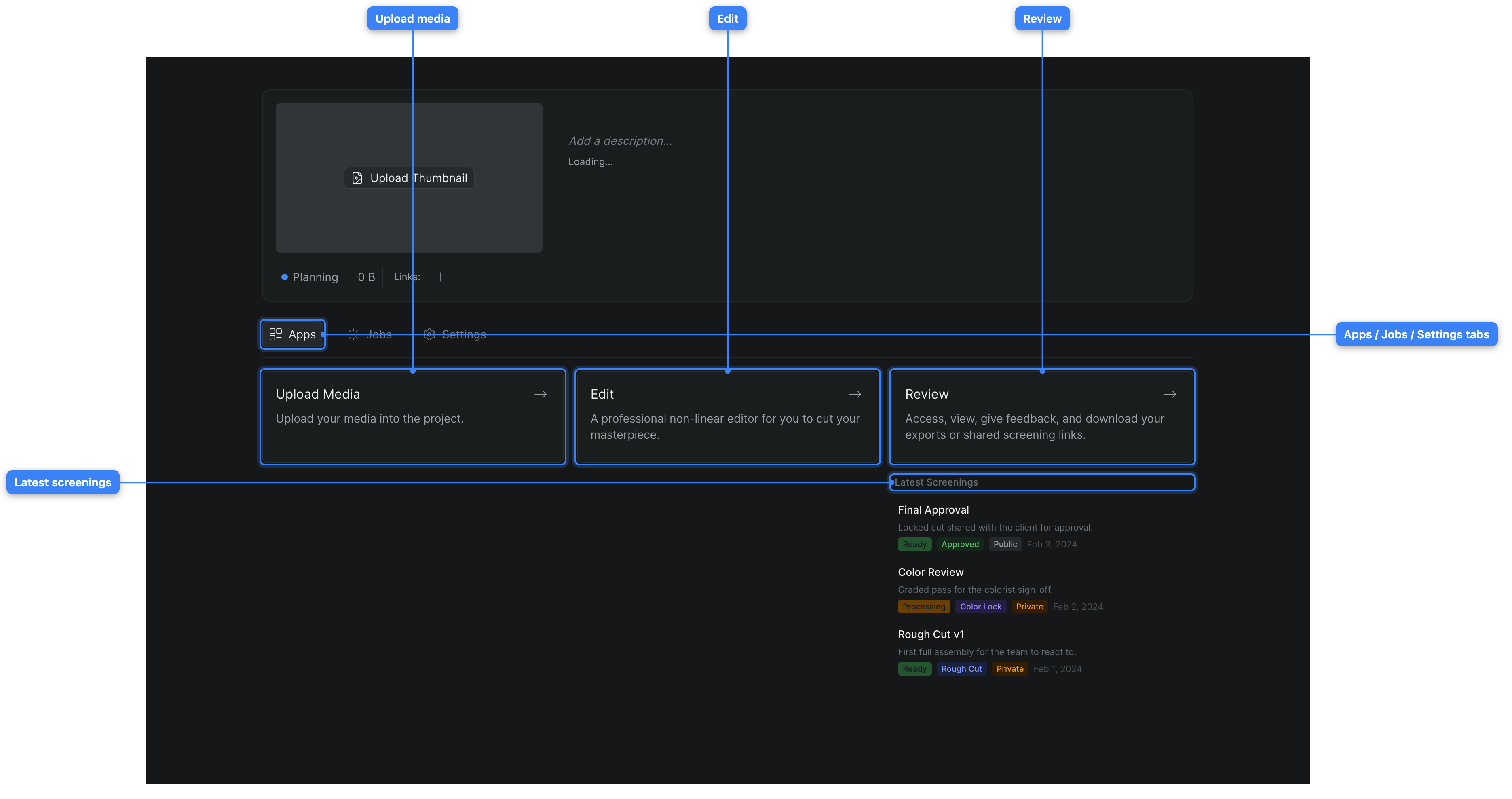
Project Header#

The header sits at the top of the overview and describes the project. It shows:
- Thumbnail — the project's cover image. Hover it to upload a new image, or to download or replace an existing one.
- Title and description — both are editable in place. Click the title to rename the project, or click Add a description... to add notes. Press Enter to save a title, or Escape to discard the change.
- Presence — avatars of collaborators currently in the project appear next to the description, so you can see who else is here.
- Status — a colored dot you click to set the project's status (for example, Planning).
- Owner — the project's owner, shown as an avatar.
- Storage — the total size of the project's media on Sequence's servers.
- Links — reference links attached to the project. Click the + button to add one.
Apps#
Three cards fill the center of the overview, one for each app in a Sequence project. Click a card to open that app:
- Upload Media — bring footage, audio, and other files into the project. See Uploading files.
- Edit — open the timeline editor to cut your project.
- Review — view exports and shared screening links, leave feedback, and download deliverables.
Tip
You don't have to return to the overview to move between apps — once you're inside a project you can switch apps directly from the app switcher in the top bar.
Latest Screenings#
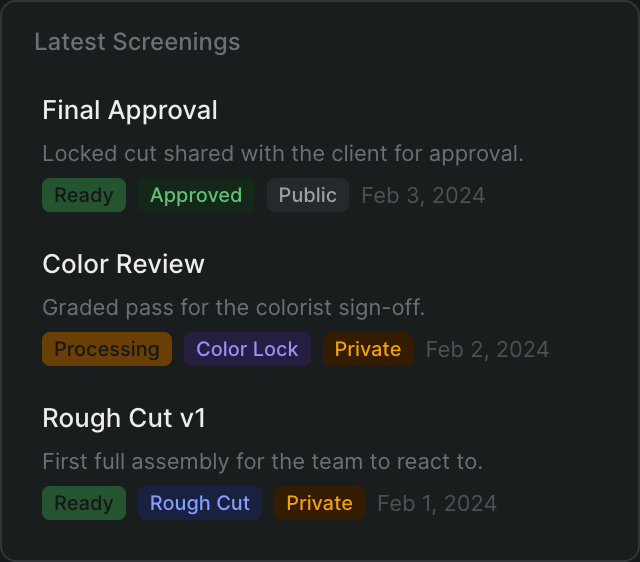
When a project has screenings, the overview lists its three most recent ones under Latest Screenings. Click a screening to open it in the Review app. A screening is how you send a cut out for feedback. See Share a screening for review.
Jobs and Settings tabs#
Below the header, three tabs switch what the overview shows:
- Apps — the app cards and latest screenings described above. This is the default view.
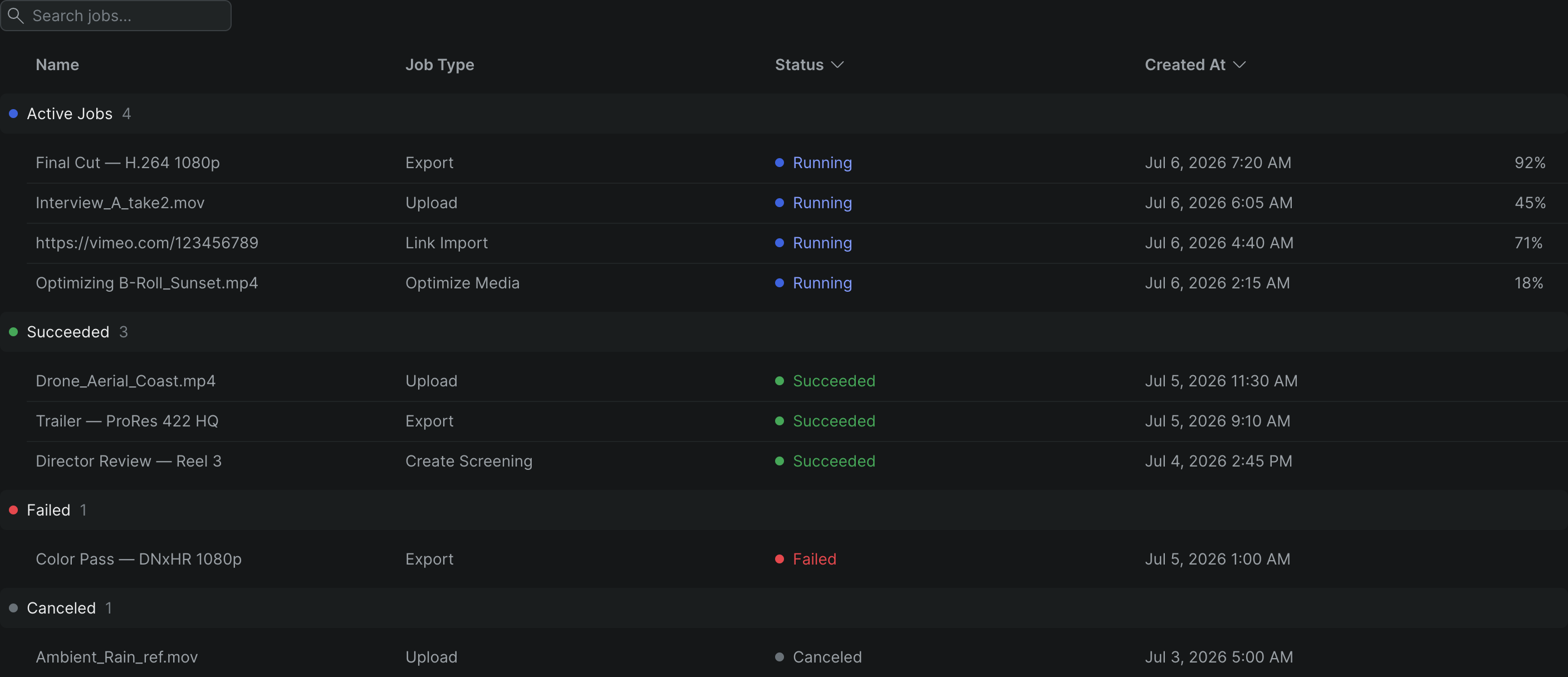
- Jobs — the project's background jobs, such as uploads, exports, and media processing. When jobs are running, the tab shows a live count (for example, Jobs (2)) and a spinner. See Background jobs and the progress queue.
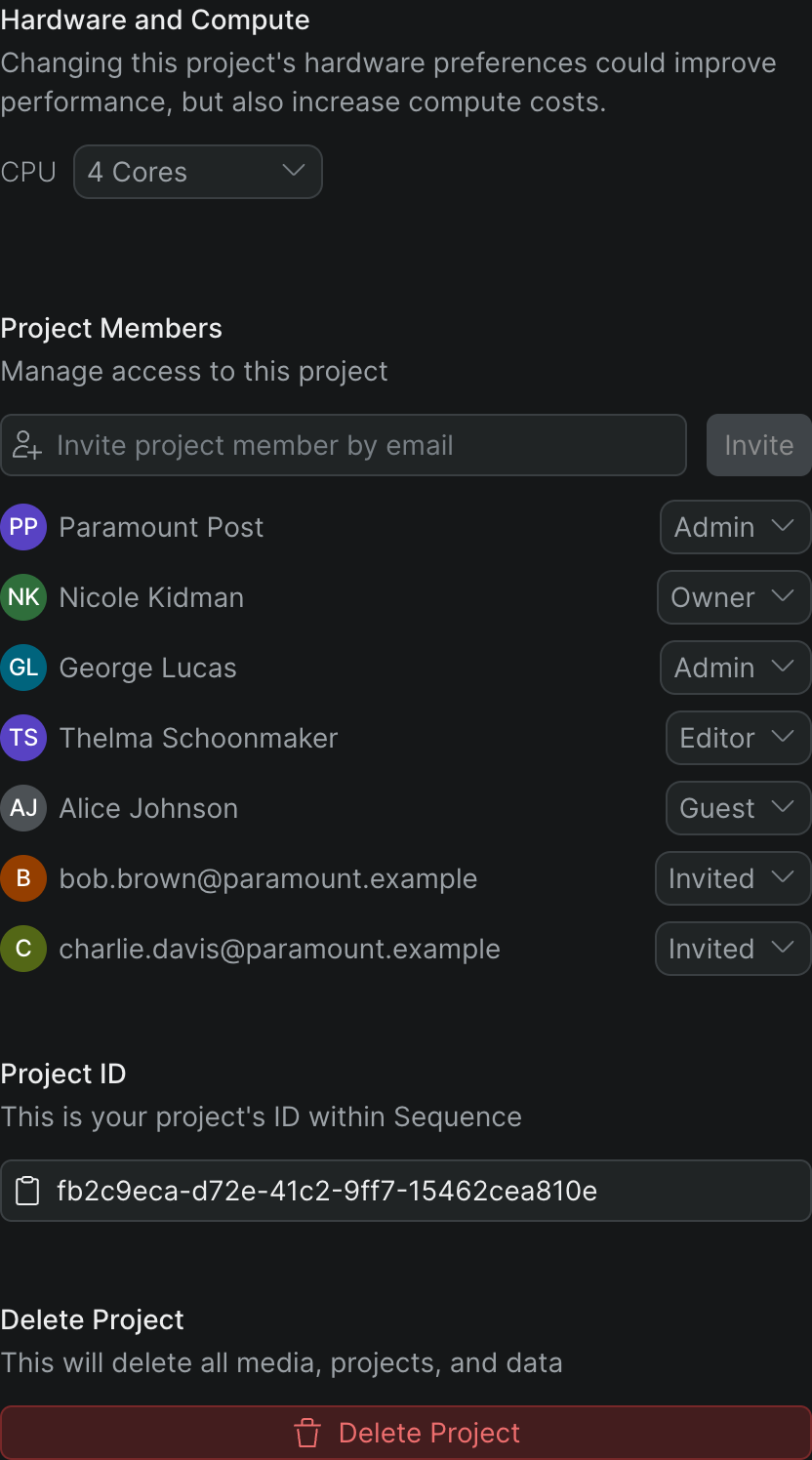
- Settings — per-project settings, including hardware and compute, project members, the project ID, and deleting the project. See Project settings.
Mount with Shuttle#
The Mount with Shuttle button on the overview connects the project to Shuttle, Sequence's desktop app, so the project's media appears as a local drive on your computer. This is the fastest way to work with a project's files in other applications. For the full workflow — installing Shuttle, signing in, and mounting or unmounting — see Mount and unmount your projects.