Sequence accepts most common video, audio, and image files, plus a range of document and subtitle files. When you add a file, Sequence uploads it, reads its technical details, and prepares a version optimized for smooth playback in the browser — all in the background, so you can keep working. This page covers what you can add, what isn't supported, and how to read a file's format once it's in your library.
What you can add#
Sequence sorts every file you add into one of two kinds:
- Media — Video, audio, and image files. Anything that isn't a recognized document type is treated as media and becomes a playable or viewable asset in your library.
- Documents — Text, reference, and edit-exchange files that live alongside your media but aren't played back. These include
.pdf,.txt,.md,.csv,.xlsx,.doc/.docx,.ppt/.pptx,.rtf,.html, and.xml, along with subtitle and caption files (.srt,.vtt,.ass), edit-exchange files (.edl,.fcpxml), LUTs (.cube), and screenplay files (.fdx).
Sequence classifies each file by its extension as you add it, so you don't choose a type yourself. To add files, see Upload files to a project.
Note
Sequence reads a file's real codec and container from the file itself, not just its extension. Common containers such as .mp4, .mov, and .wav carry a wide variety of codecs, and Sequence handles them as it processes the upload.
Formats that aren't supported#
A few file types can't be added to a project. If you drop one in, Sequence skips it and shows an Unsupported file message naming the file. These include:
- Application project files — Adobe After Effects (
.aep), Adobe Premiere Pro (.prproj), and Blender (.blender). - Vector images (
.svg) and Apple HEIC photos (.heic). - System and archive files such as
.dmg,.gz,.sql,.log,.ics,.pkpass, and.sh.
If a file you need is in an unsupported format, convert or export it to a standard media format first, then add it.
How Sequence prepares your media#
When you add a video or audio file, Sequence keeps two versions of it and tracks each separately:
- Original Media — The exact file you uploaded, preserved at full quality.
- Optimized Media — A version Sequence generates for fast, reliable playback in the browser. This is the version you scrub and play while editing.
Generating Optimized Media happens as a background job right after the upload finishes, so a newly added clip may play from its original for a moment before the optimized version is ready. You can keep editing while this runs.
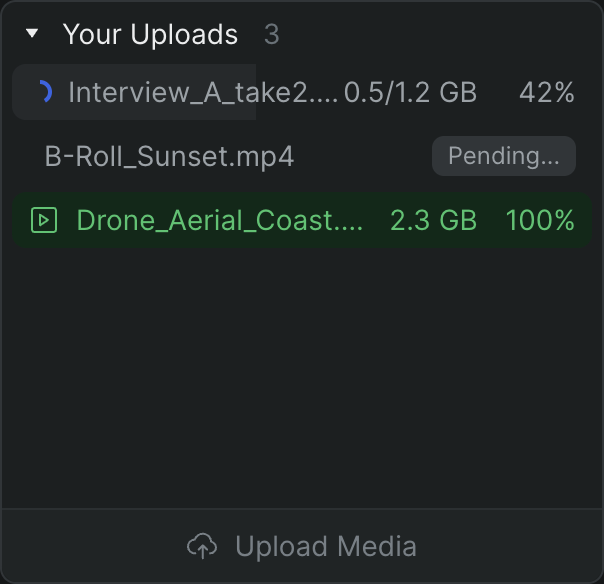
You can watch this progress in the progress queue, which groups jobs under headings such as Your Uploads and Media Processing. For the full rundown of upload, optimization, and export jobs and their states, see Background jobs.
Each processed asset carries an Optimized Media indicator with a status dot, so you can see at a glance whether its optimized version is still processing or ready to play.
Check a file's format#
To see the technical details Sequence read from a file, select the asset in your library, open the Inspector, and go to the Info tab, which holds the Asset Metadata panel.
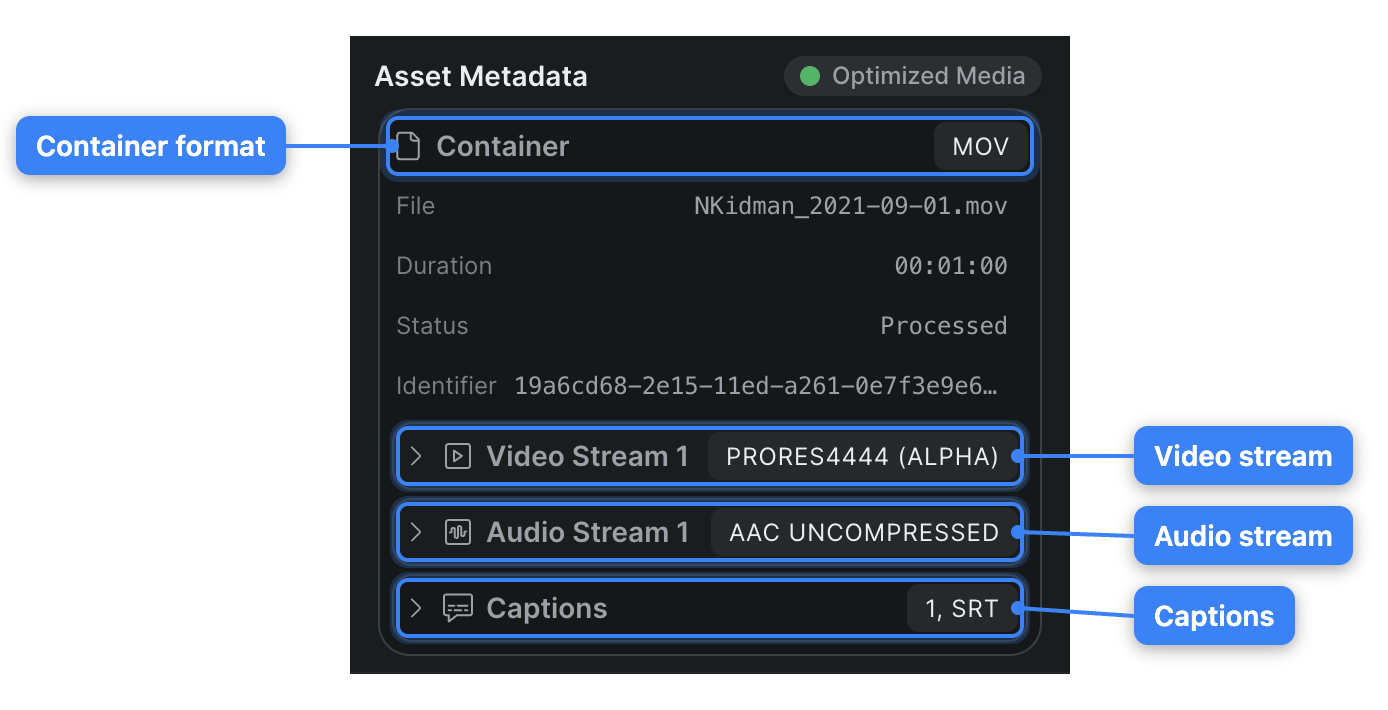
The panel groups what it read into the file's container and its streams:
- Container — The container format, shown as a badge such as MP4 or MOV, plus the File name, Created date, Duration, and File Size.
- Video Stream — One entry per video stream, with its codec shown as a badge. Expand a stream to see its Resolution, Frame Rate, Interlaced state, and Rotation.
- Audio Stream — One entry per audio stream, with its codec badge. Expand it to see Sample Rate, Output Channels, and Configuration.
- Captions — Any embedded subtitle or caption tracks, listed with their Format.
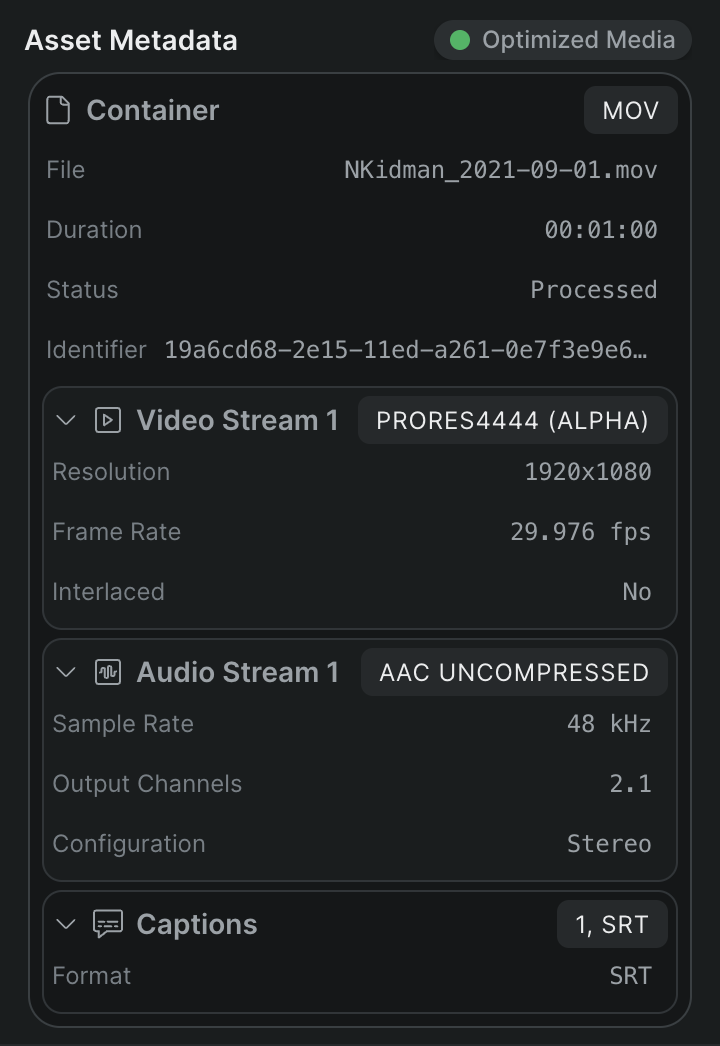
Use these fields to confirm a file's real format when playback looks wrong or a clip won't optimize — the metadata reflects the file itself, not its extension.