Export an asset to create a new file in a chosen format and codec. To retrieve the existing file without converting it, download the asset instead.
- Select one or more assets in the library, or select items in a collection.
- Right-click the selection and choose Export.
- In the export dialog, choose the format and codec. To export part of an asset, open Range override, enable its checkbox, and set its in and out points. Click Export.
- Watch progress in the background jobs queue. Use the job’s cancel control if you need to stop an active export.
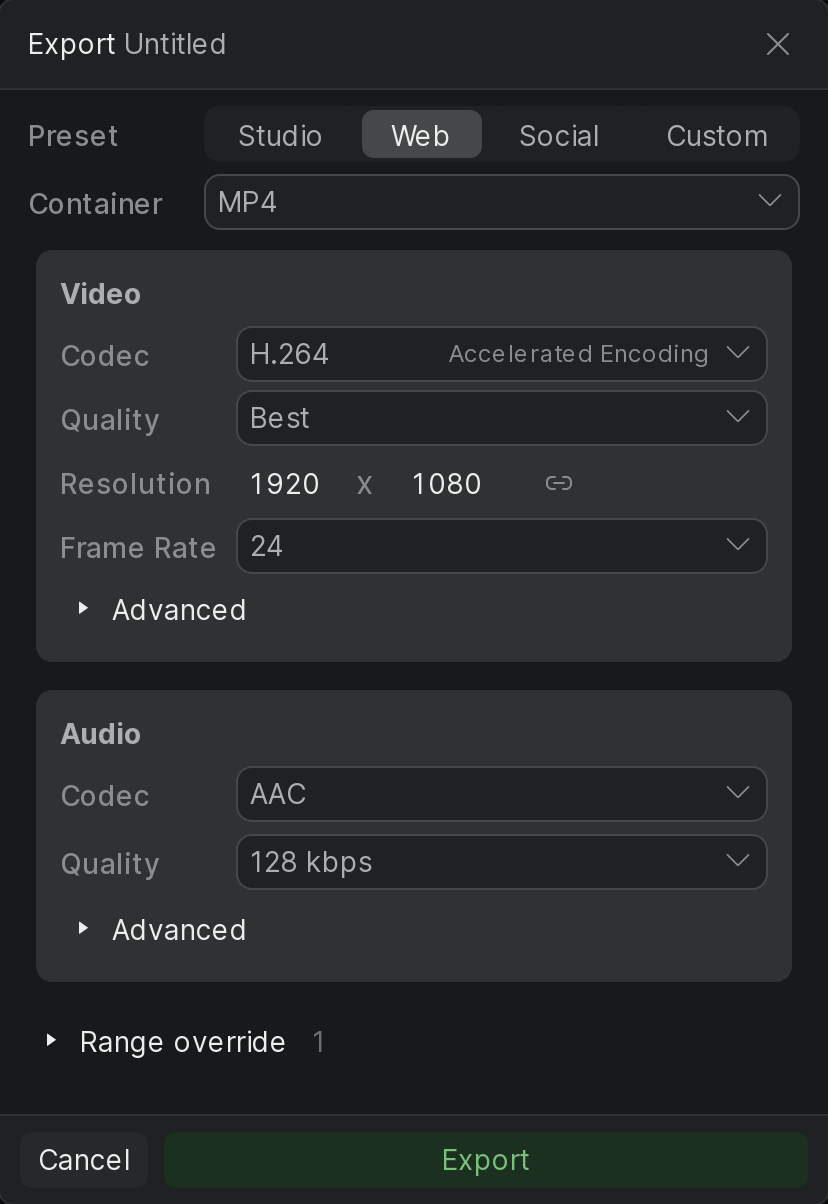
Selecting a library select in a collection exports its source asset, not the select's marked range. Set a range override if you need only part of that source. Multiple selects from the same source resolve to one asset.
Finished exports are added to the library, where they can be searched and downloaded. Available containers include WebM, MKV, and MXF; the codec choices depend on the selected format.