Once clips are on the timeline, you rearrange your edit by selecting them and then cutting, copying, pasting, or deleting them — the same clipboard actions you know from everywhere else. Sequence adds one more: you can copy a single clip's adjustments and effects and paste them onto another clip. Every one of these actions works on whatever you have selected, so selecting the right clips comes first.
Select clips#
Selecting a clip is what makes the clipboard and delete actions available — with nothing selected, there is nothing to cut, copy, or remove.
- In the timeline, make sure the Select tool is active (press V if it isn't). See The control bar tools.
- Do any of the following:
- One clip: Click it.
- Add or remove a clip: Cmd-click a clip (Windows: Ctrl-click) to toggle it in or out of the current selection.
- Several at once: Drag a marquee across empty timeline background to select every clip it touches.
- Everything: Press Cmd-A (Windows: Ctrl-A) to select all clips in the timeline.
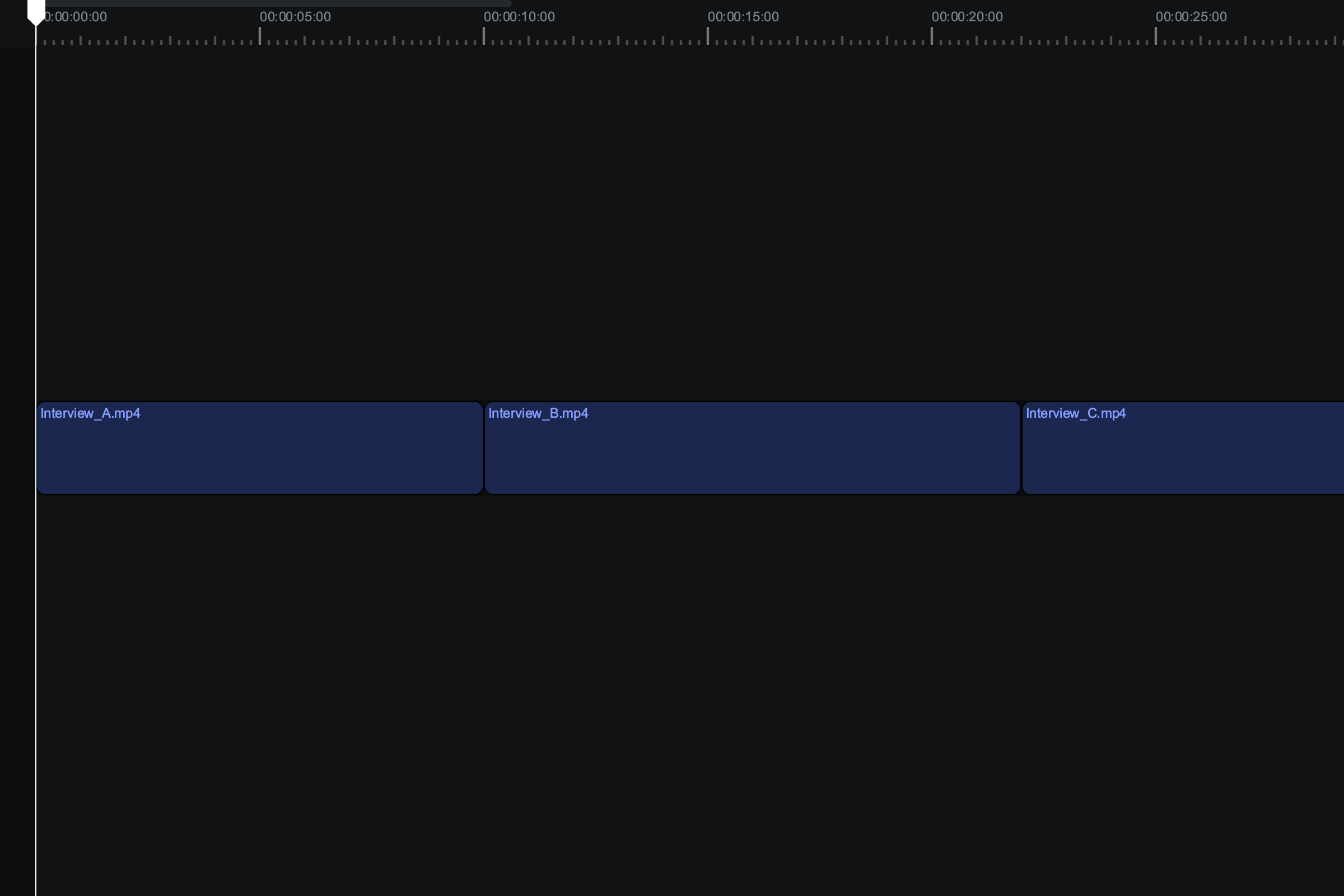
Selected clips are highlighted. That selection is what the next actions act on.
Cut, copy, and paste clips#
Cut and copy put the selected clips on the clipboard; paste drops them back at the playhead.
- Select the clips you want to move or duplicate.
- Put them on the clipboard:
- Copy — Press Cmd-C (Windows: Ctrl-C) to leave the clips in place.
- Cut — Press Cmd-X (Windows: Ctrl-X) to remove them from the timeline.
- Move the playhead to where the clips should land.
- Press Cmd-V (Windows: Ctrl-V) to paste.
Sequence pastes the clips at the playhead (or, if you're skimming, at the skimmer) and selects them, so you can nudge or trim them right away.
Delete selected clips#
Deleting removes clips from the timeline without putting them on the clipboard.
- Select the clips you want to remove.
- Press Backspace or Delete.
The clips leave the timeline. To take clips out but keep them for pasting elsewhere, use Cut instead.
Copy and paste clip properties#
Copy clip properties copies a clip's adjustments and effects — its transform, color, and any effects you've added — so you can apply the same look to another clip without re-doing the work. It copies the properties, not the media, so the target clip keeps its own footage.
- Select the clip whose look you want to reuse.
- Press Option-C (Windows: Alt-C) to copy its clip and effect properties.
- Select the clip — or clips — you want to apply that look to.
- Press Option-V (Windows: Alt-V) to paste the properties onto them.
The target clips take on the copied adjustments and effects while keeping their own footage and timing.
Use the right-click menu#
Every action here is also on the timeline's right-click menu, so you don't have to memorize the shortcuts. Right-click a selected clip to open it:
- Clipboard — Cut, Copy, and Paste.
- Properties — Copy clip properties and Paste clip properties.
The menu items are available only while at least one clip is selected, matching their shortcuts.