Retiming a clip changes how fast it plays. At 100% the clip plays at its original speed; below 100% it plays slower and gets longer; above 100% it plays faster and gets shorter. As you change the speed, the clip's duration on the timeline updates to match.
You set the speed in the Timing module in the inspector, using its retime controls: a percentage field, a duration field beside it, and a speed slider below them. Under the slider, a row of playback-mode buttons reverses or freezes the clip.
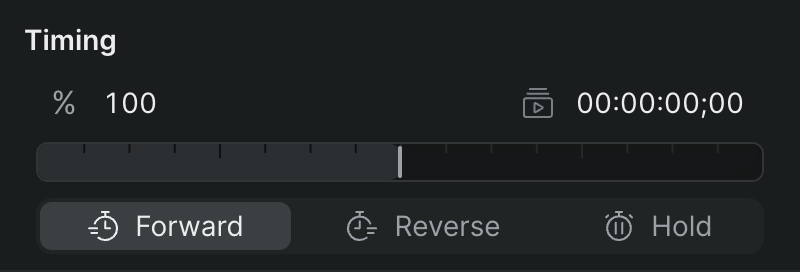
Set the speed by percentage#
- In Sequence, open the project and click the clip you want to retime in the timeline.
- In the inspector, find the retime controls (the percentage field with the % icon).
- Click the percentage field and type a new value, then press Enter.
Sequence retimes the clip and updates its duration on the timeline. A value below 100% slows the clip down and lengthens it; a value above 100% speeds it up and shortens it.
Drag the speed slider#
Use the slider when you want to feel the change instead of typing an exact number.
- In Sequence, click the clip in the timeline.
- In the inspector, drag the slider below the percentage field.
Sequence retimes the clip as you drag, and the percentage and duration fields update to match. The slider is logarithmic and centered on 100%, so it moves in finer steps near normal speed and larger steps toward the extremes.
Set the speed by duration#
If you know how long the clip needs to be, set its duration directly instead of the speed.
- In Sequence, click the clip in the timeline.
- In the inspector, click the duration field beside the percentage field and type the target length as a timecode, then press Enter.
Sequence adjusts the clip's speed to reach that duration, and the percentage field updates to match.
Reverse or freeze a clip#
The Timing module has three playback-mode buttons below the speed controls. They set the direction a clip plays, or freeze it on a single frame:
- Forward — Plays the clip in its normal direction. This is the default.
- Reverse — Plays the clip backward. The speed percentage still applies, so you can reverse a clip and slow it down or speed it up at the same time.
- Hold — Freezes the clip on a single frame. The speed field and slider turn off, and you can stretch the frozen clip to any length on the timeline.
To change how a clip plays:
- In Sequence, click the clip in the timeline.
- In the inspector, find the Timing module.
- Click Forward, Reverse, or Hold.
Sequence applies the mode as soon as you click. Switching to Hold turns off the speed field and slider; switching from Hold back to Forward or Reverse resets the speed to 100%.
Reset the timing
Double-click an empty area of the Timing module, away from the fields, to return the clip to Forward at 100%.
Note
Changing a clip's speed changes its length, so the Reflow Timeline adjusts the clips around it to keep everything in sync. See Timeline Overview & Tools.