A component track is a named sub-track inside a single clip, so you can keep layered elements — such as separate dialogue, music, and effects — organized within one clip instead of spreading them across the timeline. You manage component tracks from the Component Tracks module in the Inspector Panel. See Inspector Panel.
The module lists each track under its type heading (for example, Audio). One track is the system default; you can add, rename, reorder, and delete the others.
Note
The system default track has no delete control and can't be renamed. You can still reorder tracks around it.
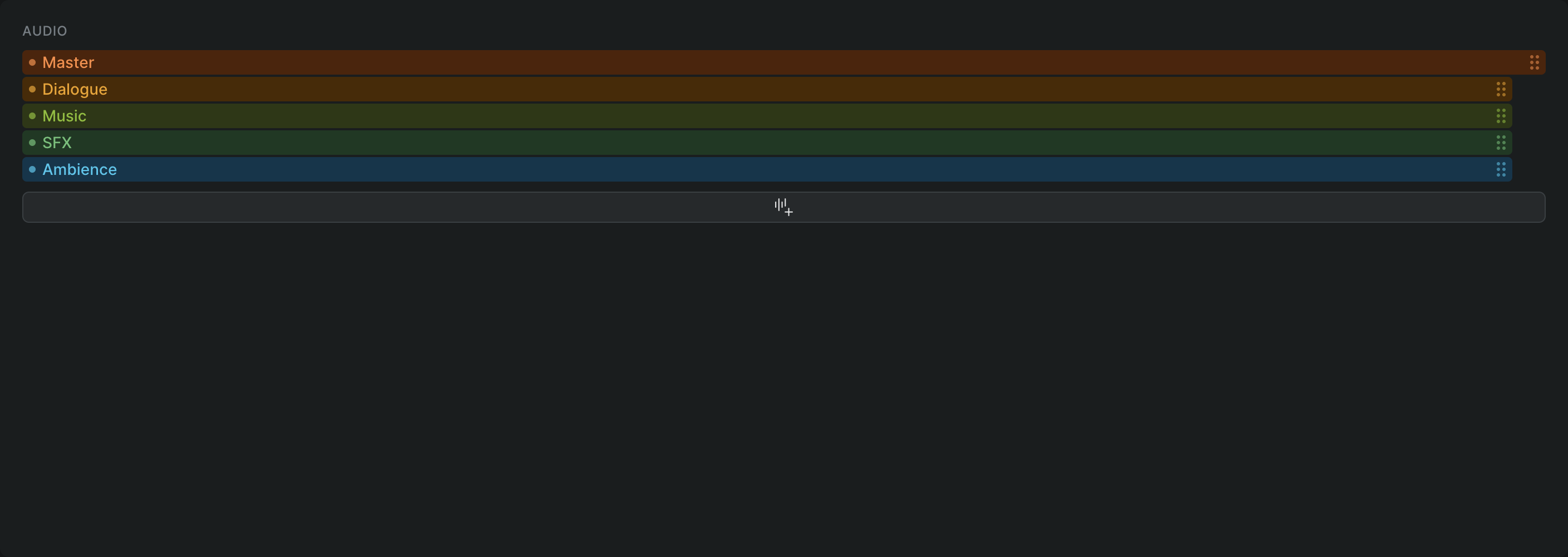
Add a component track#
- In Sequence, open the Inspector for the clip and find the Component Tracks module.
- Click Create audio component track at the bottom of the track list.
Sequence adds a new track to the list and confirms with a toast that names the new track (for example, Track "Music" created).
Rename a component track#
- In the Component Tracks module, click the name of the track you want to rename.
- Type the new name, then press Return (Windows: Enter) or click elsewhere to confirm.
Sequence saves the new name and updates the track in the list. You can't rename the system default track.
Reorder component tracks#
- In the Component Tracks module, point to the track you want to move.
- Drag it up or down to a new position in the list, then release.
Sequence saves the new order. The change is part of the project, so collaborators see the reordered tracks too.
Delete a component track#
You can delete any track except the system default. Because deleting a track removes it, Sequence asks you to choose another track to move that track's components to.
- In the Component Tracks module, point to the track you want to remove so its delete control appears, then click the X.
- In the Delete Audio Track dialog, under Select replacement track, choose the track that the components should move to.
- Click Delete Track.
Sequence deletes the track, moves its components to the replacement you chose, and confirms with a toast. To back out, click Cancel instead.
Warning
Deleting a component track removes it from the clip and reassigns its components to the replacement track you select. You can't delete the last track of its type — there must be another track to move components to.