A title clip holds text you place over your video. When you select a title clip in the timeline, the inspector opens a Title section where you type the text and style its font, size, alignment, and color. Every change appears in the viewer as you make it, and collaborators see your edits live.
You need Editor access to change a title clip.
Edit the text#
- In Sequence, open the project and click a title clip in the timeline to select it.
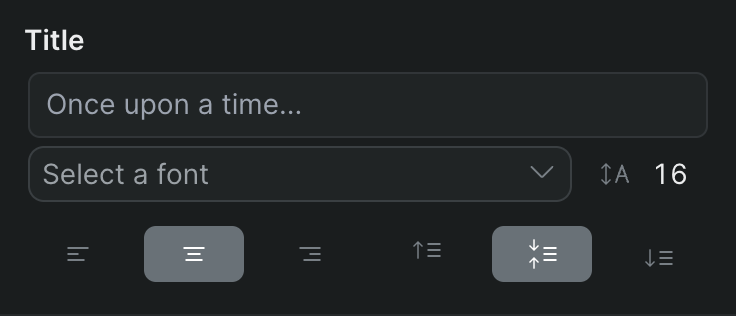
- In the inspector, find the Title section. The text box shows the current text, with Once upon a time... as placeholder text when the clip is empty.
- Click in the text box and type your text. The box grows to fit up to three lines.
Sequence updates the title in the viewer as you type, and applies your text to the clip for everyone in the project.
Set the font and size#
- Select the title clip in the timeline.
- In the Title section, click the font dropdown (labeled Select a font until you choose one) and pick a typeface from the list.
- To change the size, click the number field next to the font dropdown and type a value, or drag across it to scrub. The field accepts sizes from 1 to 1000.
Sequence restyles the text in the viewer to match.
Align the text#
The Title section includes alignment buttons for both horizontal and vertical placement. Hover any button to see its label.
- Select the title clip.
- To set horizontal alignment, click Align left, Align center horizontally, or Align right.
- To set vertical alignment, click Align top, Align center vertically, or Align bottom.
The active alignment button stays highlighted so you can see the current setting.
Set the fill and stroke color#
The Fill control sets the color of the text itself. The Stroke control sets the color of the outline around each character.
- Select the title clip.
- In the Title section, click the color swatch next to Fill to open the color picker, then choose a color.
- Click the swatch next to Stroke to set the outline color the same way.
Each control also has a visibility toggle, so you can turn the fill or the stroke off without losing the color you picked.
Tip
Give the fill and stroke contrasting colors — for example, white text with a dark stroke — to keep a title readable over busy footage.