You cut in the cloud, but you still deliver files. A ProRes master for the color session. An H.264 for the client. A smaller MP4 for the group chat. The old way meant an export window per deliverable and a folder full of renders you had to hunt for later.
In Sequence, you render a timeline straight to a video file from the Export Timeline dialog — right-click the timeline, or open the Timeline Exports module in the inspector, and pick a preset or dial in each setting. Sequence renders in the background while you keep cutting, and drops the finished file into the Exports folder in your project library.
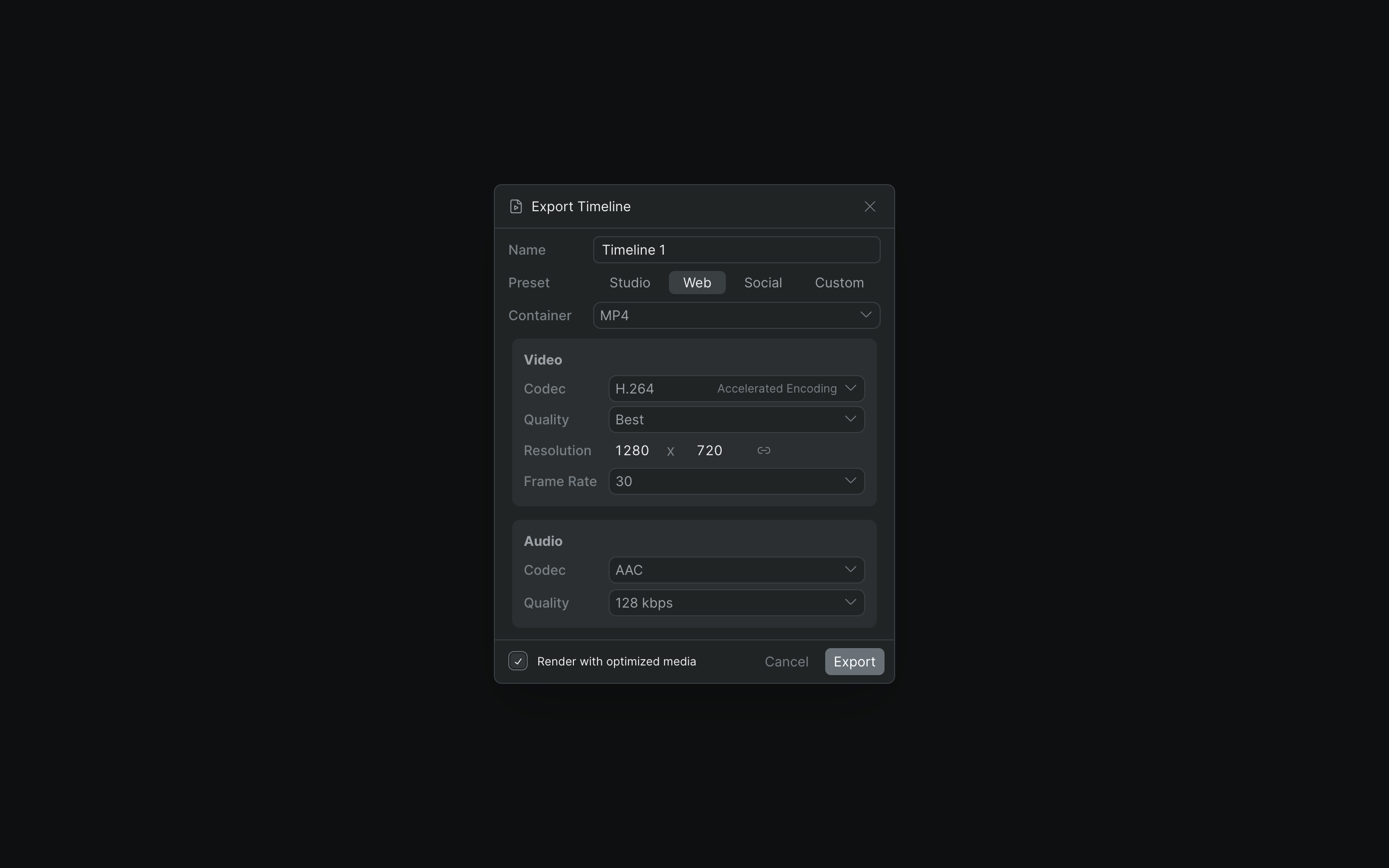
One dialog, every deliverable#
Presets that fill it in
- Studio — MOV, ProRes, uncompressed audio for finishing
- Web — MP4, H.264 at best quality, AAC (the default)
- Social — a smaller MP4 for sharing
- Custom — set every control by hand
- See the full export settings reference
Codecs you deliver in
- H.264 and H.265 with hardware-accelerated encoding
- ProRes (4444, HQ, Standard, LT, Proxy) in a MOV
- MP4 or MOV container
- AAC, MP3, or uncompressed RAW audio
- Broadcast frame rates including 23.976 and 29.97
Renders in the background
- Export runs as a background job — keep editing
- Track it in the progress queue
- Finished files land in the Exports folder
- Render from optimized proxies for speed, or full source
- A warning flags any unlinked items before you commit
Exports live in your library
- Every render behaves like any other clip
- Drop a finished export back onto another timeline
- Download it to your device with a right-click
- Or publish it straight to a screening
- Nothing to hunt for on a local drive
Fits your delivery pipeline#
A flat file is the right output when the destination is a viewer, a broadcaster, or a platform — a master, a review copy, a social cut. When the destination is another editor — a color session in Resolve, a mix in Pro Tools — you don't want a flat render; you want the edit itself. For that, generate a timeline package and conform it in the finishing tool instead. Sequence covers both paths from the same library.
Note
Some codecs and higher resolutions depend on your plan. When a choice isn't included, the Export button reads Upgrade to Continue and links to your plan options.
Who it's for#
- Editors shipping a cut for client review without leaving the timeline.
- Assistant editors producing masters, review copies, and social versions from one dialog.
- Post producers who need a predictable deliverable — right container, right codec, every time.
- Anyone who's ever lost a render in a folder named
exports_final_2.