A multi-camera shoot hands you the same moment from six directions and asks you to pick one, frame by frame. In most workflows that means grouping angles, waiting on a render, then living inside a sync map you can't easily see into.
Sequence keeps it simple. You line each camera up on its own angle in a multicam timeline, drop that timeline onto your edit as a single multicam clip, and cut between cameras from the keyboard while the sequence plays. Tap a number key and the picture cuts — no rendering, no waiting. Each switch is one undoable step, so walking back a bad call doesn't disturb the rest of the cut. The Switch multicam angles guide covers the mechanics end to end.
How multicam works in Sequence#
A dedicated multicam timeline
- Create one from the Timelines tab's + menu — New Multicam Timeline — or from a new project's starting screen (see Create and navigate timelines)
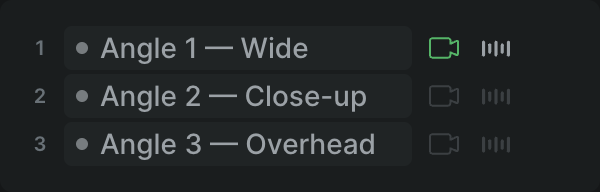
- Every multicam timeline starts with three angles ready to fill: Angle 1, Angle 2, Angle 3
- Add, rename inline, drag to reorder, or delete angles in the Multicam Angles inspector module
Sync on your terms
- Line each camera up on its own angle, the same way you place any clips on a timeline
- For jam-synced footage, set the timeline's shared Starting Timecode so every angle reads the same clock
- No black-box sync step — what you place is what you see (Sequence doesn't auto-detect sync from timecode or audio)
Cut between cameras live
- Play the timeline and tap 1–9 to jump to an angle, or 0 for the tenth
- Cycle through angles with ` and ⇧ + `
- Every switch pops a brief on-screen confirmation naming the angle, so your eyes stay on playback
Picture and sound, independently
- Choose which angle a multicam clip takes its video from, and separately which angle it takes its audio from
- Grab the interview from your close-up while the sound rides your best mic
- Toggle an angle's audio with ⌥ + a number key
Fits the way your room already works#
A multicam cut in Sequence is a live session, not a solo one. Because every switch flows through the same realtime engine as the rest of the edit, teammates watching the same project see each cut land as you make it — one timeline, open at once, from different cities. See Edit together in real time.
And a multicam timeline is a real timeline. When the cut is locked, it hands off to finishing like any other: generate an OpenTimelineIO package for DaVinci Resolve or Premiere Pro, or a Final Cut Pro 7 XML for the tools that read XMEML. You cut multicam in the cloud; you finish wherever you already finish.

Pro tips#
- Rename angles to what they actually are — "Wide," "Close," "Audience" — so the cut reads at a glance
- Set a shared Starting Timecode for jam-synced cameras so every angle lines up on the same clock
- Pull picture from one angle and sound from another when your best shot and your best mic aren't the same camera
- Run a live cut with the team watching — every switch lands on their screens instantly and undoes cleanly
Who it's for#
- Editors cutting interviews and panels shot on multiple cameras
- Live events, concerts, and performances captured with a camera per position
- Podcasts and talk shows with a camera per host
- Documentary teams stitching together synced angles
- Any edit where choosing the moment matters more than choosing the clip