Long edits are built from smaller pieces — a montage, a title sequence, a recurring bumper, a whole episode. Managing those pieces as loose clips is where timelines get unwieldy: a montage you want to slide two seconds is forty clips you have to select without dropping one.
Nesting collapses that run into its own timeline that drops back onto your edit as a single striped clip. Select the clips, press Option-N (Windows: Alt-N), and Sequence folds them into a nested timeline in place. Move it, trim it, and apply effects to it as one unit; double-click to drill inside and refine the pieces. The Nest clips into a timeline guide has the full mechanics.
What nesting gives you#
Fold clips into a sequence
- Select clips and press Option-N (Windows: Alt-N), or right-click and choose Nest clip(s) into timeline
- The selection collapses into one striped clip, spanning the same duration, in place
- Attached titles and audio travel with the clips they're attached to
- Move, trim, and effect the nest as a single unit
Reuse with live references
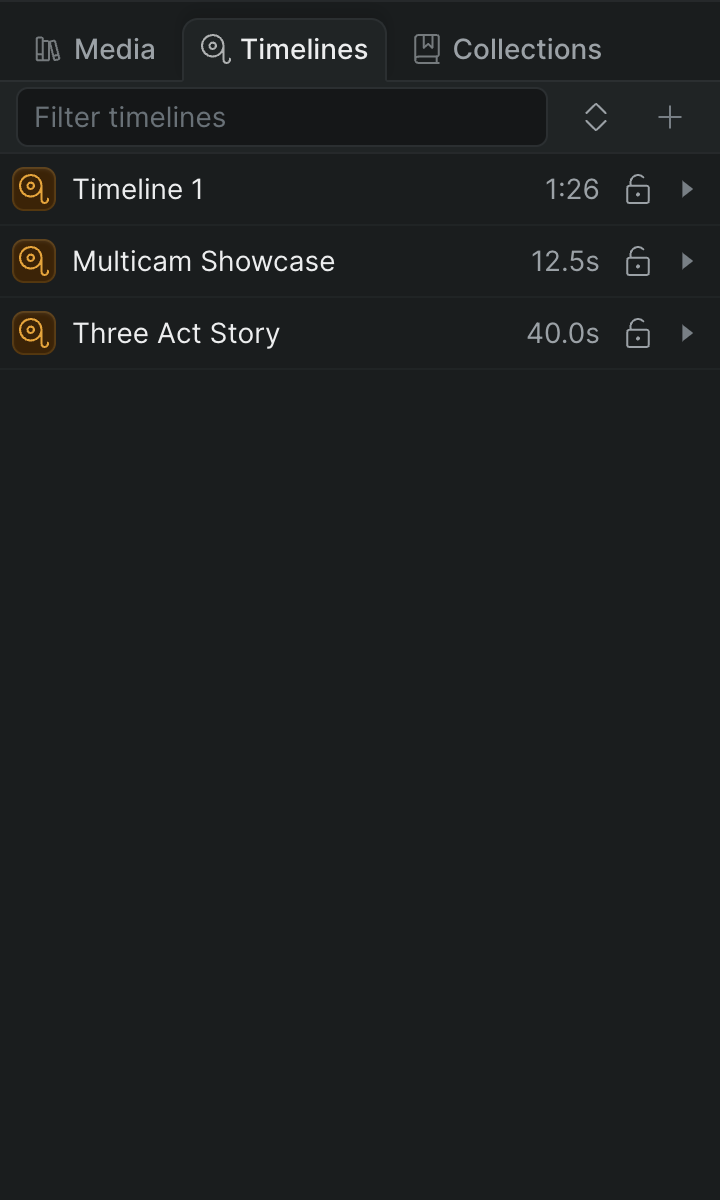
- Drag any timeline from the Timelines tab onto another to place it as a nested clip
- Placements are live references, not frozen copies — edit the original once and every instance updates
- Perfect a lower-third or a stock-footage bed once, and it updates everywhere it appears
- Duplicate the timeline first when one instance needs to diverge
Nest as deep as your story needs
- Sequences within sequences — build long-form and episodic projects in modular pieces
- Double-click any nested clip to drill inside and keep editing
- Only a true loop is prevented
Control nested audio
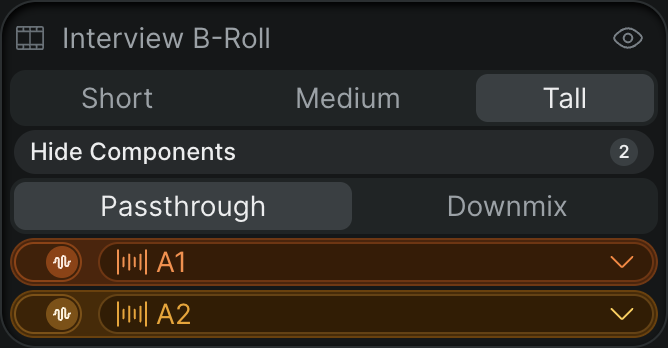
- Choose Passthrough or Downmix in the Inspector Info tab (see Nest clips into a timeline)
- Passthrough keeps the nested channels separate in the parent mix
- Downmix folds them down to the parent timeline's output
Fits a shared, modular edit#
Every nested timeline lives in the same shared project, so your collaborators see the same structure the moment it changes and the whole edit stays in your project-wide history and Time Travel. Break a feature or an episode into nested sections and a team can edit them in parallel without stepping on each other.
Because a nest is a real timeline, it browses and organizes like one — every nested timeline appears in the Timelines tab's storytree beneath the timeline that contains it, so a deep structure stays legible. See Create and navigate timelines. When the cut is done, the parent timeline hands off to finishing as a single OTIO or FCP 7 XML package like any other.
Pro tips#
- Nest a finished montage or bumper so you can reposition it as one clip
- Build a reusable graphic once, then nest it everywhere it recurs
- Duplicate before nesting when a single instance needs to diverge
- Break long-form projects into nested sections your team can edit in parallel
Who it's for#
- Editors on long-form and episodic content built from repeatable parts
- Documentary cutters breaking a complex structure into manageable sequences
- Teams building reusable graphics, bumpers, and title packages
- Groups dividing a big edit into sections to work on in parallel
- Anyone who wants a clean, modular timeline that stays out of the way