Here's the question every editor asks before they'll cut a real project in the cloud: how do I get my edit back out? A collaborative timeline is only useful if it hands off to the tools where you finish — the Resolve suite for color, Pro Tools for the mix, Avid or Premiere for whatever comes next.
Sequence answers with timeline packages: interchange files that describe your edit — clips, cuts, and timing — in a format another application opens. You generate them from one place, the Generate Timeline Package dialog, in the three formats post-production actually runs on.
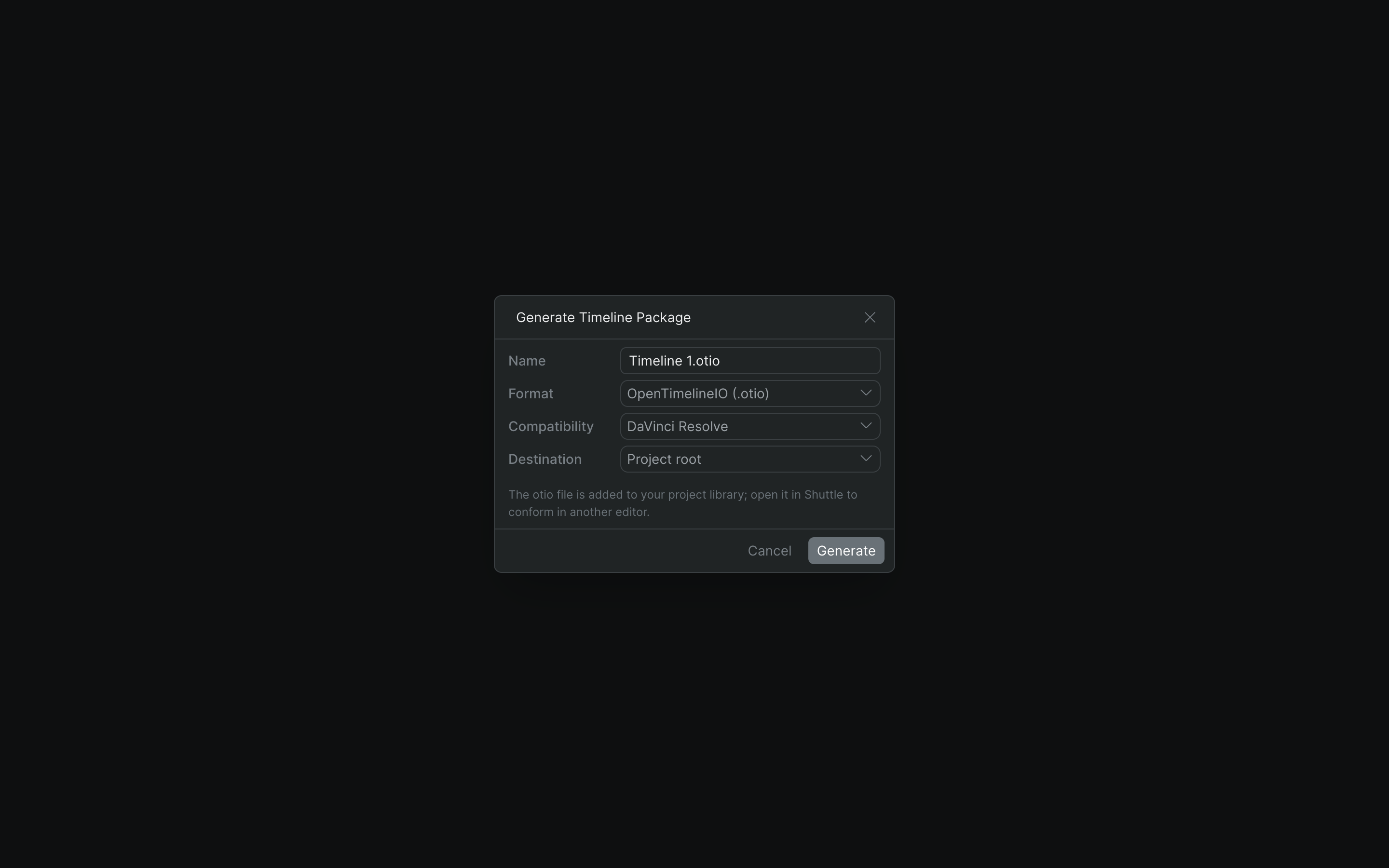
The three formats, matched to the destination#
OpenTimelineIO (.otio)
- The open interchange standard for a full cut
- The default, and the quickest path into DaVinci Resolve
- Compatibility presets for Resolve, Premiere Pro, and Media Composer
- Preset downgrades the schema so the file opens cleanly
- Resolve reads it natively; Premiere and FCP go via Resolve
AAF (.aaf)
- The interchange audio teams conform a mix with
- Hands a cut's audio to Pro Tools or Avid Media Composer
- Embed audio produces a self-contained, reliable file
- Or link to media files if your pipeline needs it
- The audio-conform path — sound, not picture
Final Cut Pro 7 XML (.xml)
- The long-established XMEML interchange for a cut
- Read by Resolve, Premiere Pro, and Media Composer
- The classic FCP 7
.xml, not FCP X's.fcpxml - Use it when a destination reads XMEML but not OTIO
- No format-specific options — just name and destination
Conform with Shuttle
- A package describes the edit; it doesn't carry the media
- Shuttle, Sequence's desktop app, mounts your project media locally
- Right-click the package, choose Open in Shuttle
- Media references resolve, so the edit relinks in your NLE
- The same app you may already use for fast uploads
The round-trip, end to end#
Cut collaboratively in Sequence
Your team edits the same timeline in real time — the collaborative work stays in Sequence.
Generate a timeline package
Right-click the timeline, choose Generate Timeline Package, pick OTIO, AAF, or FCP 7 XML, and set the compatibility preset for where you're headed. Sequence builds the file as a background job and drops it in your library.
Mount your media and open in Shuttle
From the project Overview, click Mount with Shuttle to bring the project's media onto your machine, then open the package in Shuttle so its media references resolve.
Finish in the tool you trust
Import the package in Resolve, Premiere, Pro Tools, or Avid and relink to the mounted media. Grade, mix, and deliver where you always have.
What travels today, and what doesn't
This is the first version of timeline packages: they carry your clips, cuts, and timing, but effects, keyframes, and other clip adjustments don't yet translate to the destination editor. Treat the Sequence timeline as your collaborative edit and the destination NLE as where you finish. Parity between apps grows over time.
Who it's for#
- Editors who want a cloud cut without giving up their finishing tools.
- Colorists pulling a graded-ready timeline into Resolve.
- Re-recording mixers and sound editors conforming a mix in Pro Tools from an AAF.
- Post supervisors standardizing editorial on Sequence while the facility keeps its Avid, Resolve, and Pro Tools pipeline intact.