Add one or more approved email domains so anyone with a company email address can join your Sequence workspace on their own, without an individual invite. Once you list a domain, a person whose Sequence account uses an email at that domain can self-join your workspace from the Join Workspace screen. Each person who joins takes up a workspace member seat, the same as an invited member.
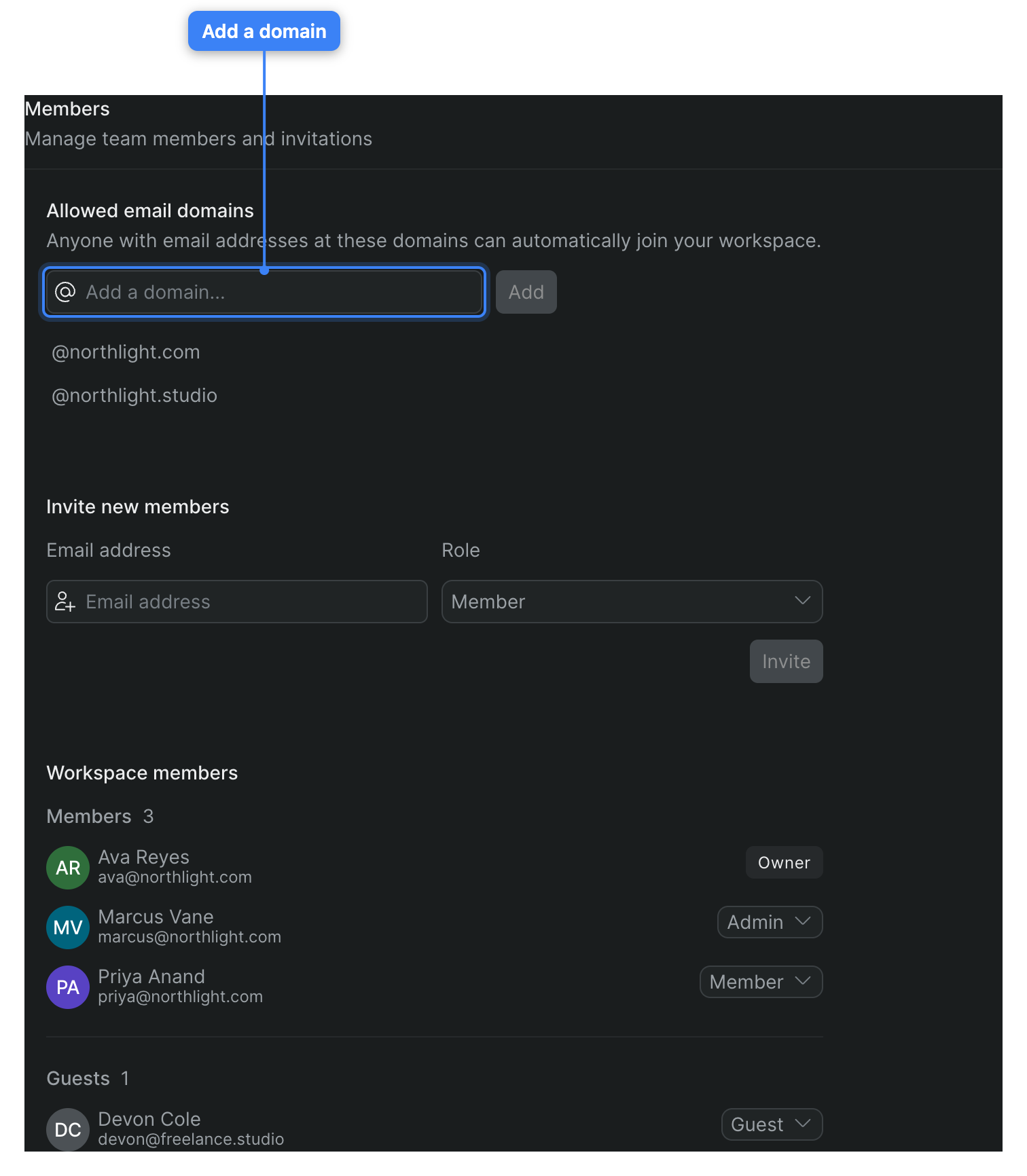
Note: You need to be a workspace Owner or Admin to add or remove allowed domains. For Members and Guests, the Allowed email domains field is disabled. See Workspace roles and permissions.
Self-serve join, not auto-provisioning
An allowed domain doesn't add anyone to your workspace by itself, and it doesn't pull in people who already have Sequence accounts on that domain. It lets those people join themselves: each person still needs a Sequence account on the domain, opens the Join Workspace screen, and clicks Join. For the joiner's steps, see Join a workspace.
Add an allowed domain#
- In Sequence, open your workspace settings and, under Workspace in the settings sidebar, click Members.
- On the Members settings screen, find the Allowed email domains field at the top — the one labeled "Anyone with email addresses at these domains can automatically join your workspace."
- In the Add a domain... field, type a single domain your organization controls, such as
acme.com. Enter the bare domain on its own — not@acme.com, a full email address, or a URL. - Click Add (or press Enter).
Sequence validates the domain and saves it. The Add button shows a spinner while it saves. There's no success message: instead, the field clears and the domain appears below as an @acme.com row. People at that domain can now self-join your workspace. Saved domains apply to the whole workspace and are visible to every Owner and Admin who opens the Members settings screen.
Note: If the domain is malformed, the field turns red and, when you click Add, Sequence shows "Invalid domain" / "Please enter a valid domain." Correct the domain and click Add again.
Note: You can't add public or free email providers such as Gmail, Outlook, Yahoo, or iCloud. Entering one shows "Invalid domain" / "Please use a domain that is not a public email provider." Add only domains your organization controls.
Remove an allowed domain#
- On the Members settings screen, find the domain in the Allowed email domains list.
- Hover over or move focus to the domain's row to reveal its Remove button.
- Click Remove.
Sequence removes the domain right away — there's no confirmation dialog. People at that domain can no longer self-join, but anyone who already joined stays a member. To take away access from someone who already joined, remove them from the Workspace members list instead. See Manage members and collaborators.
What happens when someone joins#
After you add a domain, people at that domain see your workspace on their Join Workspace screen, under You have access to these workspaces, and can click Join to become a member. Someone who joins this way:
- Takes up a workspace member seat, exactly like an invited member.
- Gets the default Member role and appears in your Workspace members list alongside everyone else. Change their role there if you need to — see Manage members and collaborators.
- Can only join while your workspace's subscription is active and has a seat free. If the subscription has lapsed or you've reached your seat limit, their row reads Inactive or No seats available and the Join button is disabled.
For the joiner's full walkthrough, see Join a workspace.
Domains field is disabled#
The Allowed email domains field is disabled in two situations:
- You aren't an Owner or Admin. Only workspace Owners and Admins can manage allowed domains. See Workspace roles and permissions.
- Your workspace has no seats left. When every seat on your plan is used, Sequence disables the field and shows an "Upgrade to add more team members" banner on the neighboring Invite new members field. Click Upgrade Now to move to a plan with more seats, or remove members you no longer need to free one up. See Plans and billing.