The workspace sidebar is the panel on the left of every workspace screen, and it's how you move between everything a workspace holds — your recent projects, the full project list, your favorites, and workspace settings. It stays with you as you navigate, so the same set of destinations is always one click away.
When you open a workspace, Sequence takes you to Recents first.
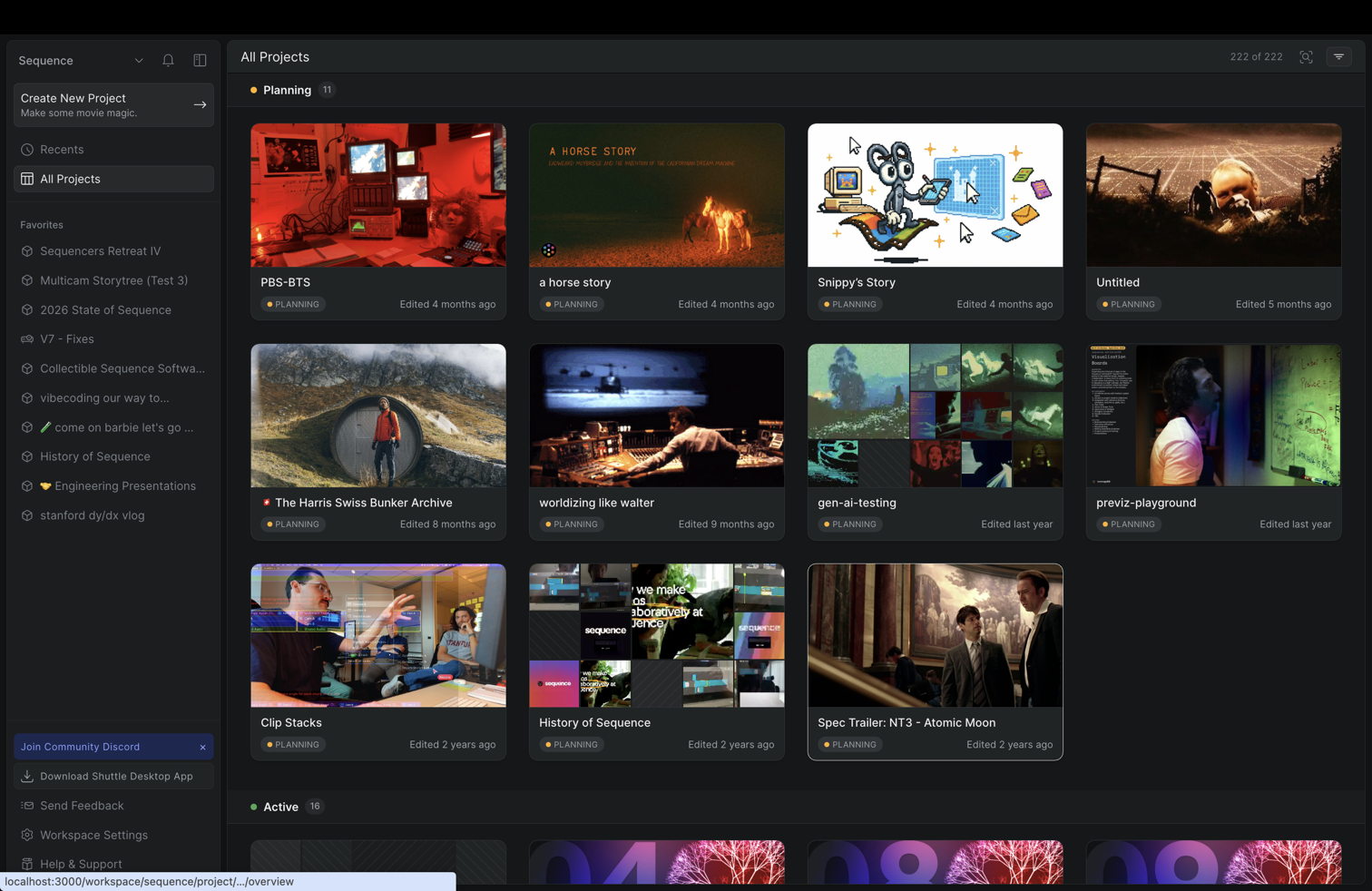
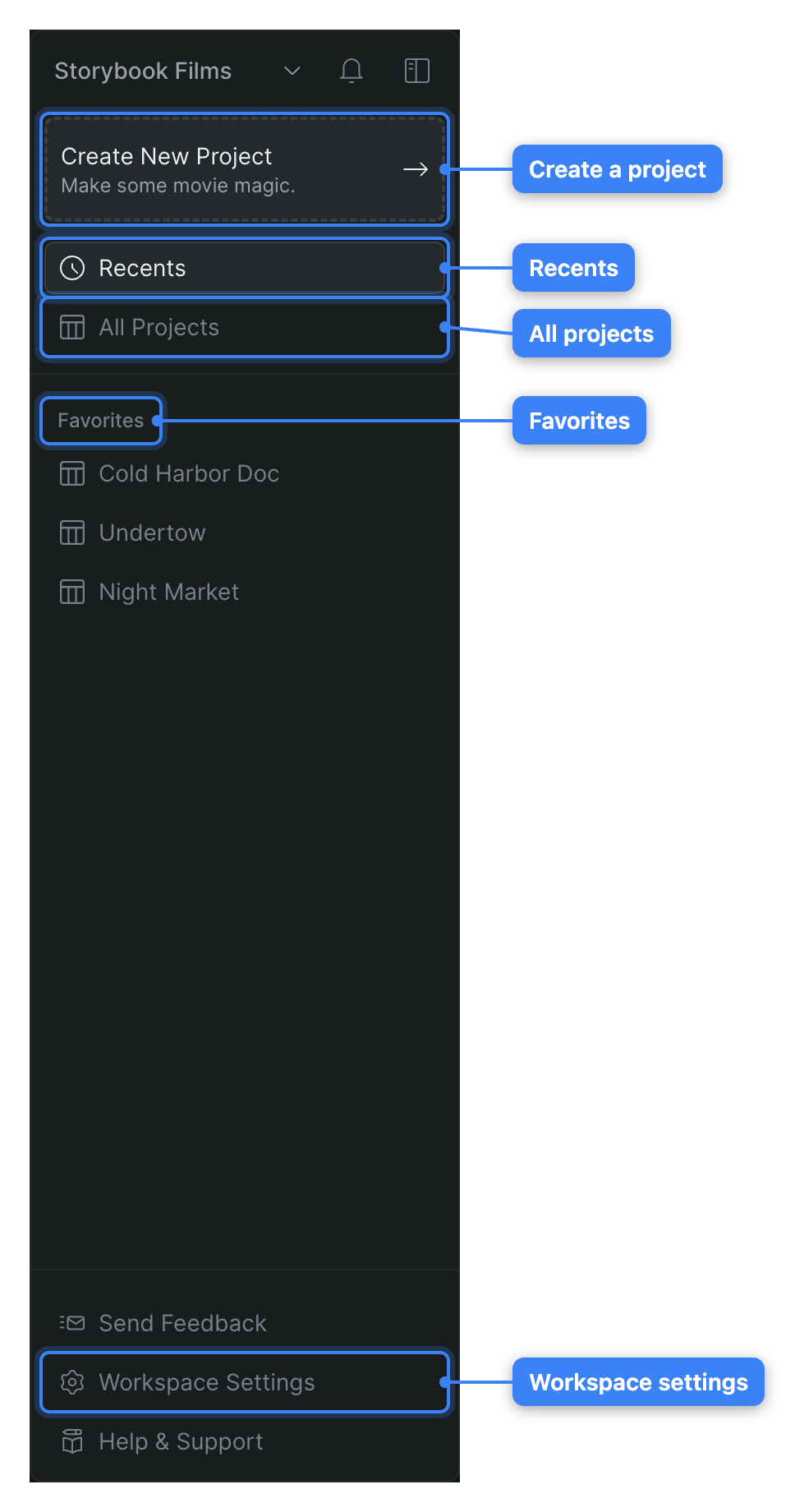
What's in the sidebar#
From top to bottom, the sidebar holds:
- Workspace name — the current workspace, shown with a chevron at the very top. Click it to open the workspace menu, where you can switch workspaces, join or create another workspace, and open Help.
- Create New Project — a button just below the name that starts a new project.
- Recents — your most recently opened projects, and where a workspace opens by default.
- All Projects — the full wall of every project in the workspace.
- Favorites — the projects and screenings you've favorited. Until you add one, this section reads No favorites added yet.
- Workspace Settings, Send Feedback, and Help & Support — pinned at the bottom of the sidebar.
Move between Recents and All Projects#
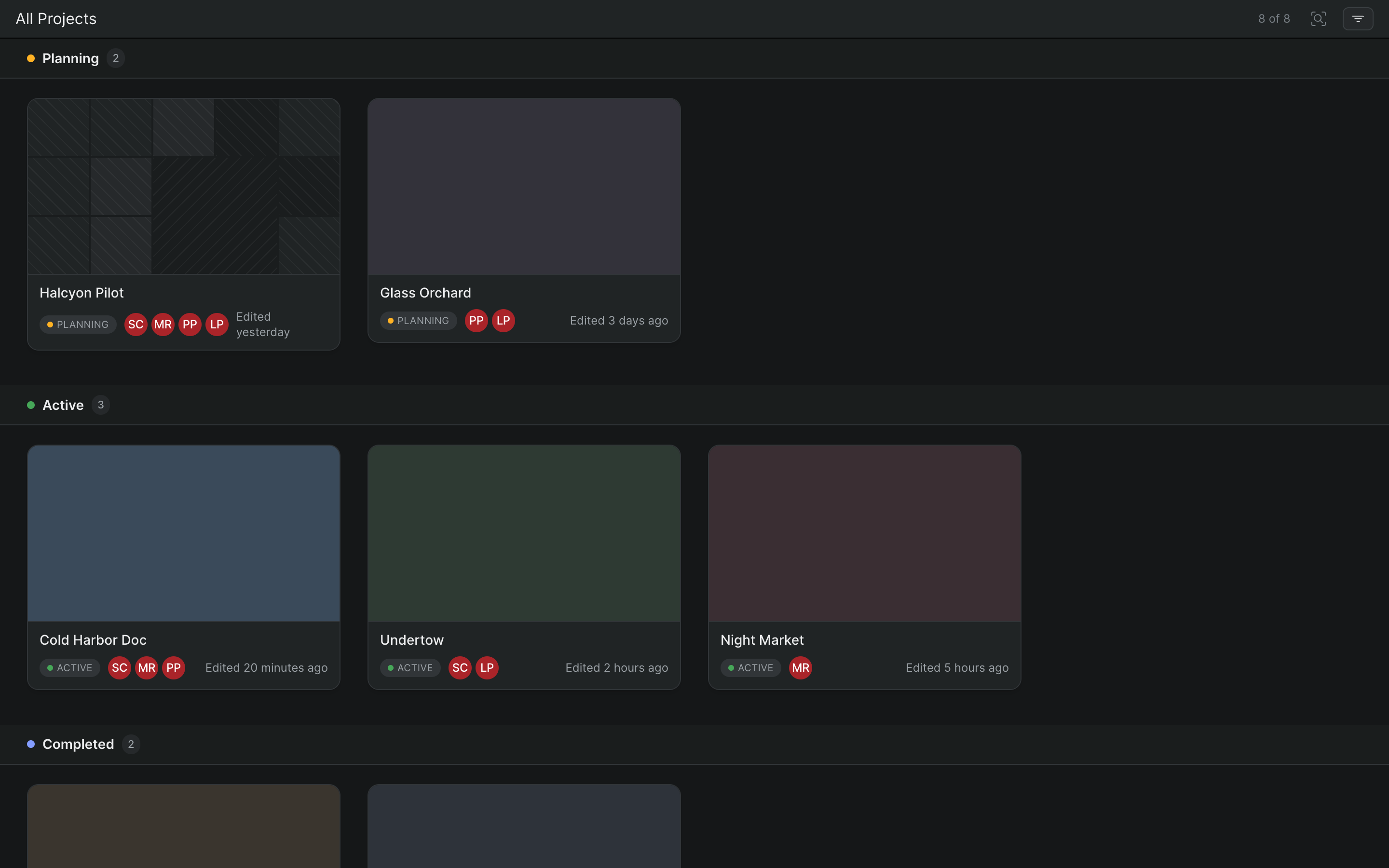
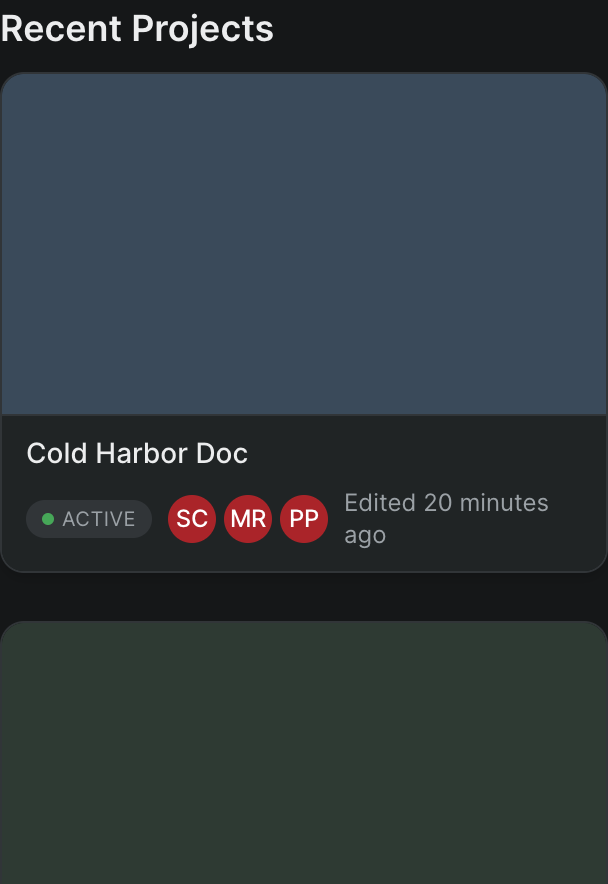
Recents is a short list of what you've opened lately; All Projects is everything in the workspace.
- In the sidebar, click Recents to see your recently opened projects.
- Click All Projects to see every project in the workspace.
The current view is highlighted in the sidebar, so you always know where you are. All Projects opens the full project wall — see Create and manage your projects for what you can do there.
Open a favorite#
Favorited projects and screenings appear in the Favorites section, most recently favorited first, so the work you return to often stays within reach.
- To add a favorite, right-click a project card on the All Projects wall and choose Add to favorites.
- In the sidebar, click a name under Favorites to jump straight to that project or screening.
- To remove one, right-click it under Favorites and choose to remove it.
The item appears under Favorites as soon as you add it.
Switch to a different workspace#
You can belong to more than one workspace and move between them without leaving the current screen.
- At the top of the sidebar, click the workspace name.
- Choose Switch Workspace.
- Pick a workspace from the list. A checkmark marks the one you're in now.
Sequence loads the workspace you chose. The same menu also offers Join Workspace and Create New Workspace if you need another one.
Create a project#
- Near the top of the sidebar, click Create New Project.
- Follow the prompts to name and set up the project.
Sequence creates the project and opens it. You need edit access to create a project — guests can't, and creating one may prompt you to start or confirm the workspace subscription.
Show or hide the sidebar#
Press [ to hide or show the sidebar, or click the sidebar toggle button in its header.
When the sidebar is hidden, a toggle button appears at the top-left of the screen. You can also move your pointer to the left edge to reveal the sidebar temporarily without pinning it back open.