Your projects live on the project dashboard — the All Projects wall in your Sequence workspace, where each project appears as a card. A project is a single editing workspace: its timelines, media library, collaborators, and screenings all live inside it. From the wall you open a project, create a new one, and organize the ones you have.
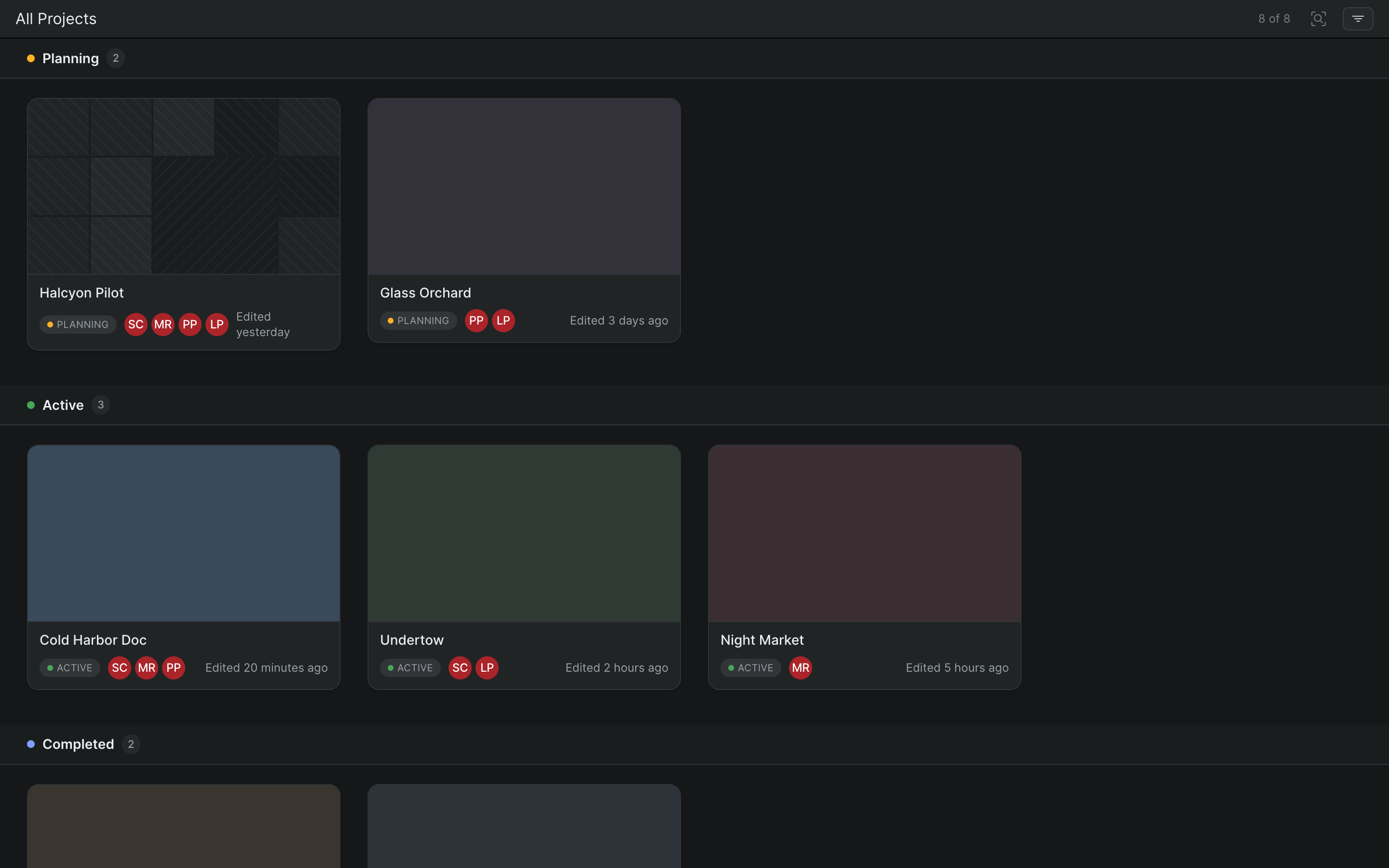
What a project card shows#
Each card summarizes one project at a glance, from top to bottom:
- Cover — either a single poster still or a mosaic of stills drawn from the project's library. Set the poster yourself (see Set a project's cover image); otherwise Sequence builds the mosaic automatically.
- Title — the project name.
- Status — a chip showing the project's current status, when one is set.
- Collaborators — a stack of avatars. When people are currently working in the project, their avatars appear here as live presence; otherwise the card shows the project's collaborators.
- Last activity — when the project was most recently updated.
Open a project#
- In Sequence, go to the All Projects wall in your workspace.
- Do either of the following:
- Click a project card once to open the project overview.
- Double-click the card to jump straight into the editor.
You can also right-click a card and choose Open in Editor to skip the overview.
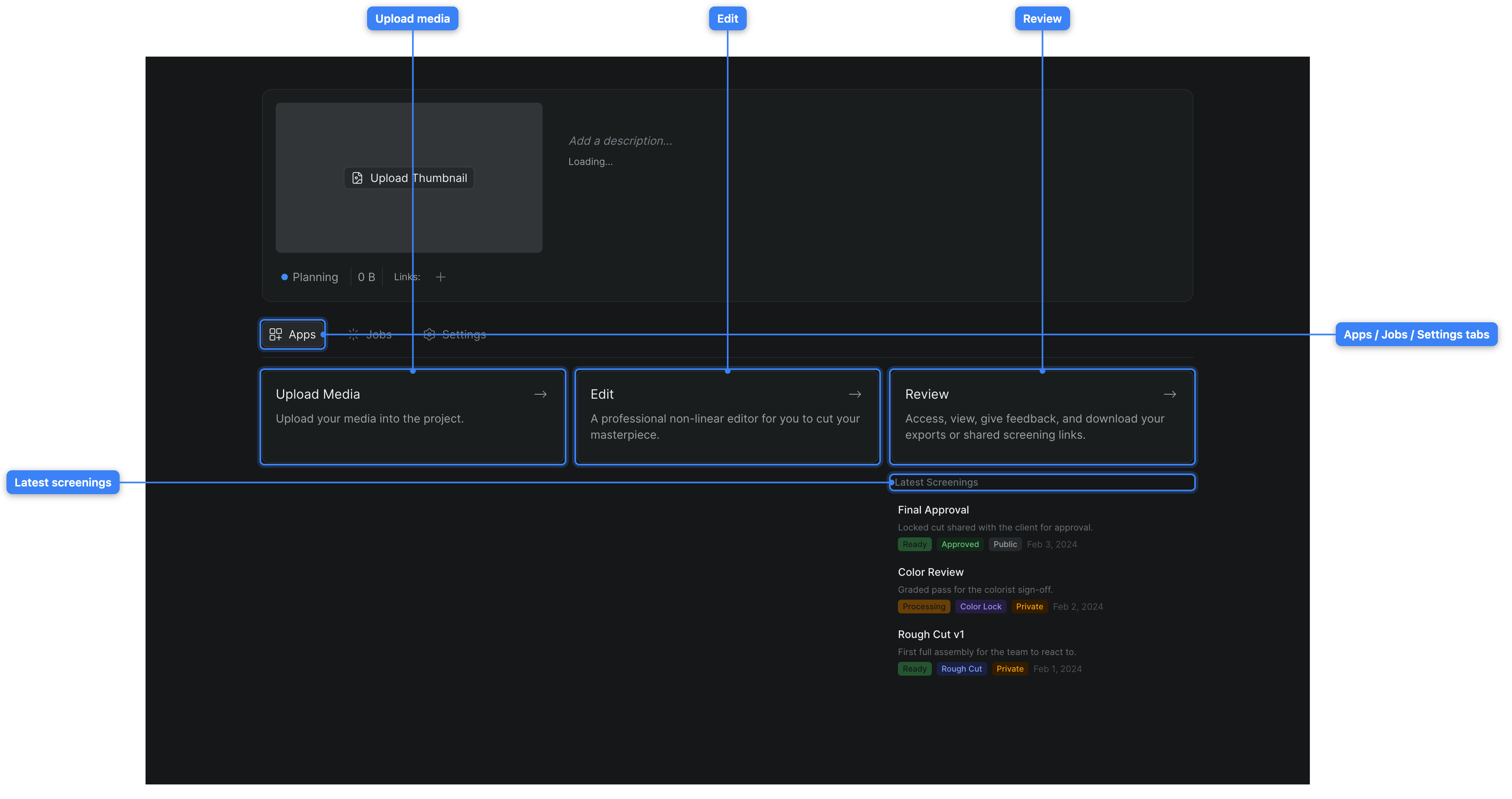
Tip
Use the project overview to review a project's timelines, media, and screenings before you start editing; double-click when you already know you want to cut.
Create a project#
You need edit access to the workspace to create a project. Guests can't create projects, and creating one may prompt you to start or confirm your workspace subscription.
- In the workspace sidebar, click Create New Project.
- Follow the prompts to name and set up the project.
Sequence creates the project and opens it, and the new card appears on the All Projects wall.
Rename a project#
- On the All Projects wall, right-click the project card and choose Rename.
- Type the new name in the inline field.
- Press Enter to save, or Escape to cancel.
The card's title updates immediately, and collaborators see the new name.
Set a project's cover image#
A card's cover is either a poster still you choose or an automatic mosaic of stills from the project's library. To set the poster, pick a frame from inside the project:
- In Sequence, open the project and load a video clip in the preview monitor.
- Move the playhead to the frame you want to use.
- Right-click the frame in the preview monitor and choose Set Project Image.
That frame becomes the project's cover on the All Projects wall.
Organize the wall#
Use the controls in the All Projects wall's top bar to find and arrange projects:
- Search projects — click the search icon and type to filter cards by name.
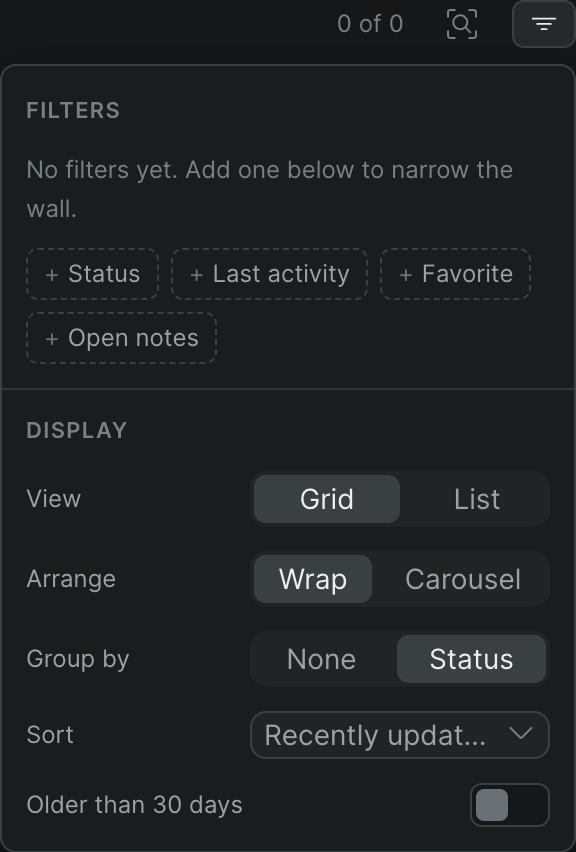
- Filter & display — click the filter icon to open the panel. There you can:
- Add Filters by status, last activity, favorites, or open notes to narrow which projects show.
- Switch View between Grid and List.
- In grid view, set Arrange to Wrap (a full grid) or Carousel (a single scrolling row per group).
- Set Group by to None or Status.
- Choose a Sort order — for example Recently updated or Name (A–Z).
- Toggle Older than 30 days to include or hide inactive projects.
To set a project's status, right-click its card, choose Status, and pick a status from the submenu. To flag a project you return to often, right-click and choose Add to favorites (choose Remove from favorites to clear it).
Delete a project#
- On the All Projects wall, right-click the project card and choose Delete.
- Confirm in the dialog that appears.
Warning
Deleting a project removes it and its contents for everyone. This action cannot be undone.