There are two ways to join an existing Sequence workspace: accept an invitation an admin sent to your email, or self-join a workspace that lists your email domain as allowed. Either way you take up a workspace member seat, and your role is set by the workspace, not by you. See Workspace roles and permissions.
Note: You need a Sequence account first. If you don't have one yet, create an account with the email address the invitation was sent to (or an address at your company's domain), then follow the steps below.
Accept an email invitation#
When a workspace Owner or Admin invites you, Sequence emails an invitation to that address. Until you accept, you appear in their Workspace members list as a pending invite.
Open the invitation
In your email, find the invitation from Sequence and open its link. Use the same address the invite was sent to — the invitation is tied to that specific email.
Sign in or create your account
In Sequence, sign in with the invited email address, or create an account with it if you don't have one yet.
Once you're signed in with the invited address, you become a member of the workspace and can open its projects. Your role in the workspace was chosen by whoever invited you.
Tip: If you belong to more than one workspace, click your workspace name at the top of the sidebar to open the workspace menu, then choose Switch Workspace to move between them.
Join automatically with your email domain#
If a workspace has added your email domain to its Allowed email domains, you can join it yourself without waiting for an invitation. See Allowed email domains for how admins set this up.
- In Sequence, click your workspace name at the top of the sidebar to open the workspace menu, then choose Join Workspace. (If you aren't in any workspace yet, Sequence takes you here after you sign in.)
- On the You have access to these workspaces screen, find the workspace you want in the list. Each row shows the workspace name and how many members it has.
- Click Join on that row.
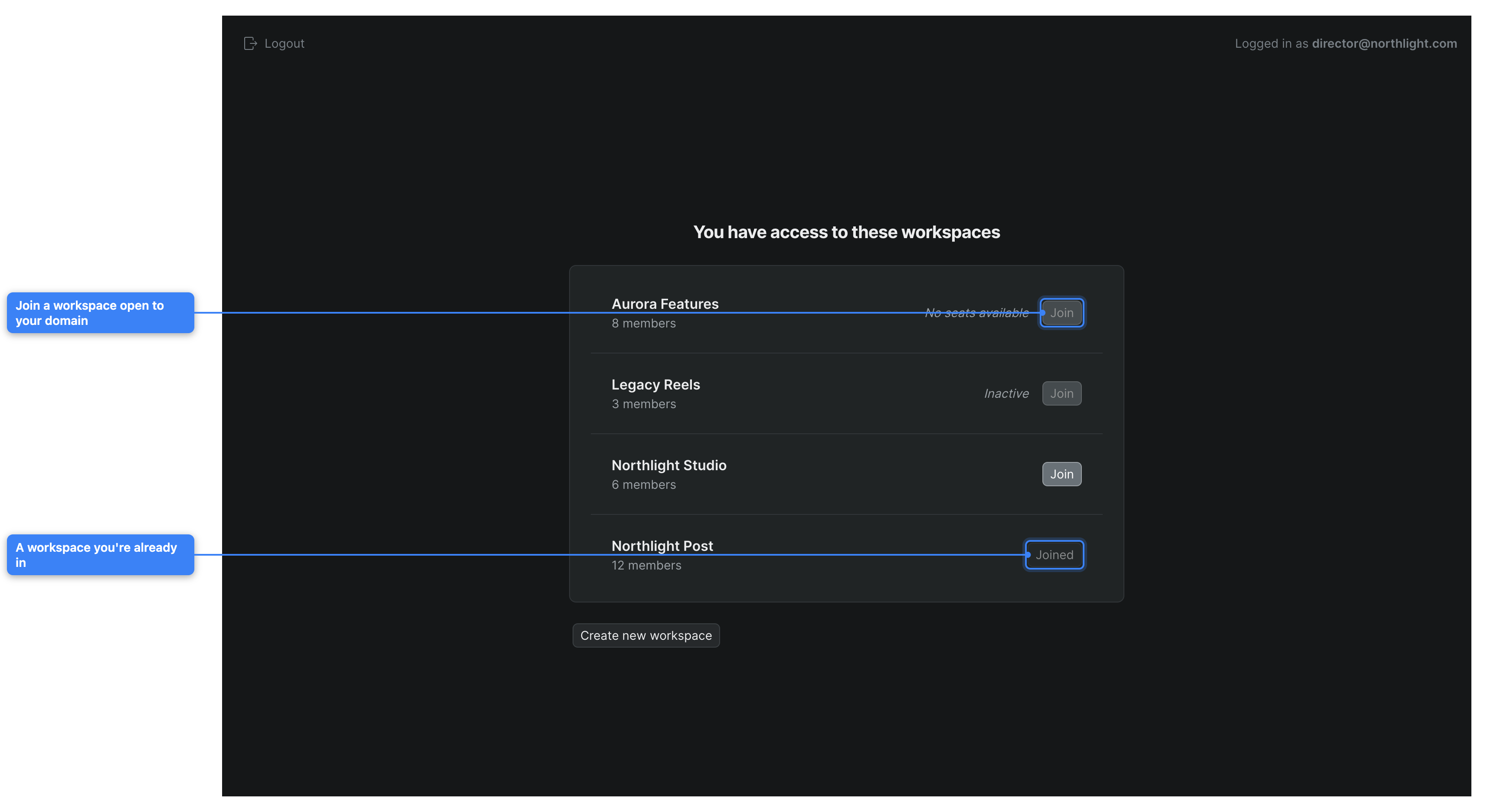
Sequence adds you to the workspace and opens it. A workspace you already belong to shows Joined instead of a Join button.
Note: The Join button is disabled and the row is labeled Inactive when the workspace's subscription isn't active, or No seats available when it has reached its plan's member limit. Ask a workspace admin to reactivate the plan or free up a seat. See Plans and billing.
Note: If the screen reads "No workspaces available for your domain," no workspace has added your email domain as allowed. Ask an admin to invite you by email instead, or click Create new workspace to start your own. See Create a workspace.
If you can't reach a workspace#
If you open a workspace link but aren't a member, Sequence shows "You do not have permissions to access this workspace" and asks you to contact the workspace admin to gain access. From that screen you can choose Switch Workspace to open a workspace you do belong to, or Join Workspace to self-join one that allows your email domain.