Every project has its own Settings page, where you control the compute a project runs on, manage who can access it, copy its ID, and delete it. These settings apply to one project only — for settings that span your whole workspace, see Workspace settings.
To open it, in Sequence open the project and click Settings (the gear icon) in the project tab bar, alongside Apps and Jobs.
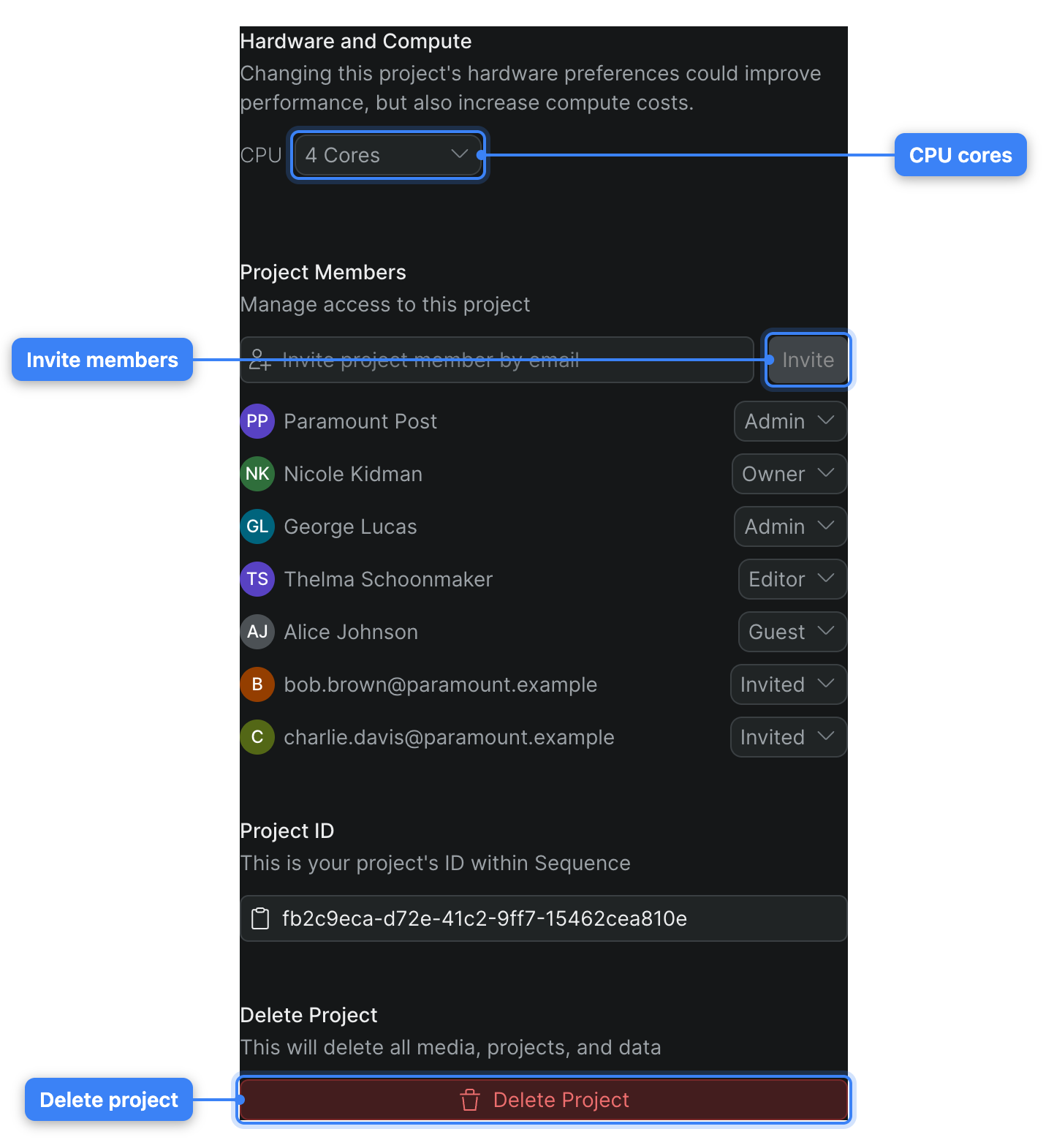
Hardware and Compute#
The Hardware and Compute control sets how much processing power a project runs on. More cores can improve playback and rendering performance, but also increase compute costs, so this setting is a direct trade-off between speed and spend.
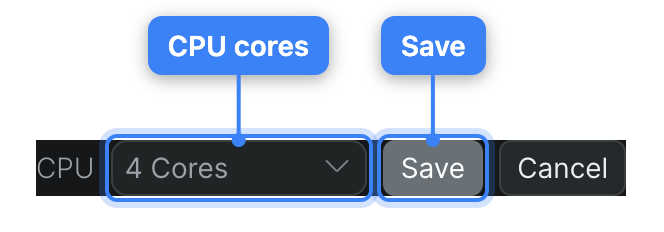
CPU: Choose the number of cores the project uses from the dropdown:
- 1 Core — the lightest, lowest-cost option.
- 4 Cores — the standard starting point for a new project.
- 6 Cores
- 8 Cores
- 10 Cores — the most performance, at the highest compute cost.
Pick a value from the CPU dropdown, then click Save to apply it (or Cancel to keep the current setting). Higher core counts may exceed your plan; if the selection isn't included in your subscription, Sequence shows Upgrade to Continue instead of Save. See Plans and billing.
Note
Changing a project's compute affects its running session. If playback or a render is in progress, apply the change during a quiet moment so the project can pick up the new hardware.
Project Members#
The Project Members control is the entry point for managing who can open this project and what they can do. Invite someone by typing their email in the Invite project member by email field and clicking Invite, and change an existing person's access from the role dropdown next to their name.
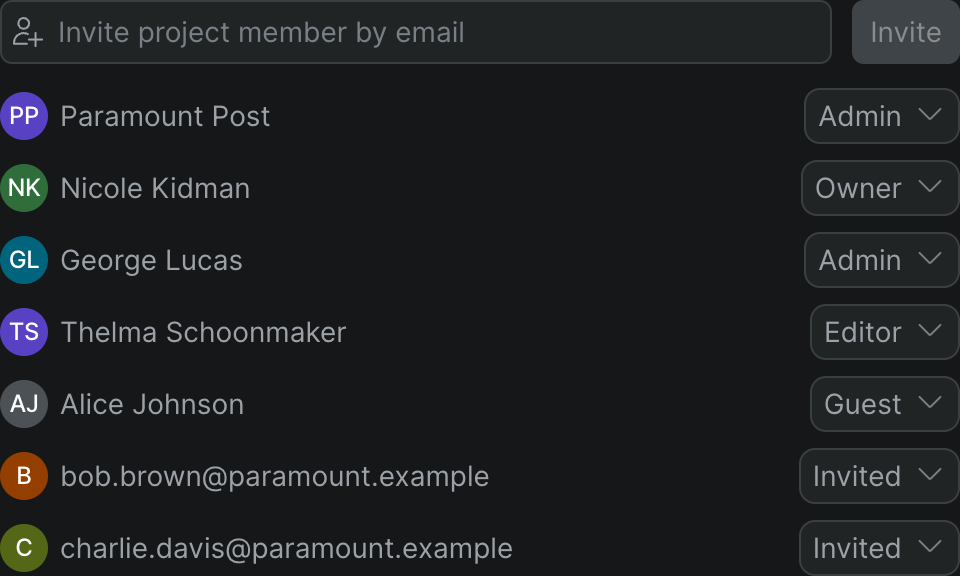
For the full workflow — inviting collaborators, changing roles, and removing access — see Manage members and collaborators. To understand what each role can do, see Workspace roles and permissions.
Project ID#
The Project ID is your project's unique identifier within Sequence. You'll mainly need it when contacting support or referencing a specific project.
Click the Project ID field to copy the ID to your clipboard. The field's icon turns to a checkmark to confirm the copy.
Delete Project#
The Delete Project control permanently removes the project and everything in it — all media, timelines, and data.
Warning
Deleting a project is permanent and can't be undone. Everything in the project is deleted for every collaborator, not just for you.
- On the project Settings page, click Delete Project.
- In the confirmation dialog, confirm that the named project will be permanently deleted.
- Click Delete.
Sequence deletes the project and returns you to your workspace. The project no longer appears on the All Projects wall for anyone.