The Share button in the editor's top bar is the fastest way to hand off your work: jump straight to exporting or packaging the open timeline, create a screening, or copy a link to exactly what you're looking at. To invite people or change their access instead, see Manage members and collaborators.
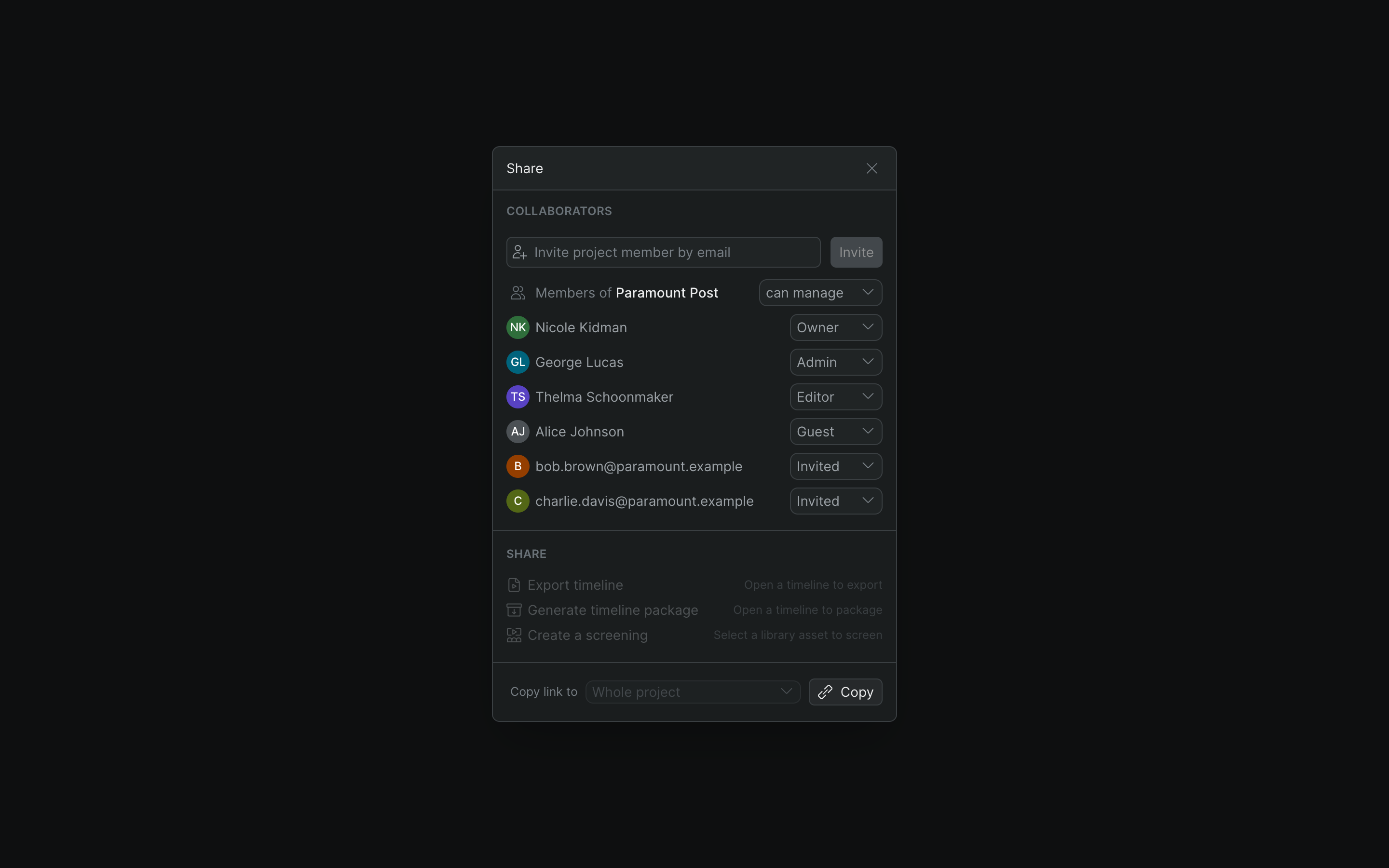
Open the Share sheet#
- In Sequence, open the project you want to share.
- Click Share in the editor's top bar.
The Share sheet opens. Its Share section holds the quick actions below, and a Copy link to control sits at the bottom.
Quick-launch an export, package, or screening#
- Export timeline — Opens export settings for the open timeline. See Export a timeline to video.
- Generate timeline package — Opens the timeline package export. See Timeline packages.
- Create a screening — Opens screening creation for the selected library asset. See Create and share a screening.
Each action is disabled with a hint when it isn't available: Export timeline and Generate timeline package need a timeline open, and Create a screening needs a single library asset selected. Guests can't use any of the three.
Copy a link#
Use Copy link to to copy a URL that opens straight to the project, the open timeline, or your current selection.
- Open the Copy link to dropdown and choose a scope. Sequence only offers scopes that apply to what's currently open: Whole project is always available; This timeline appears once a timeline is open; Current selection appears once something is selected in that timeline.
- Click Copy.
Send the link to people who already have access so they can jump straight to that project, timeline, or selection. The link doesn't grant access on its own — the recipient still needs to be a member. To add someone who isn't, see Manage members and collaborators.
Tip
To gather feedback from people you don't want inside the project — clients or outside reviewers — send them a screening instead. See Create and share a screening.