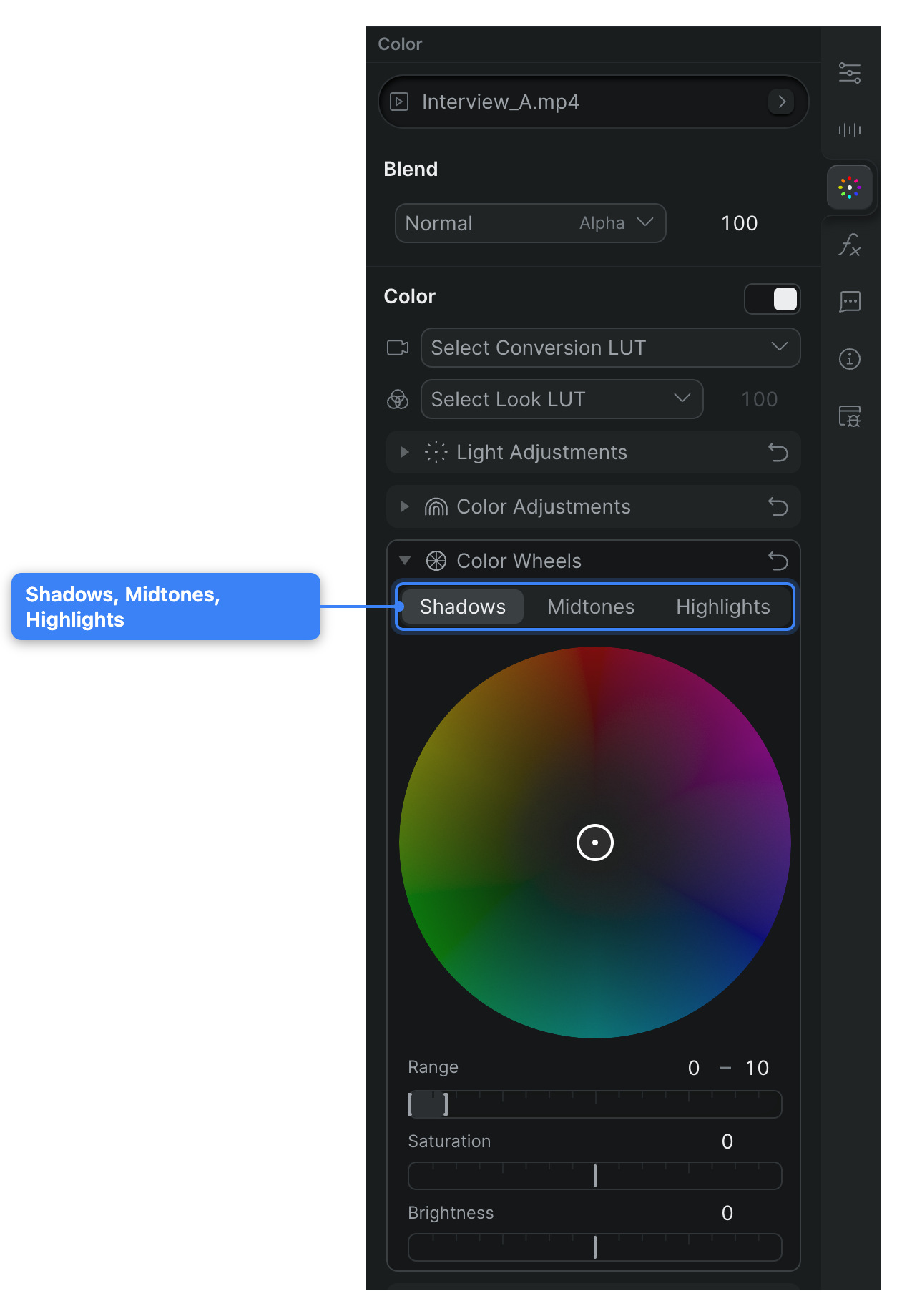
The Color Wheels section of the Color tab gives you a three-way grade: one wheel each for the Shadows, Midtones, and Highlights of a clip. Drag a wheel toward a color to push that tint into only that tonal range — for example, cooling the shadows while warming the highlights.
Note: You need Editor access to change a clip. See Roles and permissions.
Open the color wheels#
- In Sequence, select a clip on the timeline.
- Open the Color tab in the Inspector.
- Expand the Color Wheels section.
The section shows a single wheel with three mode buttons above it — Shadows, Midtones, and Highlights — and a row of sliders below. The wheel dims until you point at it. For opening the Color tab itself, see Adjust clip color.
Push color into a tonal range#
- Click Shadows, Midtones, or Highlights to choose the range you want to grade.
- Drag from the center of the wheel toward the color you want to add. Sequence tints that tonal range as you drag — farther from center is a stronger push.
- Switch to another mode button and repeat to balance the other ranges.
The clip updates in the viewer as you drag. The three wheels are independent, so a warm push in Highlights doesn't move your Shadows grade.
Tip: For finer control, hold Option (Windows: Alt) while dragging the wheel — the pointer moves at a fraction of the normal speed so you can dial in a subtle cast.
Fine-tune each range with the sliders#
Below the wheel, each mode has three sliders that shape the range you're grading:
- Range — How wide a band of tones this wheel affects. Narrow the range to target only the deepest shadows or brightest highlights; widen it to blend into the midtones.
- Saturation — Boosts or mutes color intensity within the range. The default is 0; drag left toward -100 to desaturate, right toward 100 to intensify.
- Brightness — Lightens or darkens the range. The default is 0; drag left to darken, right to lighten.
For the full list of light and color controls that sit alongside the wheels, see Light, color, and creative adjustments.
Reset the wheels#
To clear your grade and start over, click Reset in the Color Wheels section header. This returns all three wheels and their sliders to their default, neutral values in a single step.
Note: Sequence doesn't have a per-clip color match or auto-balance tool. To judge your grade objectively while you work, open the video scopes.
Every wheel and slider can be keyframed to animate over time — click the arm icon next to a control before you change it. See Keyframe animation.