A blend mode controls how a clip's pixels combine with the layers stacked beneath it. Use blend modes to composite a clip into your shot — for example, adding a light leak or a glow on top of the footage below it instead of simply covering it up. Blend modes live in the Blend module at the top of the Color tab in the inspector.

Blend modes only apply to a clip that has a video stream. If the Color tab reads No video stream found, the selected clip is audio-only and has nothing to blend.
Note
A blend mode is a project change. Sequence saves it with the clip and it's visible to everyone with access to the project.
Set a clip's blend mode#
- In Sequence, open the project and select a clip in the timeline.
- In the inspector, click the Color tab (or press G then C).
- In the Blend module, click the blend mode dropdown and choose a mode.
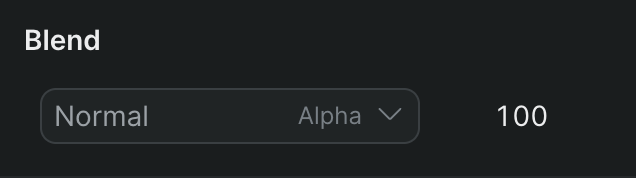
Sequence recomposites the clip against the layers below it as soon as you choose a mode. To go back to the default, choose Normal.
Blend modes#
- Normal — The clip covers the layers beneath it, controlled by its Opacity. This is the default and the only mode that uses opacity to fade the clip.
- Add — Adds the clip's pixel values to the layers below, so the result gets brighter. Good for light leaks, flares, and glows.
- Subtract — Subtracts the clip's pixel values from the layers below, darkening the result.
- Reverse Subtract — Subtracts the underlying layers from the clip instead, the opposite of Subtract.
Set clip opacity#
Opacity sets how much of the clip shows over the layers beneath it. It runs from 0 to 100% and defaults to 100.
- In the Blend module, click the Opacity field.
- Type a value, or drag left and right across the field to scrub it.
Lower the Opacity to fade the clip toward transparent; a clip at 0% is fully transparent and one at 100% is fully opaque.
Note
Opacity is only available when the blend mode is Normal. Choosing Add, Subtract, or Reverse Subtract disables the Opacity control, because those modes combine pixel values directly instead of fading the clip.
Animate opacity over time#
Opacity is keyframeable, so you can fade a clip in or out over its duration. Use the keyframe controls next to the Opacity field to add a keyframe at the playhead and to jump between existing keyframes. For how to set and edit keyframes, see Animate a property with keyframes.