The Color panel is where you grade a single clip — set its brightness, balance and push its color, and add creative touches like a vignette or grain — all without leaving the editor. This page walks through grading a clip from start to finish and links out to the full control reference at each step.
Open the Color panel#
- In Sequence, select a clip on the timeline.
- Open the Color tab in the Inspector (press G then C).
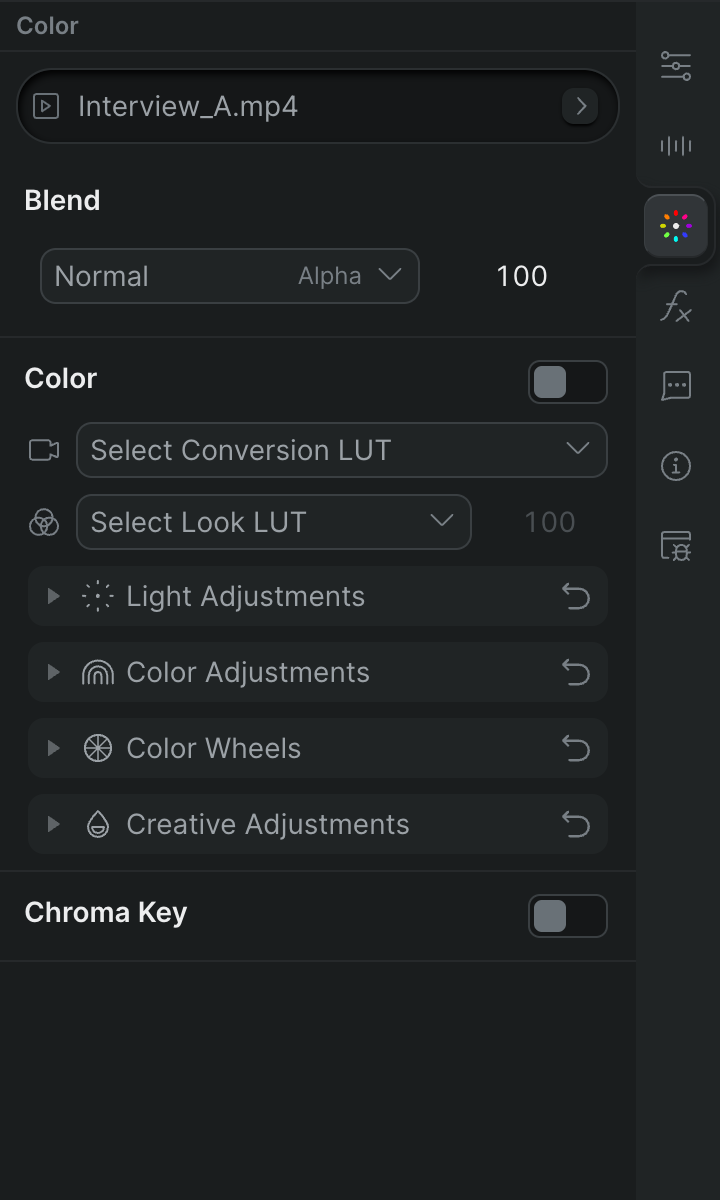
The Color panel appears with collapsible sections for Light, Color, Color Wheels, and Creative adjustments. For an orientation to how the tab is laid out, see Color grading overview.
Grade the clip#
Work down the panel in the usual grading order — fix the tone, balance the color, then style it:
- Expand Light Adjustments to set exposure and contrast, then Color Adjustments to correct white balance and set saturation. See Light, color, and creative adjustments for every control and its range.
- To place a tint into specific tonal ranges instead of the whole clip, expand Color Wheels and grade the shadows, midtones, and highlights independently. See Color wheels.
- Expand Creative Adjustments to finish with a Vignette or film-style Noise — see Light, color, and creative adjustments for the vignette and noise settings.
To compare your grade against the original at any point, use the Toggle color on/off switch in the module header — it drops the whole grade without losing your settings.
Animate the grade#
Any color control can be keyframed to change over time:
- Click the arm icon (circle) next to the control you want to animate.
- The icon fills and turns blue, showing the control is armed.
- Move the playhead to a different time and change the control's value.
Sequence creates keyframes at each change. See Keyframe animation.
Note
For an effect you bring yourself and apply to any clip, see Create a custom effect with Snippy.