Sequence grades color in the Color tab of the Inspector Panel — a built-in grading suite you use without leaving the editor. Select a clip in the timeline, open the Inspector Panel, and click the Color tab to see it. The tab only shows controls for clips with a video stream; for anything else it reads No video stream found.
Grading is non-destructive: your controls are stored as a color effect layered on the clip, so your source media is never changed and you can dial a look back to zero at any time. Every adjustment is also keyframeable — arm a control and it animates over the clip like any other property. See Keyframe animation.
Toggle Color Effect#
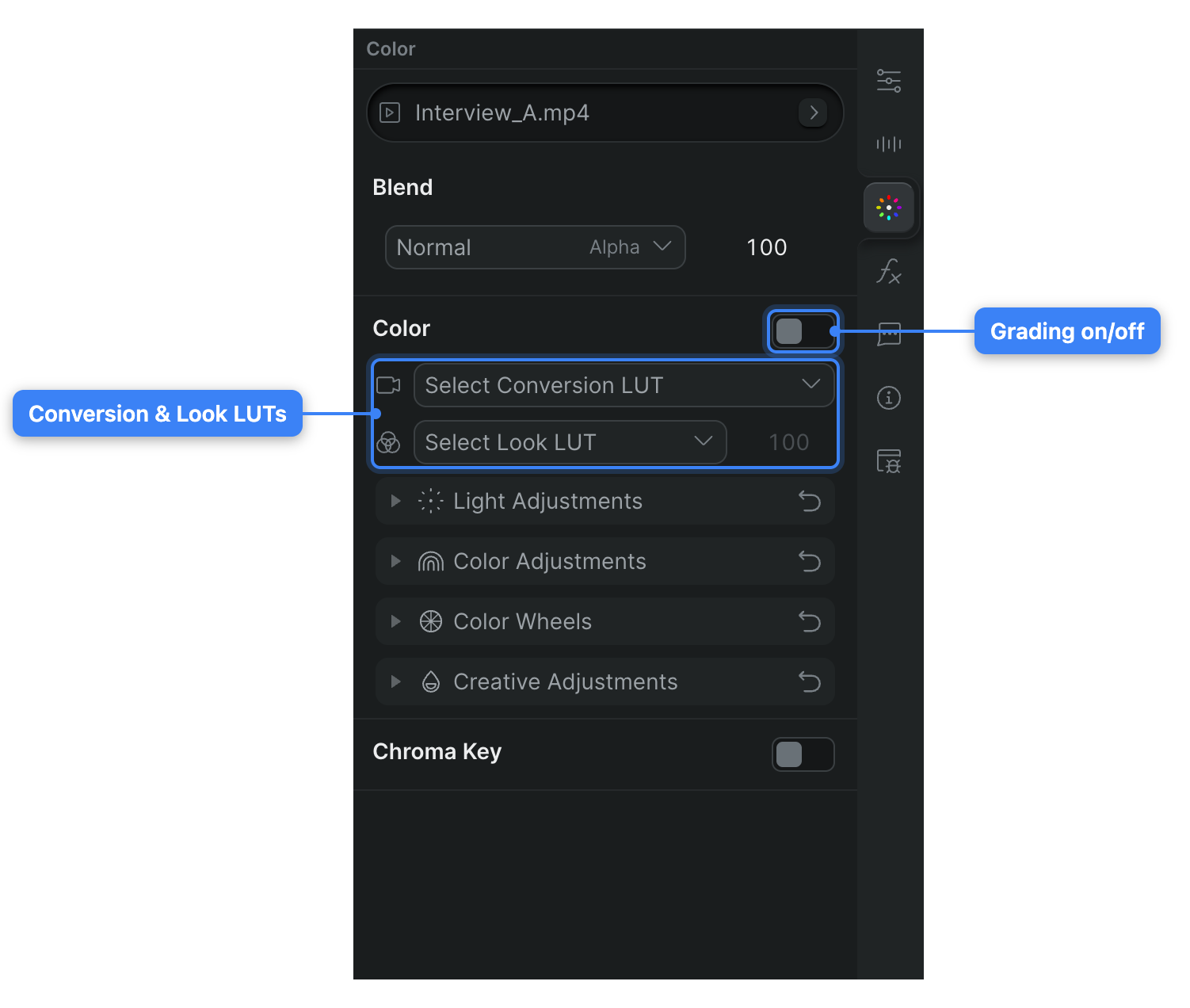
The Color module has a single on/off switch in its header (Toggle color on/off). Turn it off to compare your graded clip against the original without losing any of your settings; turn it back on to restore the whole grade at once.
Color Grading Modules#
The Color tab stacks its tools top to bottom, so you can work down the panel in the usual grading order — normalize the source, balance it, then style it.
- LUTs — Start here for log footage. Apply a Camera Conversion LUT (for example, ARRI LogC3 to Rec 709) to bring a log clip into a standard range, or a Creative Look LUT for a stylized look with an adjustable intensity. You can also load your own
.cubefile. See Apply LUTs. - Light Adjustments — Set exposure and contrast: Exposure, Brightness, Contrast, Highlights, Shadows, Whites, and Blacks. Reach for these first to fix a clip that's too dark, too flat, or clipping.
- Color Adjustments — Balance and push color: Temperature, Tint, Saturation, Vibrance, and Hue. Use these to correct a color cast or set overall saturation.
- Color Wheels — Grade Shadows, Midtones, and Highlights independently with three-way wheels, when a single Temperature or Tint slider is too broad. See Color wheels.
- Creative Adjustments — Add stylistic finishing: a Vignette and film-style Noise.
Light, Color, and Creative adjustments share one reference page — see Light, color, and creative adjustments for every control.
Related tools#
Two more tools live alongside the grade. Read your image by the numbers with the video scopes — a waveform, histogram, and vector scope that update from the current frame — and remove a background with Chroma Key, which keys out a solid color on the same Color tab.